![Group 1261151152.png]](https://support.warmy.io/hs-fs/hubfs/Group%201261151152.png?width=50&height=50&name=Group%201261151152.png)
 Prefer to listen? Hit play to hear this article read aloud.
How to Authenticate Your Domain in Brevo
Before sending emails through Brevo, you should authenticate the domain you use as your sender domain. Domain authentication helps email providers verify that your emails are legitimate and protects your domain from spoofing.
In this guide, you'll learn how to authenticate your domain in Brevo and add the required DNS records.
| Record | Status | Purpose |
|---|---|---|
| SPF | Not required | Brevo does not require an SPF record for domain authentication |
| DKIM | Required | Digitally signs your emails and helps verify that they were sent by an authorized sender |
| DMARC | Required | Defines how receiving servers should handle messages that fail authentication |
First, log in to your Brevo account and open the domain settings.
1. Click the account dropdown.
2. Select Settings.
3. Go to Senders, Domains, IPs.
4. Select Domains.
You’ll see the domains currently associated with your Brevo account.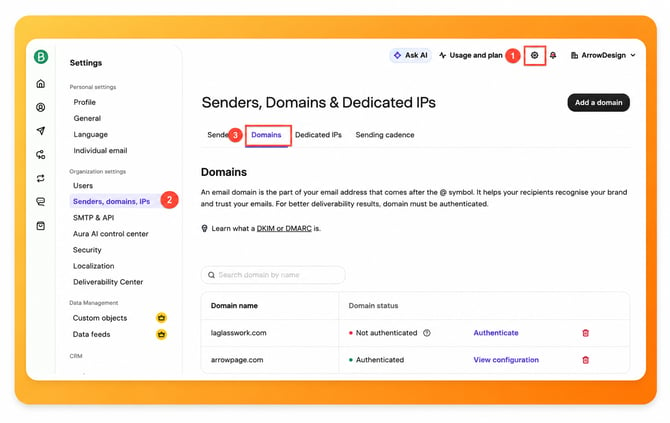
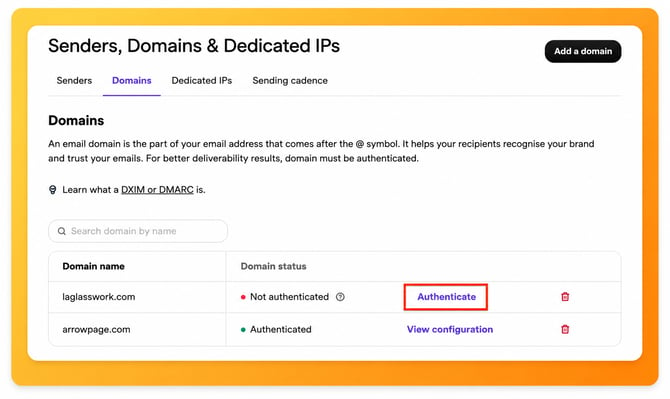
Find the domain you use to send emails through Brevo. If the domain is already listed, click Authenticate next to it. If it isn't listed yet:
1. Click Add a domain.
2. Enter your sending domain.
3. Click Add domain.
For example, if your sending address is marketing@yourcompany.com, your sending domain is yourcompany.com.
Tip: Make sure you authenticate the domain you actually use in your From address. If you send emails from multiple domains, each domain should be authenticated separately.
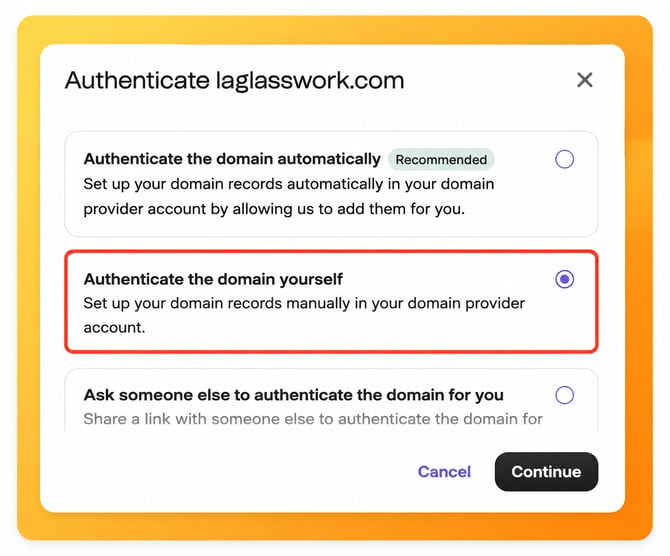
Brevo may offer automatic and manual authentication.
Automatic authentication is the recommended option when it is available. Brevo can connect with your domain provider and add the required DNS records for you.
Choose manual authentication if automatic authentication isn't available or if you prefer to manage your DNS records yourself.
For manual setup, select Authenticate the domain yourself and continue.
After clicking the Authenticate button, Brevo will provide several methods to authenticate your domain. We recommend choosing the manual option to avoid potential issues with the automated setup.
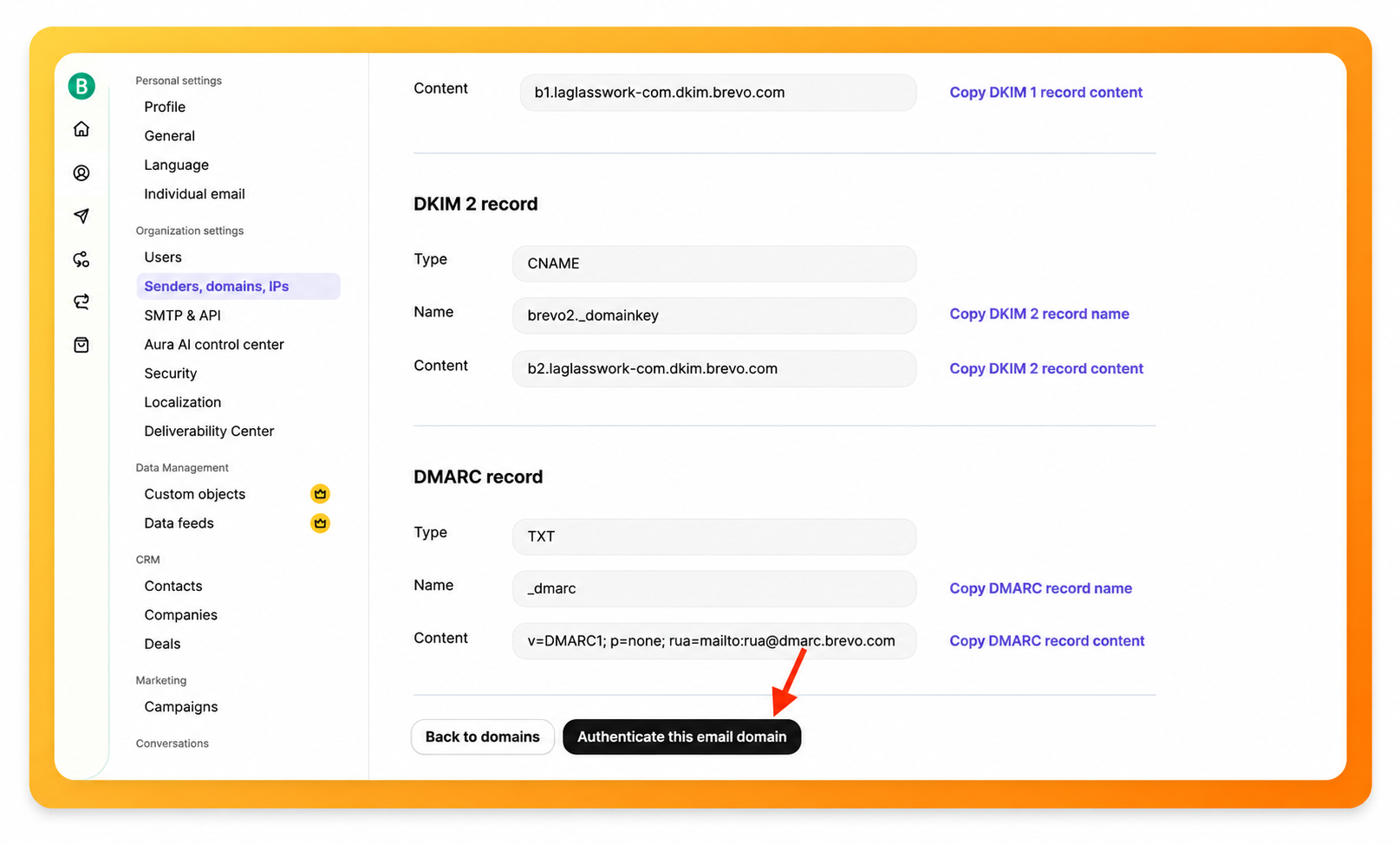
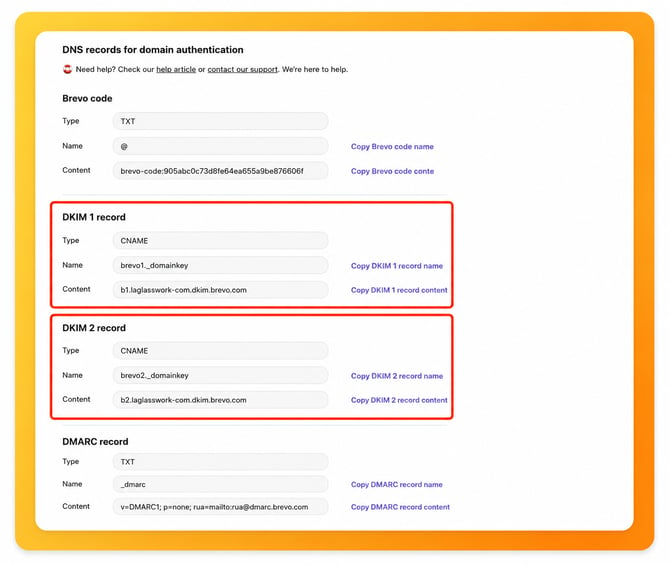
Brevo will display the DNS records required to authenticate your domain. Depending on your account, you may see:
- Brevo code - a TXT record used to verify that you own the domain.
- DKIM - either one TXT record or two CNAME records, depending on the setup shown in your account.
- DMARC - a TXT record that tells receiving mail servers how to handle messages that fail DMARC authentication. If you already have an existing DMARC record, there is no need to add this one, as each domain should have only one DMARC record.
Copy the values exactly as they appear in Brevo. Once selected, you’ll be provided with the DNS records that need to be published in your domain’s DNS zone.
Important: The DNS values are unique to your domain. Do not use example values from another domain or copy records from a different Brevo account.
Open your domain provider in a new browser tab and go to the DNS settings for the domain you're authenticating. Add each record shown in Brevo:
2. Add the DKIM record or records shown by Brevo.
3. Add the DMARC TXT record if you don't already have one.
4. Save your changes.
The exact steps can vary depending on your domain provider.
Before adding a new DMARC record, check whether your domain already has one.
A domain should have only one DMARC record. If you already have a DMARC record, don't create a second one just for Brevo. Multiple DMARC records can prevent authentication from working correctly.
If your existing DMARC record needs to be updated, follow Brevo's requirements rather than replacing it blindly.
Note: DNS changes can take time to propagate. Brevo states that authentication may take up to 48 hours after the records are published.
Brevo – SPF Record Configuration
Important: There is no need to set up an SPF record for Brevo, as SPF alignment is not supported due to how Brevo handles the “Envelope From” domain. This domain is managed by Brevo’s servers and does not match your “From” address domain.
For SPF alignment to pass, the “From” address domain must match the “Envelope From” domain. However, Brevo uses domains such as af.d.mailin.fr and kh.d.sender-sib.com, which differ from your domain. As a result, SPF alignment will fail during DMARC checks. This is common behavior across many Email Service Providers, and even if you add Brevo to your SPF record, SPF alignment will still not pass for Brevo emails.
If you choose to include Brevo in your SPF record (include:spf.sendinblue.com), it may look like this:
v=spf1 include:zoho.com include:spf.sendinblue.com ~all
It’s worth mentioning that DMARC requires either SPF or DKIM to be authenticated and aligned. As long as DKIM is properly configured, your emails will pass DMARC checks even without SPF.
After publishing the DNS records, return to the authentication page in Brevo. Click Authenticate this email domain.
Brevo will check your DNS records and display the authentication status. If everything is configured correctly, your domain will appear as Authenticated.
If Brevo cannot detect the records immediately, wait for the DNS changes to propagate and try again later.
Your Brevo sending domain should show as Authenticated in Brevo.
Your DKIM and DMARC records should be correctly published in your DNS, and Brevo should be able to verify them successfully.
Once authentication is complete, you can continue sending emails through Brevo with the domain properly configured.
Tip: If your domain is still not authenticated after 48 hours, verify that the record names and values match exactly what Brevo provided. You can also check the DNS settings with your domain provider or contact their support team.
Test Your Email Deliverability
After your domain is authenticated, you can test your emails to ensure authentication is working correctly and identify potential deliverability issues.
Use Warmy's Email Deliverability Test to check how your emails are being authenticated and delivered.