![Group 1261151152.png]](https://support.warmy.io/hs-fs/hubfs/Group%201261151152.png?width=50&height=50&name=Group%201261151152.png)
Introduction
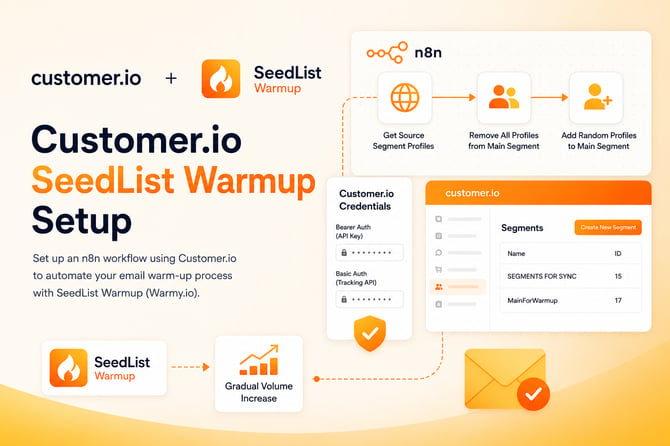
Learn how to configure an n8n workflow for SeedList Warmup using Customer.io segments and API credentials. This workflow automatically rotates contacts and gradually increases sending volume by 4% to 7% daily, helping support a controlled domain warm-up process with Warmy.io.
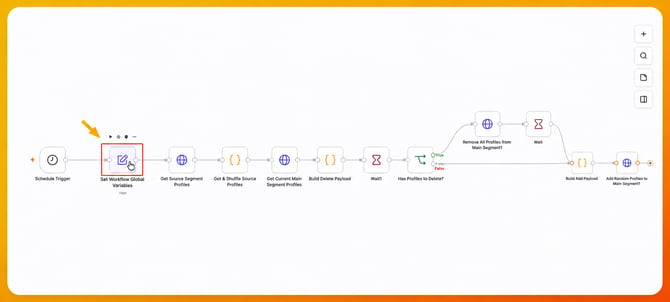
Firstly, you need to set your global variables.
- Click on Set Workflow Gobal Variables
- These variables are defined in the JSON box in the Parameters tab by using the Segment ID, for this example we are using the Segment IDs "17" and "15", you need to use the IDs of the Segments you create.
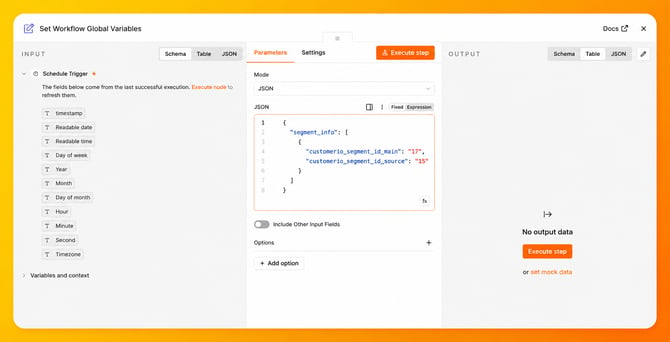
There are only two variables to configure. These correspond to two Customer.io segments. To set them up, follow these steps:
-
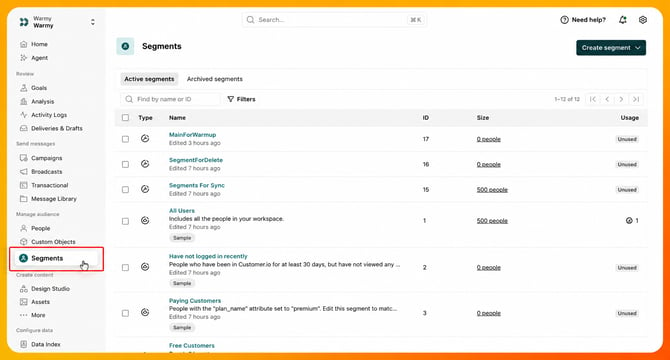
Go to Customer.io. In the sidebar menu, navigate to the Manage Audience section and click on Segments.
You need to use:
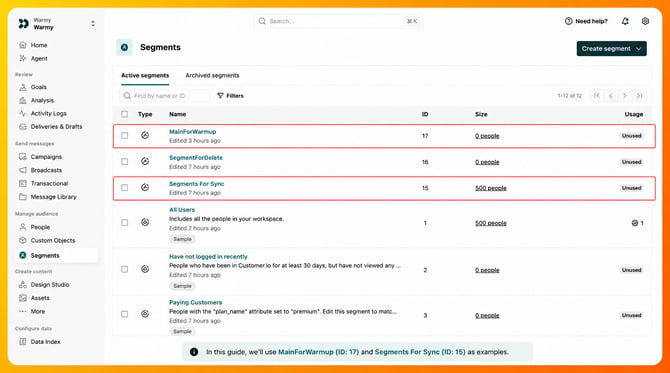
- A segment that is synchronized with your Warmy split as the source. In this example, the name of this segment is Segments For Sync, with the ID number 15.
- An empty segment that will be used as the main segment for all campaigns created to warm up your domain. In this example, the name of this segment is MainForWarmup, with the ID number 17.
-
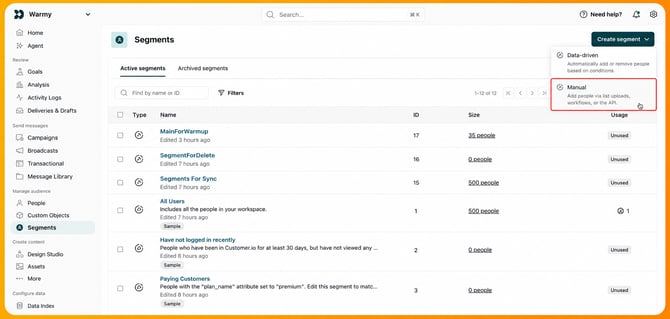
You can create a new segment by clicking the Create segment button located in the top-right corner of the screen.
-
When creating the segments, make sure to select Manual.
-
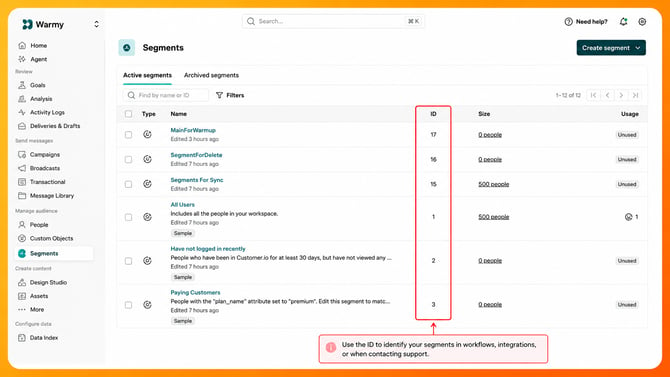
The segment IDs are shown in the table. For this example the IDs are: 15 and 17
You will need two sets/types of credentials:
- One set for "Set Workflow Global Variables" and "Get Current Main Segment Profiles" steps of the workflow.
- Another set for "Remove All Profiles from Main Segment" and "Add Random Profiles to Main Segment1"
First Set of Credentials You Need
-
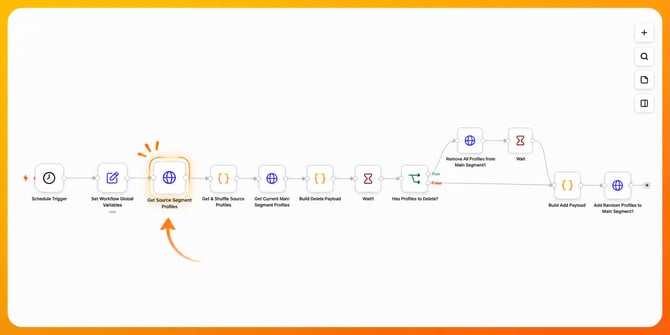
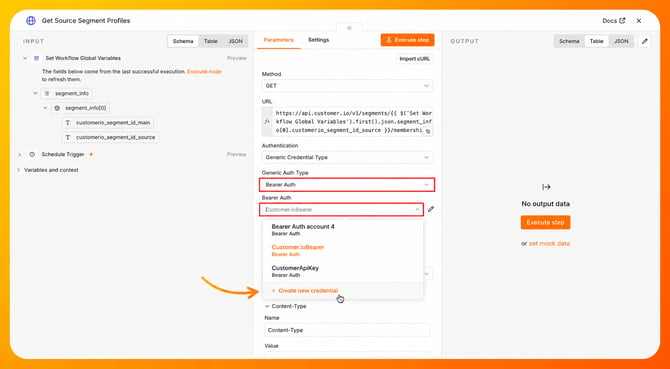
You need to click on the Get Source Segment Profiles step of the workflow.
-
Once it is open, in the Generic Auth Type field, select "Bearer Auth" and in the Bearer Auth field, click on Create New Credential to create the Credential for your own account. In this example, we have already created a credential named Customer.ioBearer (so, we are using this one).
-
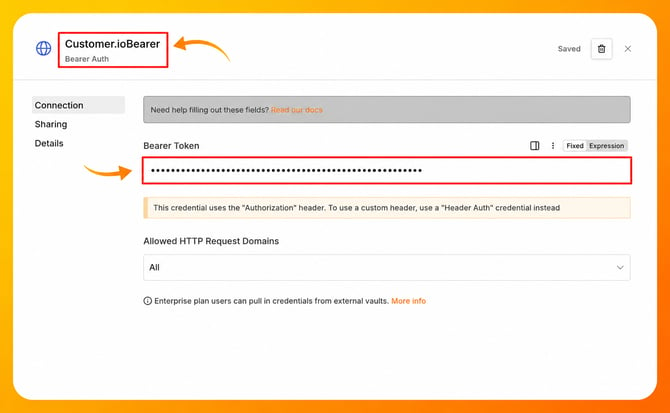
When you click Create New Credential, a new window will open. There, you will need to create or assign a name for the credential using the name field at the top of the window. Then, enter the Bearer Token, which is an API Key (you need to enter it in the field named Bearer Token).
How to Get the API Key
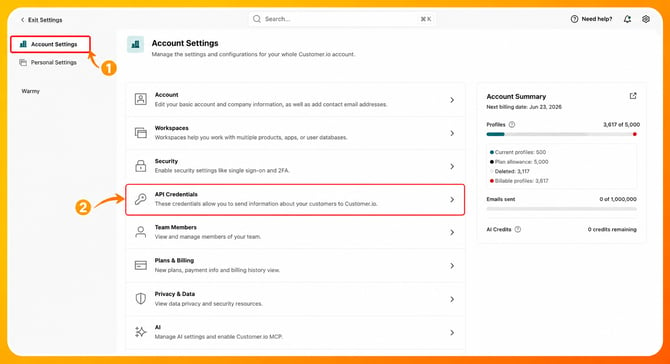
- To obtain the API key you need to: Go to Customer.io. > Open Account Settings > Open API Credentials.
- Go to the tab App API Keys > Click on Create App API Key > Copy the generated value.
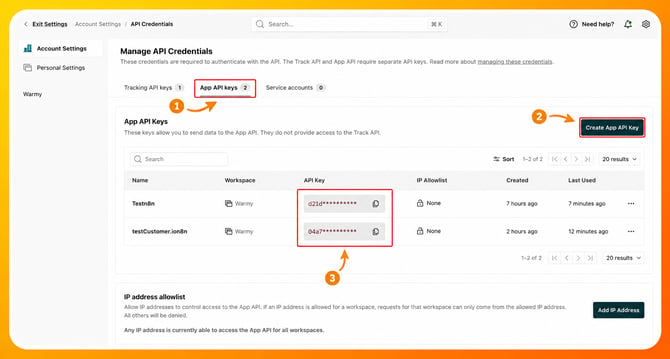
- Return to the credential window and paste the API key into the Bearer Token field.
- Save the credential.
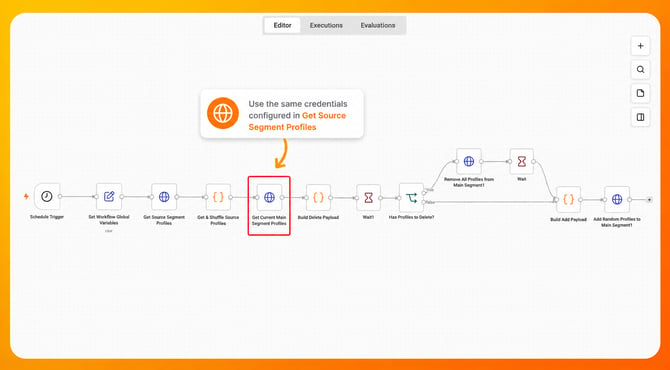
- The same credential will be used in the workflow named Get Current Main Segment Profiles.
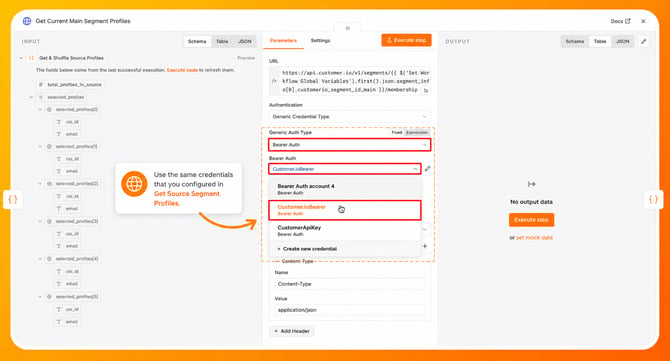
- In the Generic Auth Type field, select "Bearer Auth" and in the Bearer Auth field select the credential you created before, for this example Customer.ioBearer
Second Set of Credentials You Need
-
For the workflow steps Remove All Profiles from Main Segment and Add Random Profiles to Main Segment, you will need a different type of credentials.
Go to Customer.io again. However, this time, instead of opening the App API Keys tab, click on the Tracking API Keys tab. There you will see Site ID and API Key.
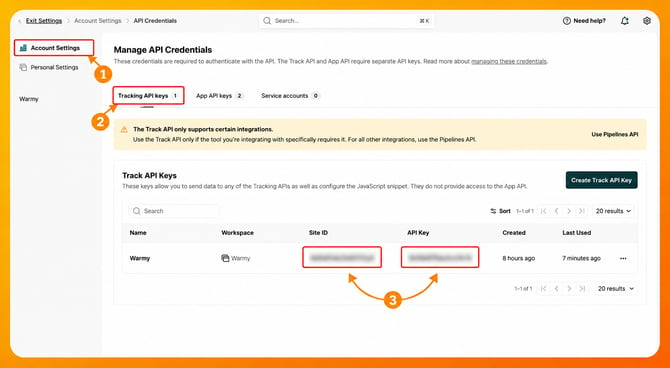
- Return to the workflow and click on the Remove All Profiles from Main Segment.
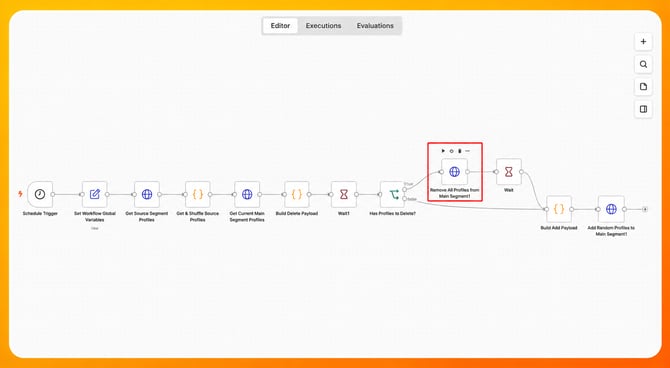
- In the Basic Auth field> Click on Create a new credential (this is to create a new credential), remember here we already created a credential and we are using it as example.
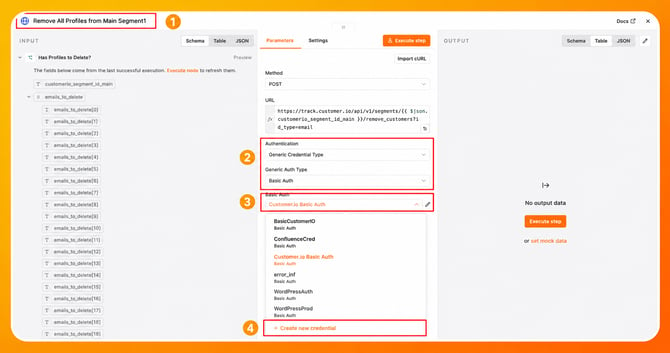
-
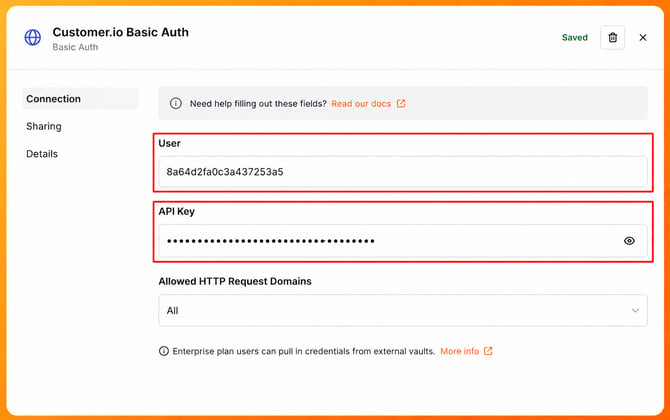
A window will appear where you will need to enter a name for the credential. In this example, the credential name is Customer.io Basic Auth. Then, enter the Site ID in the Username field and the API Key from the Tracking API Keys tab in the Password field.
Remember that Site ID and API Key for this step need to be obtained from:
Customer.io > Account Settings > Tracking API Keys tab
- The same credential is also used in the workflow step Add Random Profiles to Main Segment. For this example, select the Customer.io Basic Auth credential and click Save.
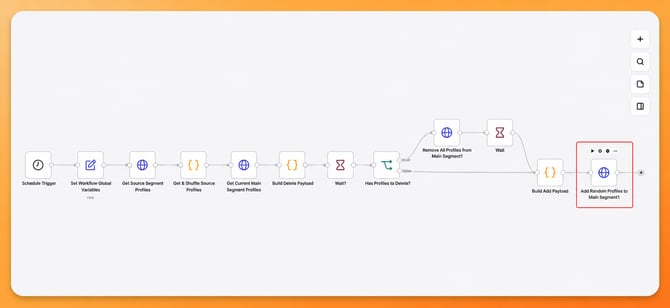
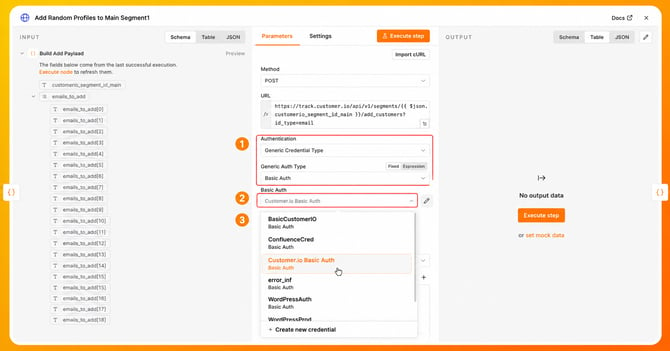
Testing the Workflow
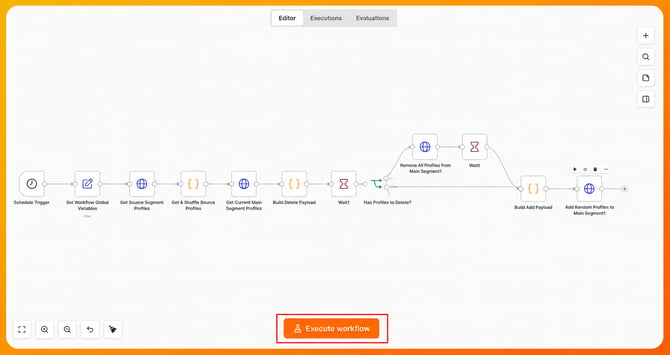
- To test the workflow, click the Execute Workflow button.
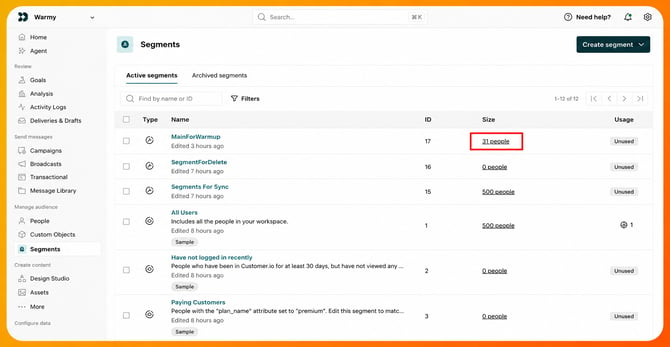
- After the workflow test is executed, then we go to Customer.io > Segments, and we can see that the main segment contains 31 people.
- Run the workflow again, like the next day for example and you should see the number increased.
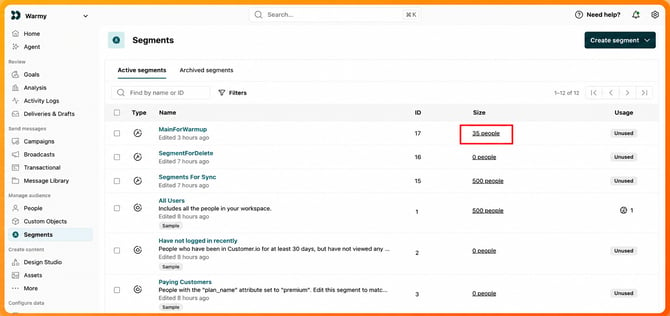
This is the main principle of how the workflow works.