---
title: N8N Integration
description: Learn how to install and use the Warmy Node in n8n to automate mailbox management, connect your Warmy account, run deliverability checks, and build powerful workflows without coding.
---
[Skip to content](https://support.warmy.io/knowledge/getting-started-with-the-warmy-node-for-n8n#main-content)
English
Show submenu for translations
![Group 1261151152.png\]](https://support.warmy.io/hs-fs/hubfs/Group%201261151152.png?width=50&height=50&name=Group%201261151152.png)
Open main navigation
Close main navigation
- English
Show submenu for translations
- [Go to warmy.io](https://www.warmy.io/)
[Go to warmy.io](https://www.warmy.io/)
Hey there Warmer! How can we help? 🙏
- There are no suggestions because the search field is empty.
1. [Help Center](https://support.warmy.io/knowledge?hsLang=en)
2. [Integrations](https://support.warmy.io/knowledge/integrations?hsLang=en)
# N8N Integration
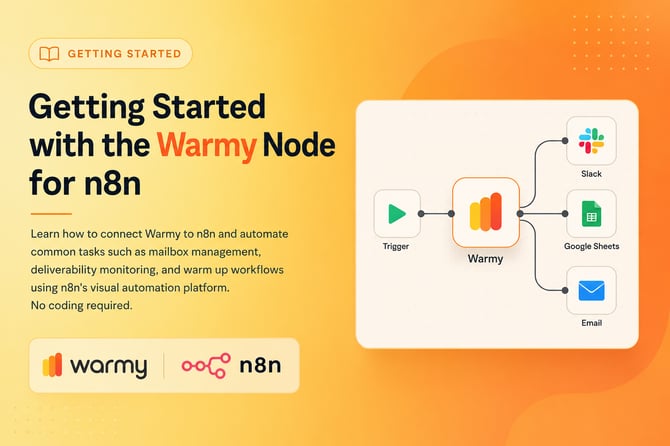
## Learn how to connect Warmy to n8n and automate common tasks such as mailbox management, deliverability monitoring, and warm up workflows using n8n's visual automation platform. No coding required.
### ****
🎧 Prefer to listen? Hit play to hear this article read aloud. 🔊
### **What's n8n?**
**n8n** is a workflow automation tool that helps you connect different apps and automate repetitive tasks. Think of it as a visual workspace where you can create automated processes without writing code.
The Warmy node for **n8n** allows you to connect your **Warmy** account to these automated workflows and manage certain tasks automatically.
With it, you can:
• Automatically create and manage mailboxes **without having to log in to the Warmy** dashboard.
• Run deliverability checks on a schedule and send the results to Slack, email, or a spreadsheet.
• Connect Warmy with your **CRM** so new leads can automatically be added to your warm up process.
• Collect warm up statistics and display them in reports or dashboards.
No coding is required. Everything is done through **n8n**'s visual drag and drop interface, where you simply connect steps and fill in the required fields.
Now, let's see how to install the Warmy Node in n8n.
---
### Install the Warmy Node
You only need to do this once. It takes about 2 minutes.
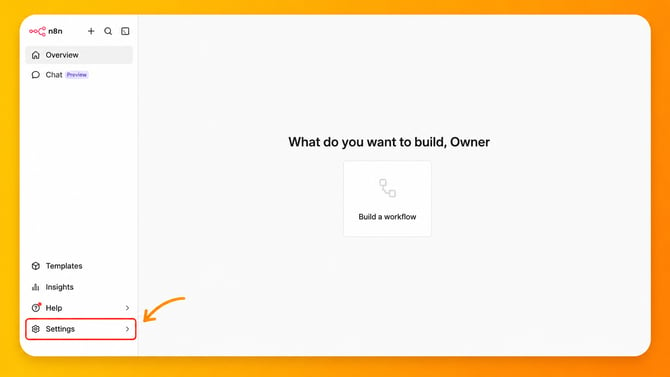
1. Open your **n8n** instance and click on **Settings** in the left sidebar.
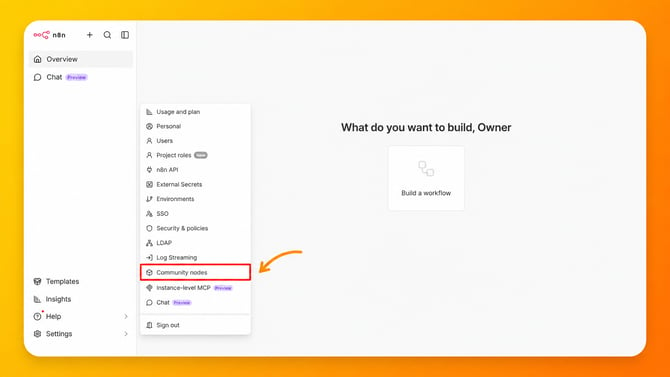
2. Click on **Community Nodes**.
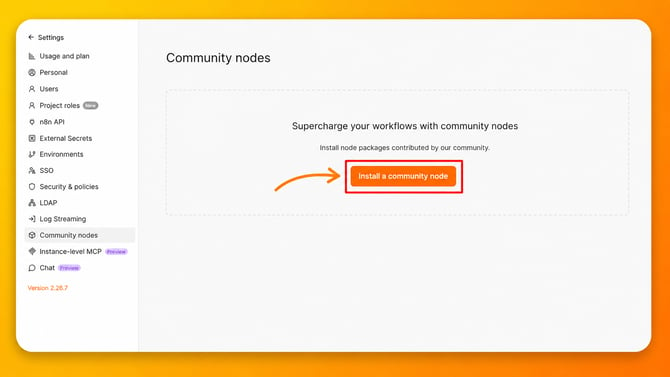
3. Click on the orange **Install a community node** button.
4. A window will open. In the **npm Package Name** field, type exactly:
` n8n-nodes-warmy-io `
Tick the checkbox to acknowledge that you are installing unverified code from a public source.
Click **Install** and wait for the green confirmation message.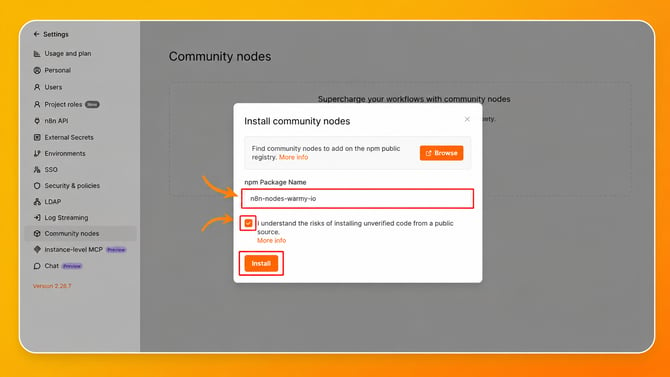
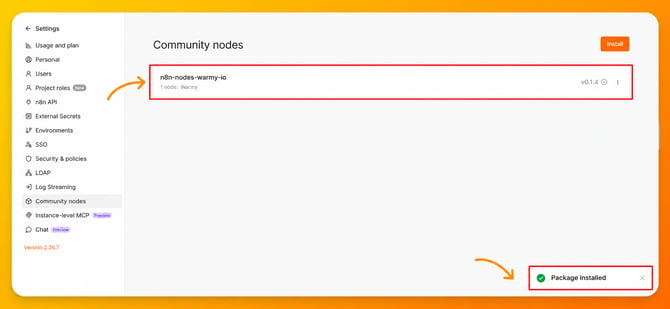
5. After the installation is complete, you should see a confirmation message in the bottom right corner of the screen that says **"Package installed"**. You should also see **n8n-nodes-warmy-io** listed in the **Community Nodes** section, confirming that the Warmy Node has been installed successfully.
Now, you need to...
---
### **Connect Your Warmy Account**
Before you can use the **Warmy Node in n8n**, you first need to connect it to your **Warmy account**.
To do this, complete the following two steps:
1. Obtain your **Warmy API Key**
To generate an **API Key**, log in to your Warmy account and select the appropriate **Workspace**. If you only have one Workspace, it will be selected automatically. If you manage multiple Workspaces, make sure to select the Workspace you want to connect to n8n. Once you have selected the correct Workspace, click on **Settings**.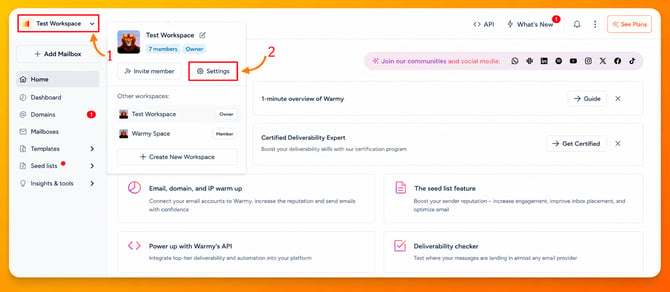
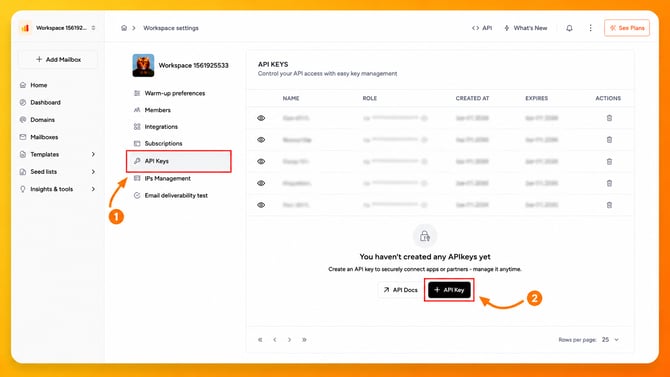
2. A new menu will appear in the center of the screen. From there, select **API Keys** and click the black **+ API Key** button.
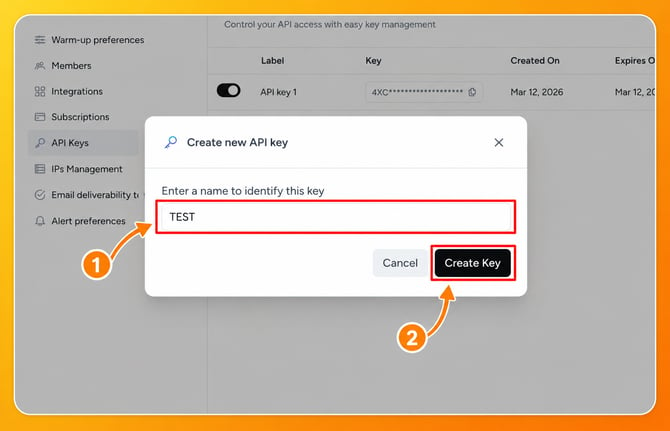
A small window will then open. Enter a name to help you identify this **API Key** later. You can choose any name you like. For this example, we'll use **TEST**. After entering the name, click **Create Key** to generate your API Key.
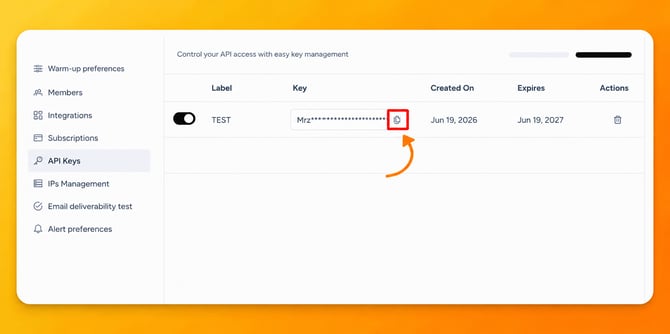
3. Once the **API Key** has been created, click the **Copy** icon to copy it to your clipboard. This is the **API Key** you will use later when configuring your Warmy credentials in **n8n**.
---
### **Add a New Credential in n8n**
1. To create a new credential in **n8n**, click the **+** icon located at the top of the left sidebar. A menu will appear. From that menu, click on **New Credential** to open the credential setup screen. 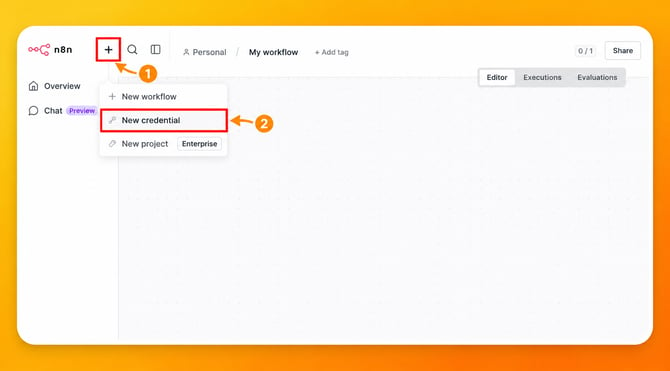
2. A new window will appear. In the **"Search for app..."** field, type **Warmy API**.
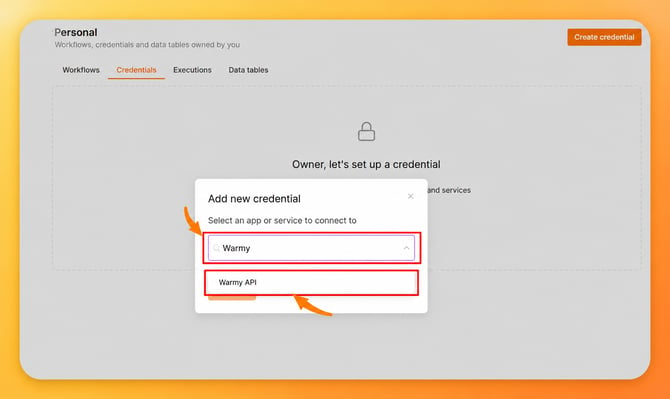
3. Once the search results are displayed, select **Warmy API** from the list and click **Continue**.
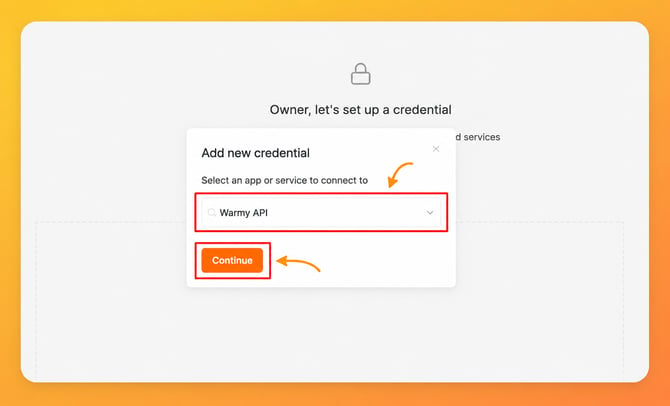
4. You will now see a new window with a few fields to complete. The first field is **API Token**, which is the same as your **API Key**. This is the API Key you generated earlier from your Warmy account by navigating to **Workspace \> Settings \> API Keys**.

5. If the information you entered is correct and the connection test is successful, you should see a **confirmation message** similar to the one shown below. Once the credential has been successfully **saved**, you can safely **close** the window and continue with your workflow setup.

**API Token** is the same as **API Key**
For more information about the Warmy API, please refer to the**: [API Documentation](https://www.warmy.io/api-documentation)**
Once both steps are complete, the **Warmy Node** will be able to securely communicate with your **Warmy account**, and you'll be ready to start building automated workflows.
You only need to set up these credentials once. After that, you can reuse them across all **Warmy nodes** in your workflows without entering them again.
The **Warmy Node** is organized into different resources. You can think of each resource as a specific area or feature of your **Warmy account** that you can interact with through **n8n**.
| **Resource** | **What it does?** | **Example actions** |
| --- | --- | --- |
| Mailbox | Manage your email mailboxes | Create a mailbox, check its status, update warm-up speed |
| Deliverability Checker | Test whether your emails land in Inbox | Run a check, see inbox vs. spam results |
| Standalone Deliverability Checker | Quick one-off deliverability tests | Create a test, get results |
| SeedList | View and manage seed-address lists | See which seed addresses are in your splits |
| User Template | Manage email templates | Create, update or list your templates |
| Custom API Call | Advanced: call any Warmy API endpoint | Access features not yet in the node |
Now that your **Warmy account is connected** to **n8n**, you're ready to build your first workflow.
---
We will present and example of use and in this example, you'll learn how to use the Warmy Node to **create a mailbox directly** from **n8n**.
---
### **Create a Mailbox - Example of Use**
1. To get started, create a new workflow. Click the **+** icon located at the top of the left sidebar. A menu will appear. From the available options, select **New Workflow** to create a blank workflow. **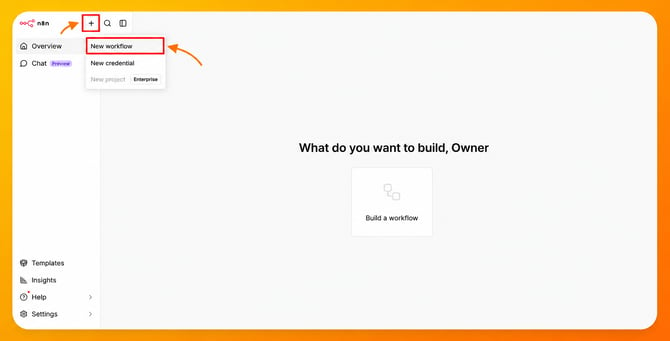**
2. Next, click **Add First Step** to begin building your workflow. This will open the node selection panel, where you can choose the first action for your workflow.
In the **"Search nodes..."** field, type **Manual Trigger**. Once the node appears in the search results, click on it to add it to your workflow.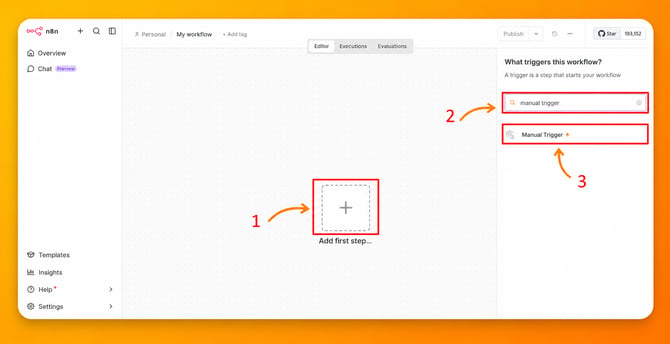
3. Next, click the **+** icon located on the right side of the **Manual Trigger** node. This will open the node selection panel.
In the **"Search nodes..."** field, type **Warmy**. When the **Warmy** option appears in the search results, click on it.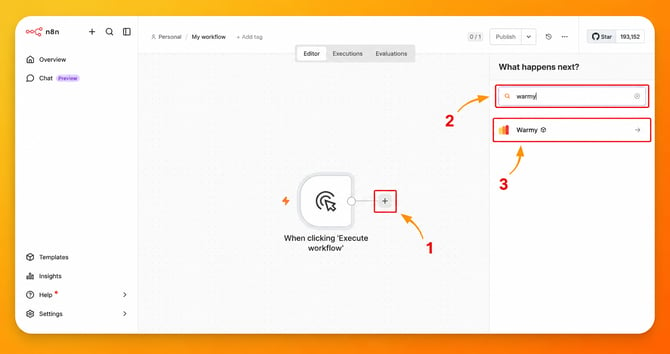
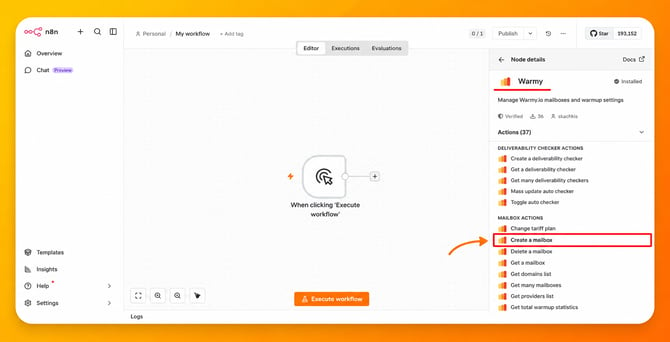
4. You will see a list of available actions for the **Warmy** node. Locate **Create a Mailbox** and click on it to select it as the action for this workflow.
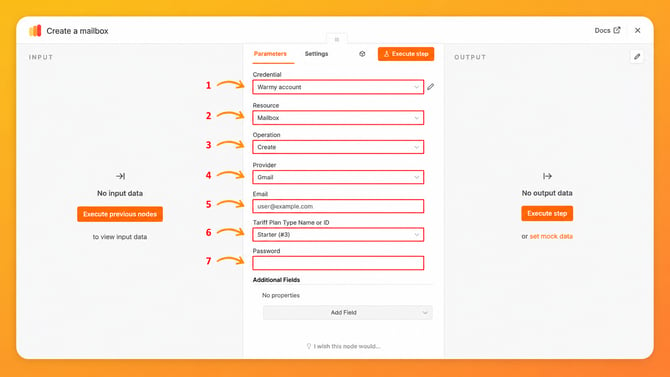
5. A new windows will be shown and there you need to **configure some settings** like:
| **Field** | **Value** |
| --- | --- |
| **Credential** | *Earlier in this guide, we showed you how to create a new credential in n8n. When you click the **Credentials** dropdown, you should see the credential you created in the previous steps. Select that credential to allow the Warmy node to connect to your Warmy account.* |
| **Resource** | *Mailbox* |
| **Operation** | *Select "Create a new mailbox"* |
| **Provider** | *Select your email provider (Gmail, Outlook or any other)* |
| **Email** | *Your mailbox address* |
| **Tariff Plan** | *The plan or subscription you have (Starter or any other)* |
| **Password** | *Your mailbox password / app password* |
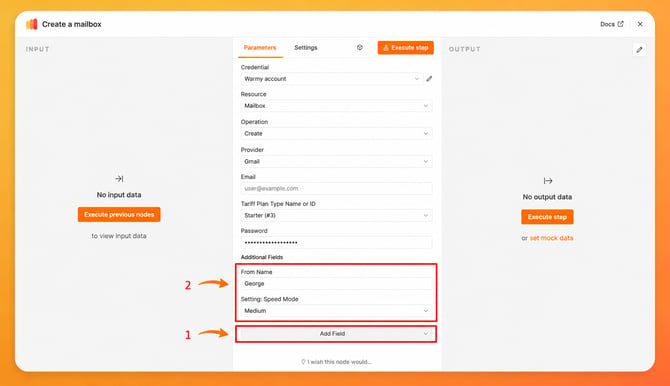
6. You will need to add two additional fields to complete the mailbox configuration.
Click **Add Field** to view the available options. From the list, add **From Name** and **Setting: Speed Mode**. Once added, both fields will appear in the configuration form and be ready to be filled in with the information mentioned in the table below.
| **Field** | **Value you need to set** |
| --- | --- |
| **From Name** | *Here you can set your name (Example: George)* |
| **Setting: Speed Mode** | *Select "Medium"* |
7. As last step, you need to test if all configuration is correct and if everything is working fine now. Click **Execute Step** button to test your workflow.
If everything has been configured correctly, the request will run successfully. You can verify the result in the **Output** panel on the right side of the screen, where you should see a response similar to this:
`{ "message": "Your mailbox successfully added", "data": { "id": 327632, "tariff_plan_type_id": 1 } }`
This confirms that the mailbox was successfully created in your Warmy account.
8. Finally, click **Save Workflow** to save your changes. That's it. Your first Warmy automation is now ready to use.
---
#### Need help? [**Schedule a call with us!**](https://www.warmy.io/book-a-support-call)
- [Connection Guide](https://support.warmy.io/knowledge/connection-guide?hsLang=en)
- [General questions](https://support.warmy.io/knowledge/general-questions?hsLang=en)
- [Technical questions](https://support.warmy.io/knowledge/technical-questions?hsLang=en#main-content)
- [SPF and DKIM Configuration](https://support.warmy.io/knowledge/technical-questions?hsLang=en#spf-and-dkim-configuration)
- [Subscription](https://support.warmy.io/knowledge/subscription?hsLang=en)
- [Collaborate](https://support.warmy.io/knowledge/collaborate?hsLang=en)
- [Features](https://support.warmy.io/knowledge/features?hsLang=en)
- [Troubleshooting](https://support.warmy.io/knowledge/troubleshooting?hsLang=en#main-content)
- [SMTP Errors](https://support.warmy.io/knowledge/troubleshooting?hsLang=en#smtp-errors)
- [Service-related issues](https://support.warmy.io/knowledge/troubleshooting?hsLang=en#service-related-issues)
- [Integrations](https://support.warmy.io/knowledge/integrations?hsLang=en#main-content)
- [Seed List Automations](https://support.warmy.io/knowledge/integrations?hsLang=en#seed-list-automations)
[](https://www.warmy.io/)
warmy.io Help Center
Copyright © 2026, AnyBiz LTD