![Group 1261151152.png]](https://support.warmy.io/hs-fs/hubfs/Group%201261151152.png?width=50&height=50&name=Group%201261151152.png)
🎧 Prefer to listen? Hit play to hear this article read aloud.
Setting up Domain Authentication in SendGrid automatically configures your DKIM and SPF records. This process proves to inbox providers that you own the domain and that SendGrid is authorized to send emails on your behalf.
Important: Passing SPF and DKIM checks in SendGrid does not automatically mean your emails will pass DMARC. A common issue is SPF passing for sendgrid.net instead of your own domain — this happens when Domain Authentication is incomplete or not applied to the sending account. See Step 6 below.
Step 1: Start Domain Authentication
-
Log in to your SendGrid account.
-
Navigate to Settings > Sender Authentication.
-
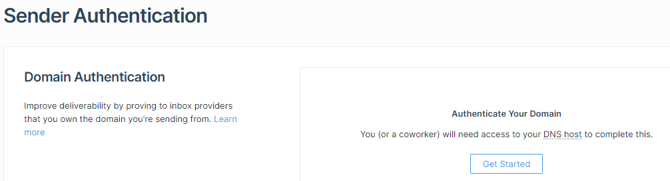
In the Domain Authentication section, click Authenticate Your Domain.
Step 2: Select Your DNS Host
-
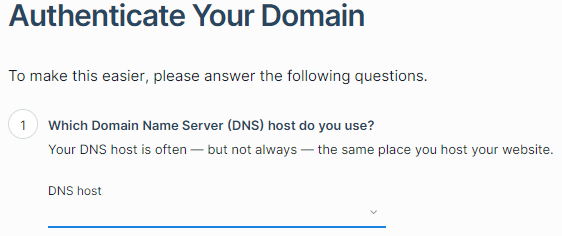
Choose your DNS host (e.g., Cloudflare, AWS, Namecheap) from the provided list.
-
Select whether you want SendGrid to rewrite tracking links to use your domain.
-
Click Next.
Step 3: Enter Your Domain
-
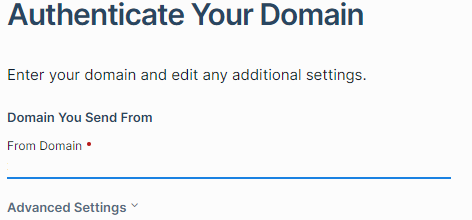
Enter the root domain you will use to send emails (e.g.,
yourdomain.com).
-
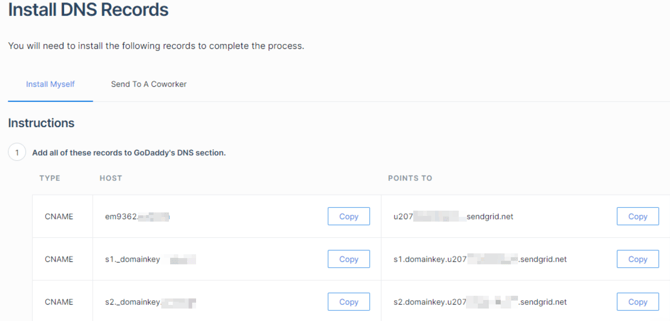
Click Next. SendGrid will generate a set of DNS records. By default, SendGrid uses automated security, which provides CNAME records instead of traditional TXT records to handle both SPF and DKIM automatically.
Step 4: Add Records to Your DNS Provider
-
Log in to your DNS provider's control panel in a separate tab.
-
Navigate to your DNS settings or Zone Editor.
-
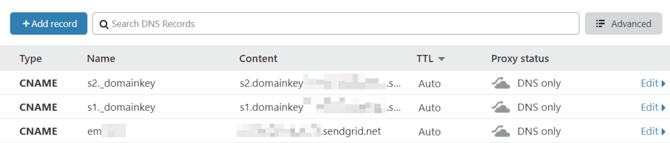
Create new records based on the exact values SendGrid generated. Copy and paste the Type (CNAME), Host(Name), and Value (Target) for each record. Sample CNAME records in Cloudflare DNS:
Step 5: Verify the Configuration
-
Return to the SendGrid dashboard.
-
Check the box labeled I've added these records.
-
Click Verify.
-
If the DNS changes have propagated, you will see a "It worked!" success message. If it fails, wait 15-30 minutes and try verifying again, as DNS updates can take time.
Step 6: Check DMARC Alignment
-
If your domain doesn't already have a DMARC record, add one before testing. You can use Warmy's free DMARC Record Generator to create a valid record without needing to know the syntax — it walks you through choosing your policy and where to send reports.
-
Send a test email to a Gmail or Outlook address.
- Open the email and view the original headers (Gmail: "Show original"; Outlook: "View message details").
-
Check the Authentication-Results section. For SPF, look at the smtp.mailfrom (Return-Path) domain — it should show your authenticated sending domain, not sendgrid.net. If SPF passes for sendgrid.net, the SPF check itself succeeds, but DMARC alignment may still fail. Also confirm that dmarc=pass appears.