---
title: How to Replace or Reconnect a Mailbox in Warmy
description: "If you want to replace an existing mailbox, you'll need to disconnect the current one. Here you can find detailed instructions: How do I disconnect or remove my mailbox? Now you'll need only to Add M"
---
[Skip to content](https://support.warmy.io/knowledge/how-to-switch-mailboxes-in-warmy#main-content)
English
Show submenu for translations
![Group 1261151152.png\]](https://support.warmy.io/hs-fs/hubfs/Group%201261151152.png?width=50&height=50&name=Group%201261151152.png)
Open main navigation
Close main navigation
- English
Show submenu for translations
- [Go to warmy.io](https://www.warmy.io/)
[Go to warmy.io](https://www.warmy.io/)
Hey there Warmer! How can we help? 🙏
- There are no suggestions because the search field is empty.
1. [Help Center](https://support.warmy.io/knowledge?hsLang=en)
2. [General questions](https://support.warmy.io/knowledge/general-questions?hsLang=en)
# How to Replace or Reconnect a Mailbox in Warmy
## Learn how to replace a mailbox in Warmy by disconnecting the existing mailbox and connecting a new one, and what happens to your warm-up progress and deliverability data.
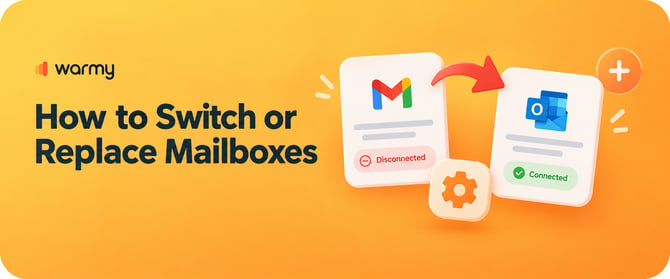
#### **👀 Please take a look in the video with the steps if you need any help 😎**
---
🎧 Prefer to listen? Hit play to hear this article read aloud. 🔊
---
### **How to Replace or Reconnect a Mailbox in Warmy**
#### **Introduction**
If you need to use a different mailbox in Warmy, you can replace the current one by disconnecting it and connecting a new mailbox.
Warmy does not have a direct **Switch** or **Replace** option. When you reconnect a mailbox with a different account, Warmy treats it as a new mailbox, so the new mailbox starts its warm-up from zero.
**Important:** Warmy does not have a direct **Switch** or **Replace** option. **When you connect a different account,** Warmy treats it as a new mailbox, so the new mailbox starts its warm-up from zero.
---
### **How to Reconnect a Mailbox**
If the mailbox is already in Warmy and you only need to restore the connection (for example, after a password change or an expired token), you don’t need to replace it — reconnecting keeps all warm-up history and metrics.
1. Go to the **Mailboxes** tab and open the mailbox.
2. Click **Settings**.
3. Click **Reconnect** and confirm — for Google and Outlook you’ll be asked to sign in again; for SMTP, re-enter the updated credentials.
#### **What Happens When You Replace a Mailbox?**
Before replacing your mailbox, keep the following in mind:
• The old mailbox is **disconnected** from Warmy.
• The new mailbox is connected as a **new mailbox**.
• The new mailbox's warm-up starts from **zero**.
• Warm-up metrics from the old mailbox are lost.
• Email deliverability test data from the old mailbox is lost.
• Lost mailbox metrics and deliverability test data **cannot be restored**.
• If needed, **Warmy Support can restore the old warm-up volume** for the new mailbox upon request.
**Note:** If you connect a new mailbox using the same domain, the domain/IP warm-up progress is not actually lost. What is lost is the mailbox-specific metrics and deliverability test data stored in Warmy.
---
### **How to Replace a Mailbox**
#### **Disconnect the Existing Mailbox**
First, disconnect the mailbox you no longer want to use.
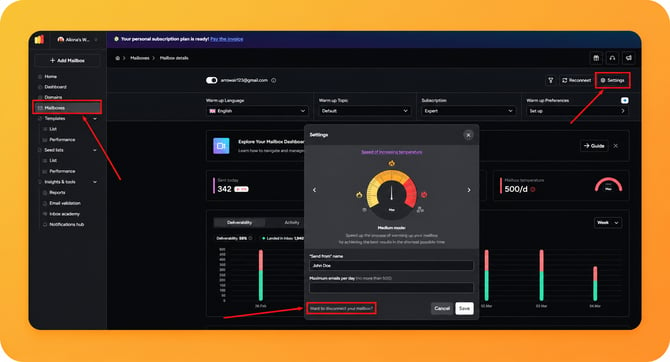
1\. Go to the **Mailboxes** tab in your Warmy dashboard.
2\. Select the mailbox you want to replace.
3\. Click **Settings**.
4\. Select **Want to disconnect your mailbox?**
5\. Confirm the disconnection.
**Important:** Make sure you select the correct mailbox before disconnecting it. Its Warmy metrics and deliverability test data cannot be restored after the mailbox is replaced.
---
#### **Connect the New Mailbox**
After disconnecting the old mailbox, you can connect the new one.
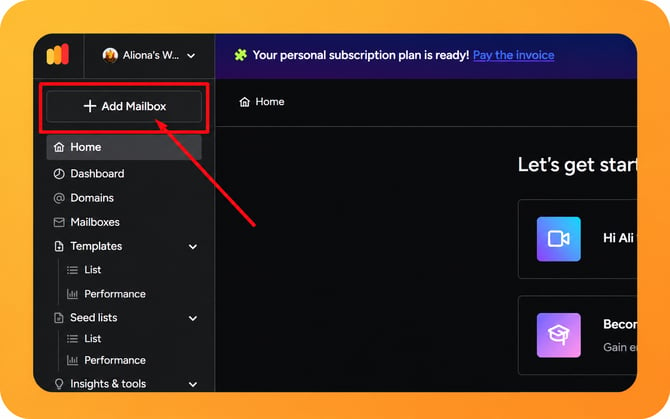
1\. Go to the **Mailboxes** tab.
2\. Click **+ Add Mailbox**.
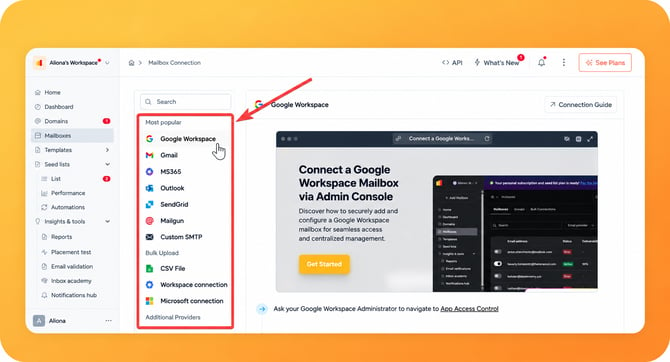
3\. Select your mailbox provider, such as **Google**, **Outlook**, or **SMTP**.
4\. Follow the on-screen instructions to connect your mailbox.
5\. Complete the required authentication.
Once the connection is successful, the new mailbox will appear in the **Mailboxes** tab.
The new mailbox will start its warm-up from the beginning. Warm-up may take some time to start after the mailbox is connected.
---
**Restore the Previous Warm-Up Volume if Needed**
If you replaced a mailbox and want the new mailbox to use the previous warm-up volume, contact **Warmy Support**.
Our support team can restore the previous **warm-up volume** for the new mailbox upon request.
**Note:** Restoring the previous warm-up volume does **not** restore the old mailbox's metrics or email deliverability test data. Those records cannot be recovered.
---
#### **Replacing a Mailbox in Bulk**
Mailbox replacement cannot be performed in bulk directly from your Warmy account.
If you need to disconnect multiple mailboxes, contact the [Warmy Support team](https://www.warmy.io/contact). Our team can help with bulk mailbox disconnections.
---
#### **Expected Result**
After completing the replacement:
• The old mailbox is disconnected.
• The new mailbox is connected to Warmy.
• The new mailbox starts its warm-up from zero.
• The old mailbox's Warmy metrics and deliverability test data are no longer available.
• If the new mailbox uses the same domain, the underlying domain/IP warm-up progress is not actually lost.
• Warmy Support can restore the previous warm-up volume for the new mailbox if requested.
• This means that replacing a mailbox is effectively a **disconnect-and-connect process**, rather than a direct mailbox switch.
#### [Need help? **Schedule a call with us**](https://www.warmy.io/book-a-support-call)
- [Connection Guide](https://support.warmy.io/knowledge/connection-guide?hsLang=en)
- [General questions](https://support.warmy.io/knowledge/general-questions?hsLang=en)
- [Technical questions](https://support.warmy.io/knowledge/technical-questions?hsLang=en#main-content)
- [SPF and DKIM Configuration](https://support.warmy.io/knowledge/technical-questions?hsLang=en#spf-and-dkim-configuration)
- [Subscription](https://support.warmy.io/knowledge/subscription?hsLang=en)
- [Collaborate](https://support.warmy.io/knowledge/collaborate?hsLang=en)
- [Features](https://support.warmy.io/knowledge/features?hsLang=en)
- [Troubleshooting](https://support.warmy.io/knowledge/troubleshooting?hsLang=en#main-content)
- [SMTP Errors](https://support.warmy.io/knowledge/troubleshooting?hsLang=en#smtp-errors)
- [Service-related issues](https://support.warmy.io/knowledge/troubleshooting?hsLang=en#service-related-issues)
- [Integrations](https://support.warmy.io/knowledge/integrations?hsLang=en#main-content)
- [Seed List Automations](https://support.warmy.io/knowledge/integrations?hsLang=en#seed-list-automations)
[](https://www.warmy.io/)
warmy.io Help Center
Copyright © 2026, AnyBiz LTD