![Group 1261151152.png]](https://support.warmy.io/hs-fs/hubfs/Group%201261151152.png?width=50&height=50&name=Group%201261151152.png)
✅ SPF: Supported
✅ DKIM: Supported
🎧 Prefer to listen? Hit play to hear this article read aloud.
You can do this by following these steps:
-
Go to More > Settings.
-
Click Senders from the menu on the left.
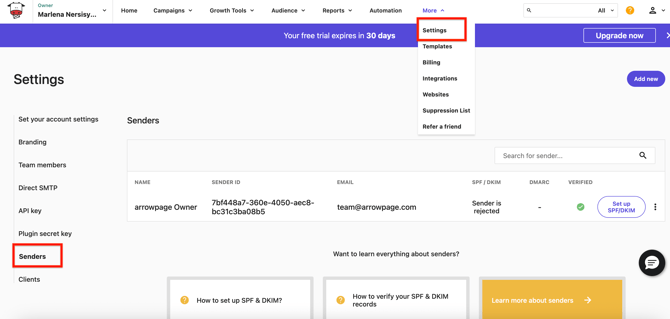
In the SPF/DKIM column, you can see which senders already have a valid SPF/DKIM signature.
To set it up:
-
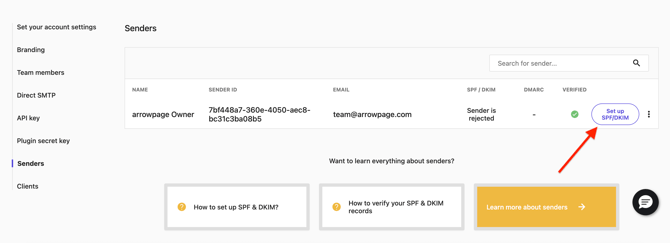
Click the ”Set up SPF/DKIM” button, next to the sender you would like to configure.
-
You will then see the SPF and/or DKIM records that need to be added to your DNS.
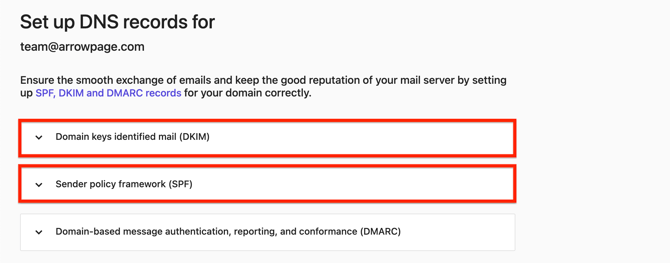
Moosend – SPF Record Configuration
Important: If you already have an SPF record for your domain, you do not need to create a new one. Instead, simply update your existing SPF record by adding the following include mechanism:
include:spfa.mailendo.com
For example:
v=spf1 include:_spf.google.com include:spfa.mailendo.com ~all
If you do not have an existing SPF record, you can publish the TXT record provided by Moosend.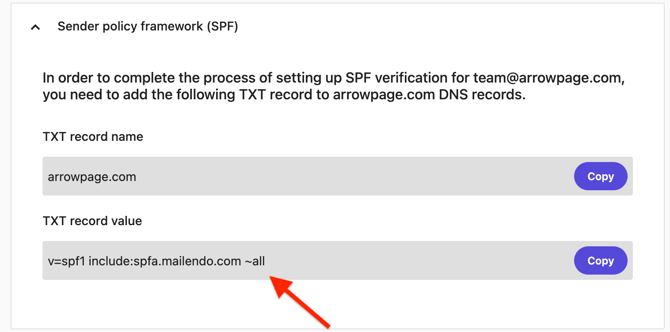
Important: Make sure there is only one SPF record published for your domain. If multiple SPF records exist, SPF validation will fail with a PermError.
Moosend – DKIM Record Configuration
-
Click on the DKIM record.
-
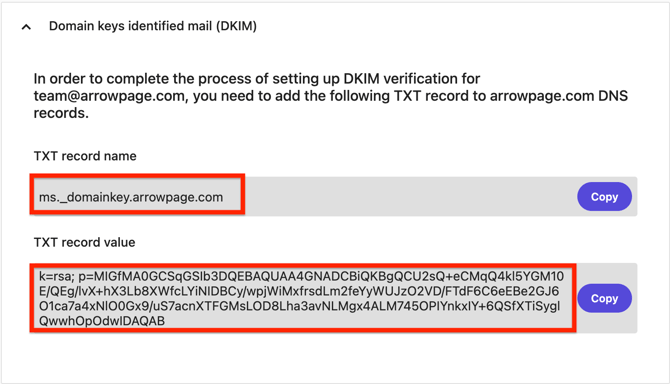
A TXT DKIM record will be provided to you.
-
Add the TXT record to your DNS. Once the record has been added, go back to your Moosend account.
-
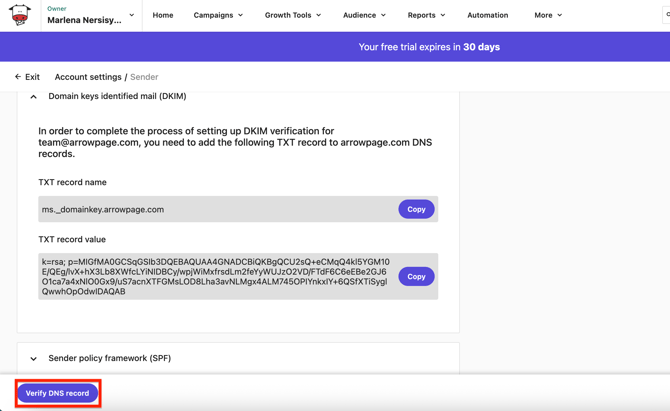
Click Verify DNS records.
-
If everything is configured correctly, green check marks will appear next to SPF and DKIM, which means your domain has been successfully authenticated.
You can test the emails with our Email Deliverability Test tool.