![Group 1261151152.png]](https://support.warmy.io/hs-fs/hubfs/Group%201261151152.png?width=50&height=50&name=Group%201261151152.png)
 Prefer to listen? Hit play to hear this article read aloud.
✅ SPF: Supported
✅ DKIM: Supported
Zoho Mail is a secure, ad-free email hosting service designed for businesses, offering custom domain email, collaboration tools, and seamless integration with other Zoho applications.
Zoho Mail – SPF Record Configuration
- Log in to your Zoho Mail account and navigate to the Admin Console.
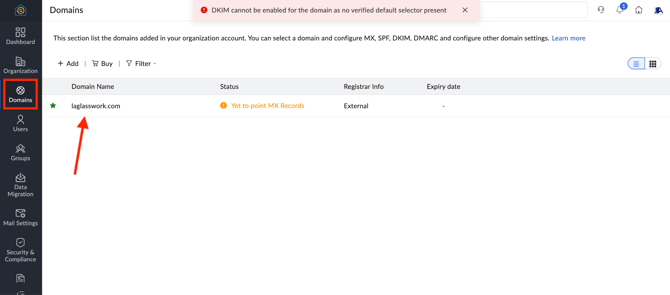
- Select Domains from the left sidebar.
- Choose the domain you'd like to configure.
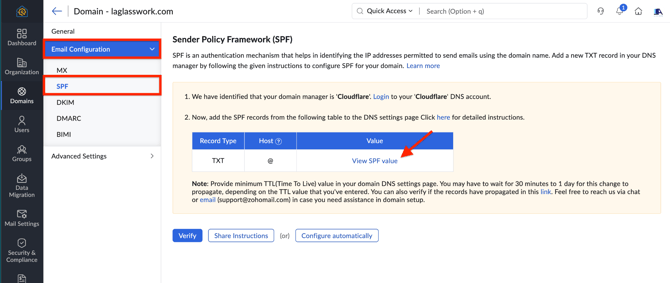
Click View SPF Value to retrieve your SPF record.
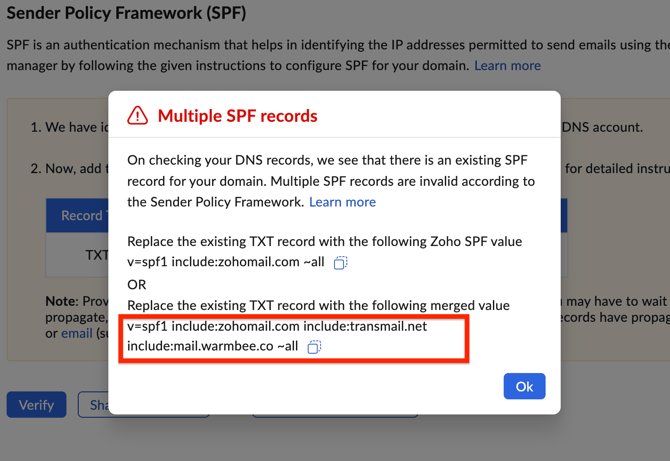
Note: If you already have an existing SPF record, do not create a new one. Instead, add the following include mechanism to your current record:
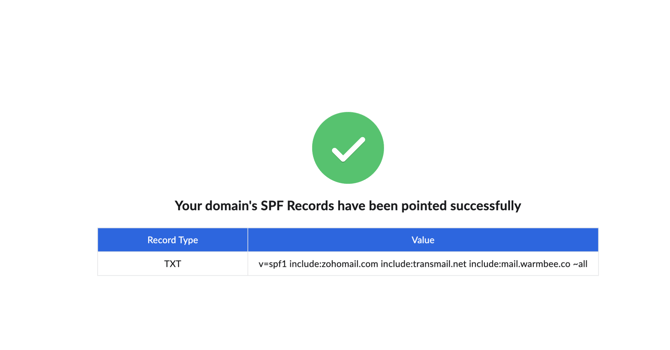
"v=spf1 include:zohomail.com include:transmail.net include:mail.warmbee.co ~all"
If no SPF record exists, publish the TXT record provided by Zoho directly. In this example, we already have an existing SPF record, so we'll simply update it to include the Zoho SPF entry.
5. Once the SPF record has been published or updated in your DNS zone, return to Zoho and click Verify. If the record has propagated correctly, a green checkmark will confirm successful verification.
Zoho Mail – DKIM Record Configuration
1. In the Email Configuration tab, select DKIM.
2. Click +Add to generate a new DKIM key, or publish the default key provided by Zoho.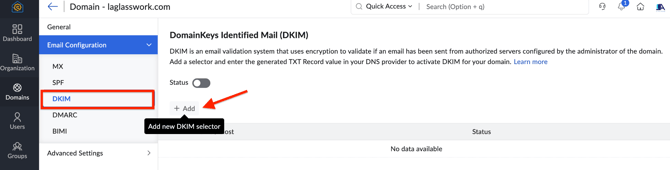
3. Enter a unique selector in the first field.
4. Select 2048-bit key length, as this is the recommended option.
5. Click Add to generate your DKIM record. 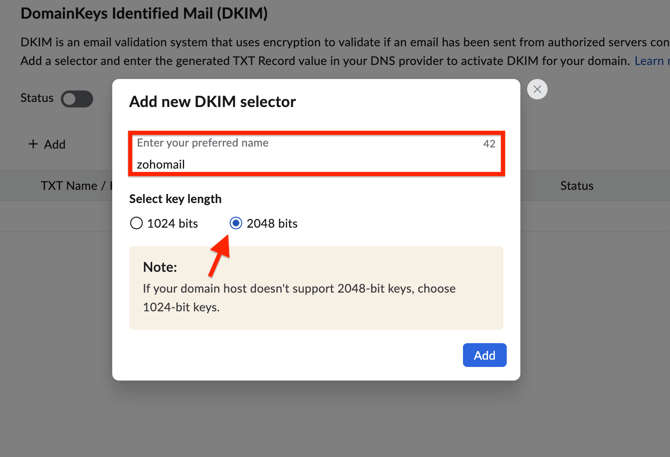
6. Copy the record and publish it in your DNS zone.
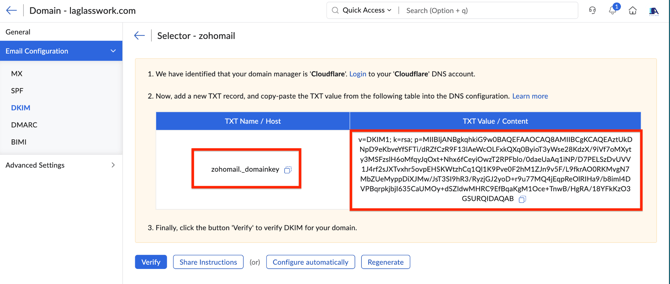
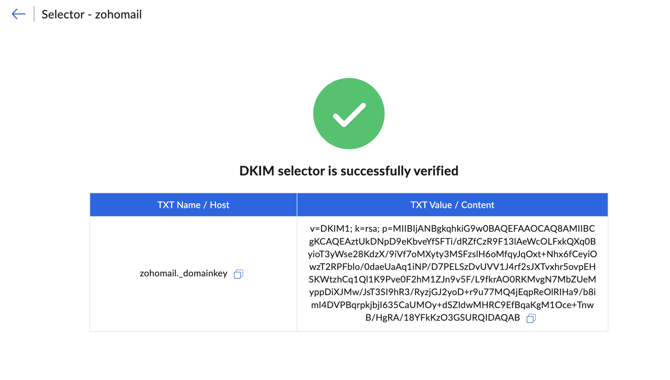
7. After saving the TXT record in your DNS, return to Zoho and click Verify. If everything has been configured correctly, a green checkmark will confirm that your DKIM record has been successfully verified.