![Group 1261151152.png]](https://support.warmy.io/hs-fs/hubfs/Group%201261151152.png?height=50&name=Group%201261151152.png)
Introduction
This guide explains how to set up an automation that syncs your Warmy seed list with Klaviyo using Make.com. You will generate API keys, retrieve your seed list split ID, prepare two Klaviyo lists, configure notifications in Warmy, and finish the setup using our public Make.com template ⭐
To get started, you first need to sign up for a Make.com account and purchase a subscription there 🙌
Step 1: Generate Your API Keys
To begin, create the required API keys:
-
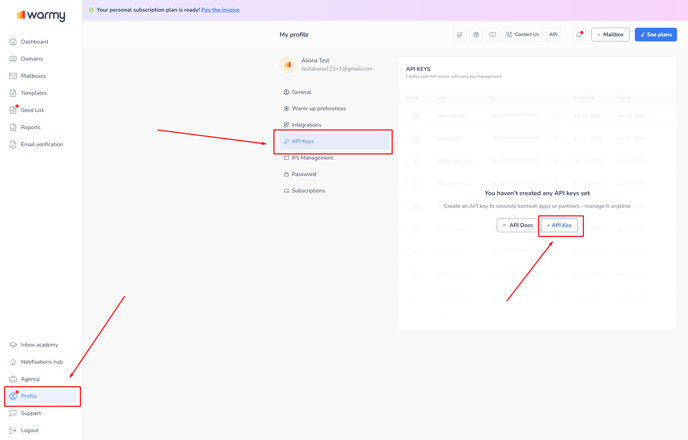
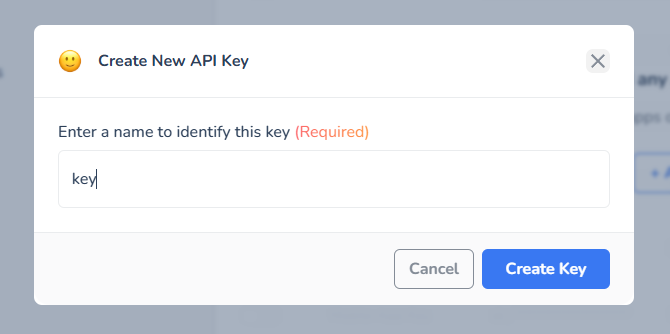
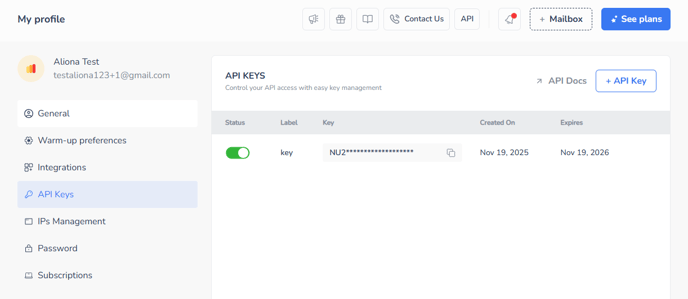
In Warmy, generate a new API key.
-
In Klaviyo, generate a private API key.
.png?width=688&height=439&name=image%20(11).png)
.png?width=688&height=412&name=image%20(12).png)
.png?width=688&height=354&name=image%20(13).png)
.png?width=688&height=296&name=image%20(14).png)
Remember: Klaviyo shows this key only once, so copy and save it for later
Step 2: Find Your Seed List Split ID
Currently, it can only be requested from our support team. Please reach out to hi@warmy.io 🙏
To retrieve your split ID:
-
Open the Warmy API documentation.
-
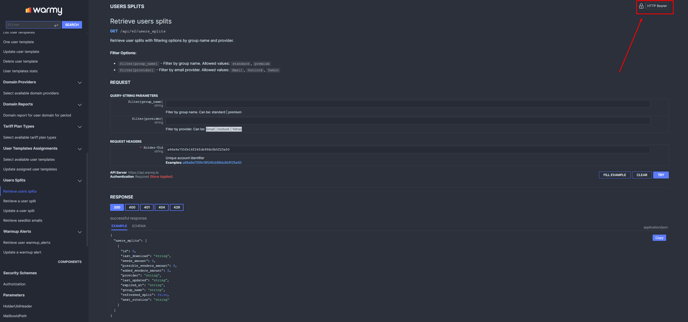
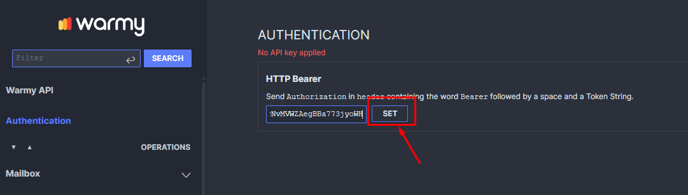
Log in at the top right using the Warmy API key you generated.
-
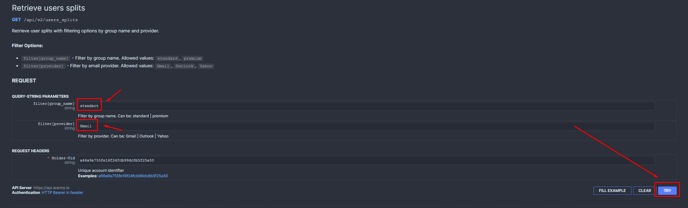
Go to the endpoint for retrieving split IDs.
-
Enter your seed list type (standard or premium) and provider (Gmail, Outlook, or Yahoo).
-
Click Try and copy the split ID from the response.
Step 3: Create Two Klaviyo Lists
Inside Klaviyo, create two lists: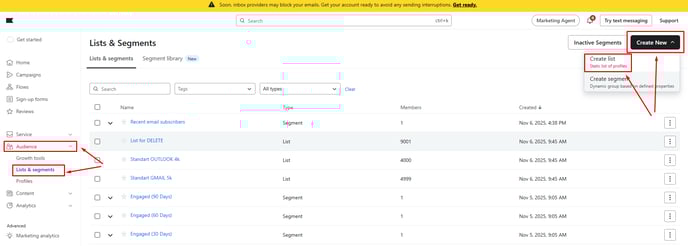
-
Seed List – this will store the Warmy seed list emails.
-3.png?width=688&height=616&name=image%20(1)-3.png)
-1.png?width=688&height=246&name=image%20(3)-1.png)
-
Deleted Emails List – this list will store outdated seed list emails after an update or rotation.
-2.png?width=688&height=820&name=image%20(2)-2.png)
You will later need each list's ID. You can find the ID in the URL of the list page 🙌.png?width=688&height=282&name=image%20(4).png)
.png?width=688&height=310&name=image%20(5).png)
.png?width=688&height=243&name=image%20(6).png)
.png?width=688&height=294&name=image%20(7).png)
Step 4: Configure Notifications in Warmy
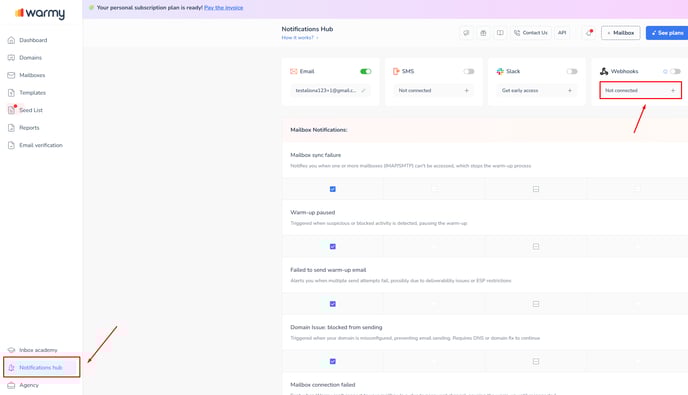
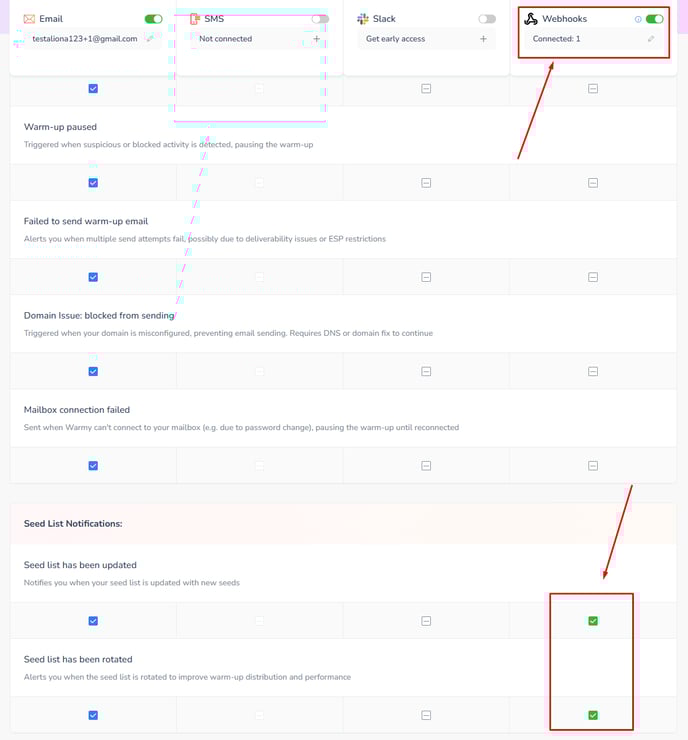
In Warmy, go to the Notifications Hub and set up the webhook:
-
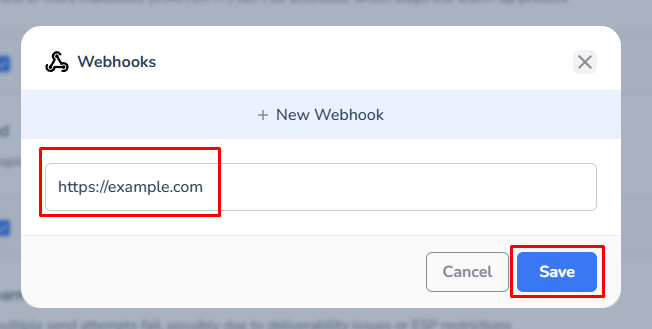
Add a new webhook (leave it as https://example.com for now).
-
Uncheck all notification types except the last two related to the seed list.
Step 5: Set Up the Automation in Make.com
Open our public Make.com template and click Start guided setup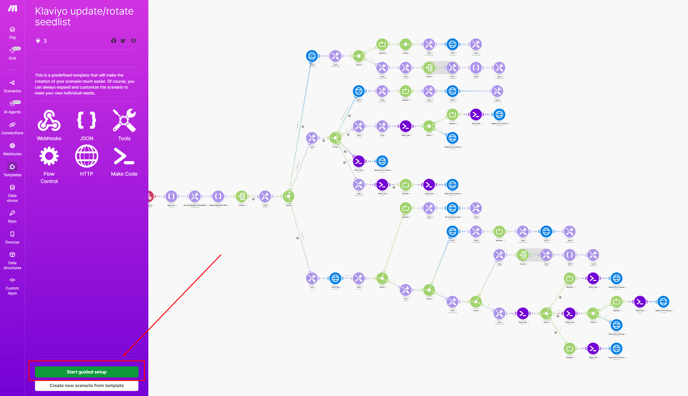
Step 5.1 – Create the Webhook
-
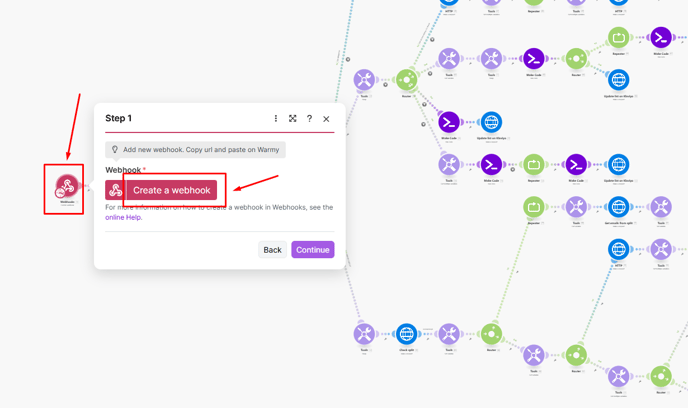
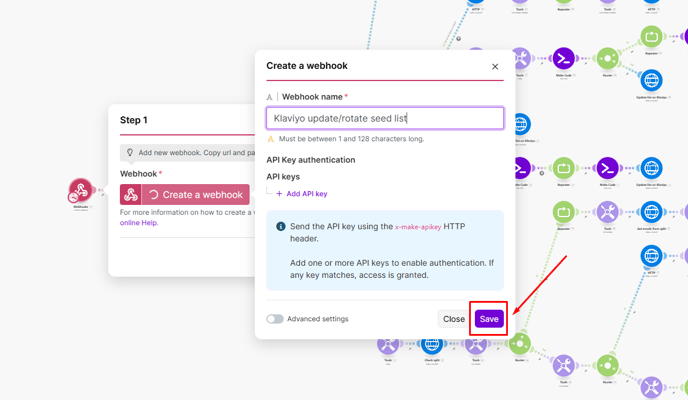
Click the first step in the setup.
-
Name your webhook and save it.
-
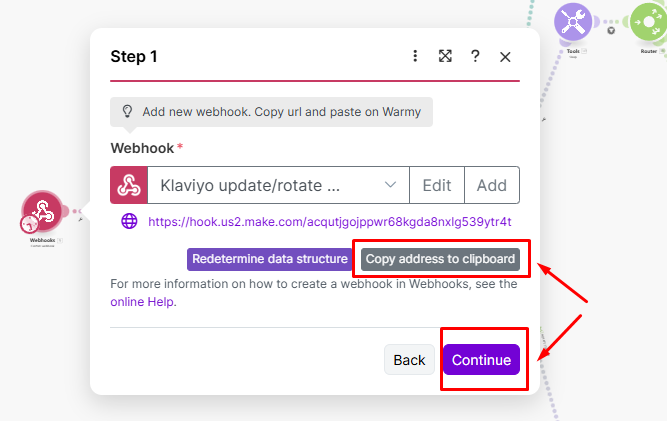
Copy the webhook URL.
-
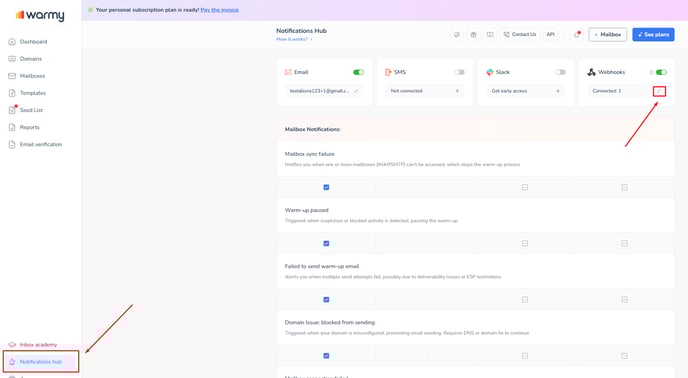
Return to Warmy → Notification Hub → paste this URL into your webhook.
-
Activate the webhook and ensure only the last two seed‑list-related checkboxes are enabled.
Step 5.2 – Add the Sample Data Structure
-
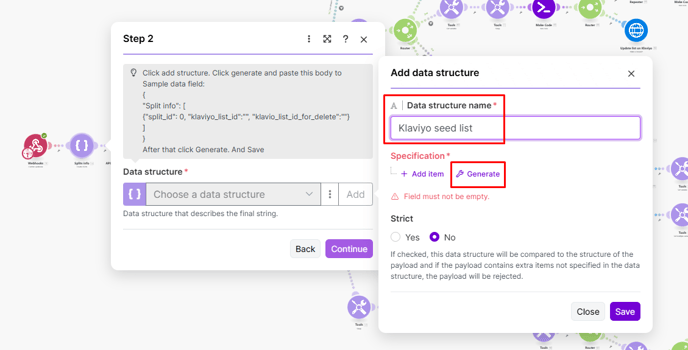
Go back to the Make template setup → Step 2.
-
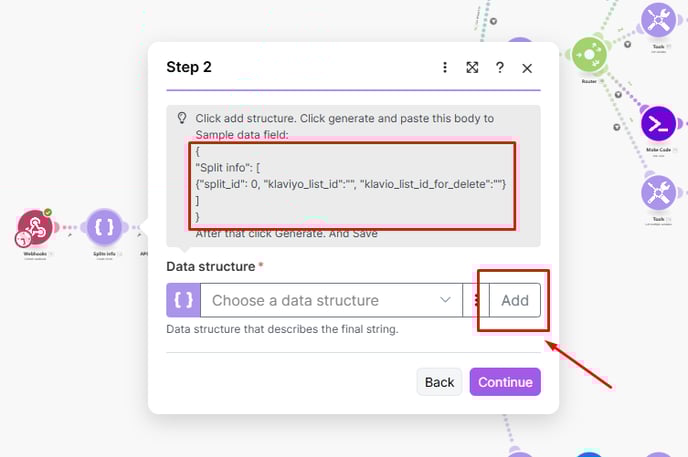
Copy the sample data field provided.
-
Click Add, then give your structure a name and click Generate.
-
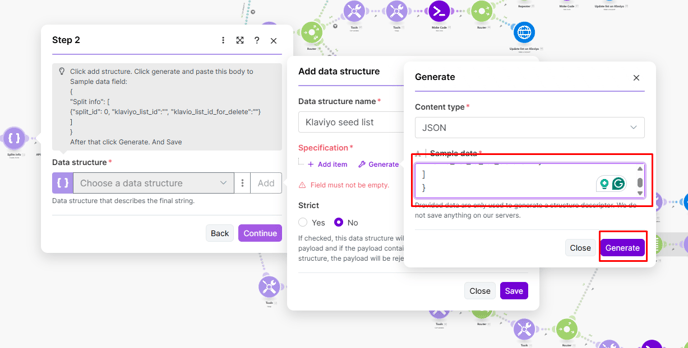
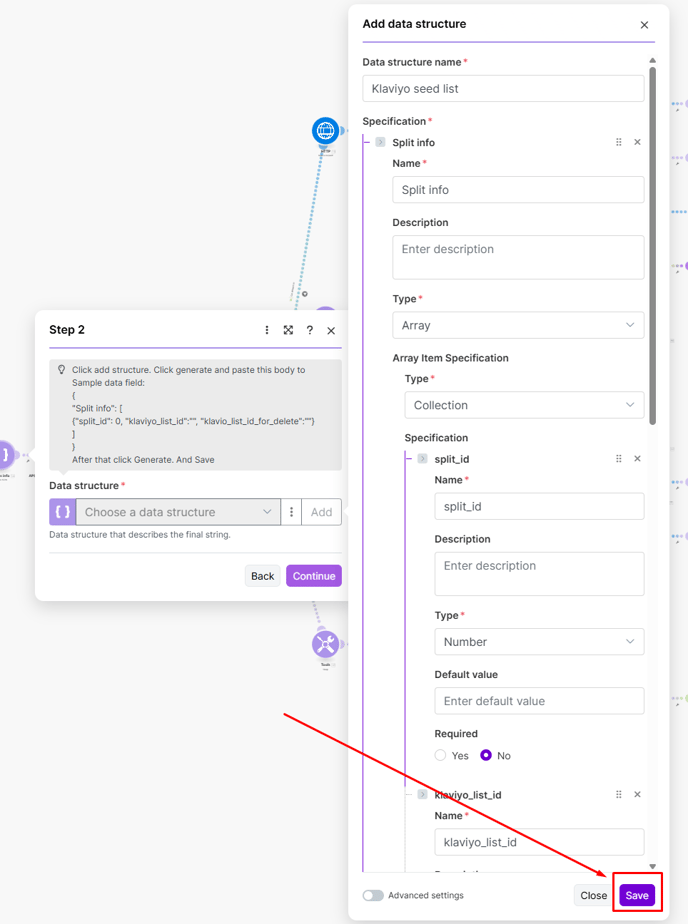
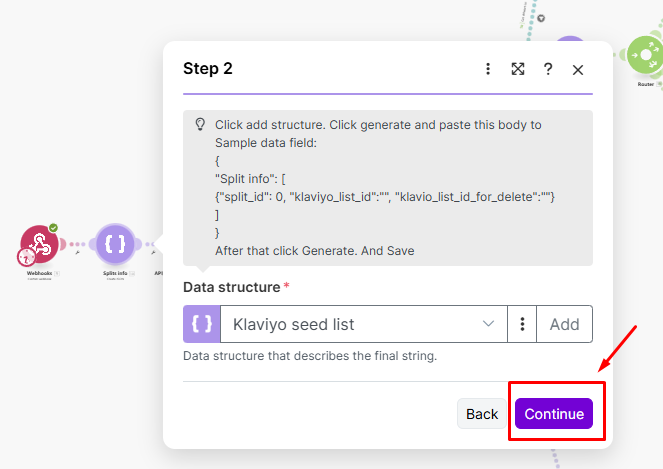
Paste the sample data → click Generate → Save → Continue.
Step 5.3 – Add Your API Keys
-
Paste your Warmy API key.
-
Paste your Klaviyo API key.
-
Click Continue.
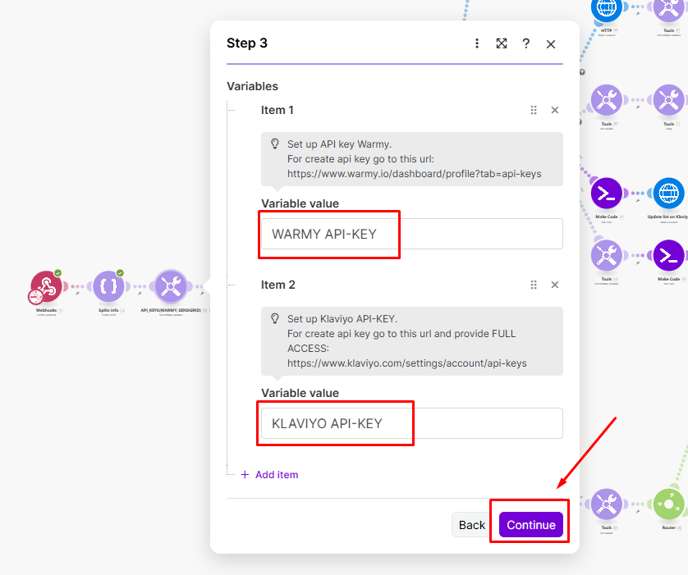
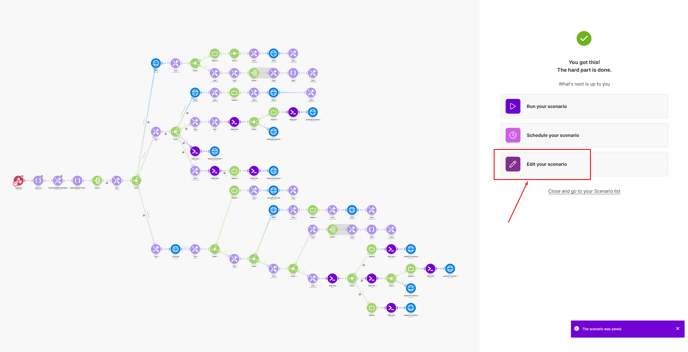
Step 5.4 – Add Split ID and Klaviyo List IDs
-
Click Edit your scenario on the right.
-
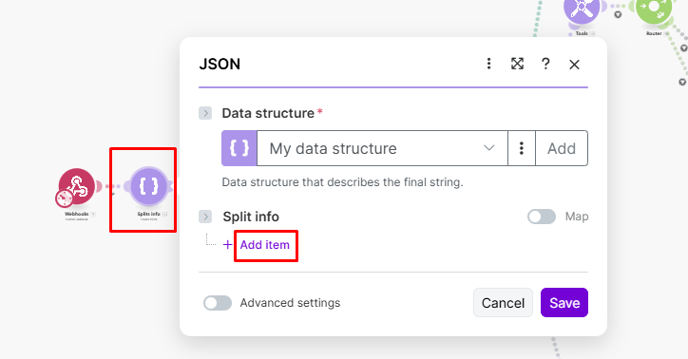
Open the Split Info module.
-
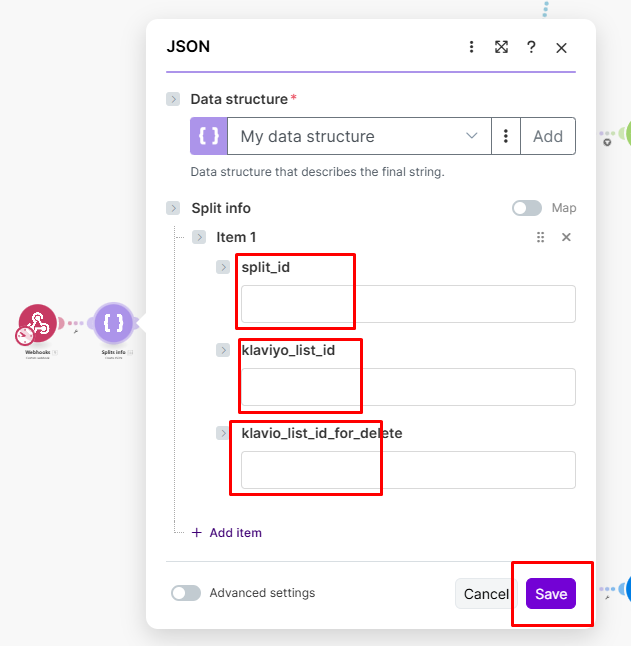
Click Add Item and insert:
-
Save.
That's it! 👍
Clean Up Deleted Emails List
After each seed list update or rotation(especially!), you have to clear the deleted emails list in Klaviyo, following the screenshot instructions 🙏.png?width=688&height=423&name=image%20(8).png)
.png?width=688&height=338&name=image%20(9).png)
Final! Activate Scheduling
Before activating the automation, make sure to download the seed list and add it to both Klaviyo lists — the one we named “Gmail seed list,” for example, and the list used for deletions. This way, when you download the updated seed list after rotation, you will upload it into the Gmail list again, and then clean the deletion list (as explained earlier). Repeat this process each time you download a new updated seed list.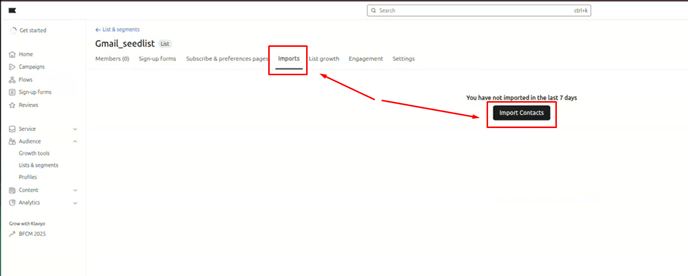
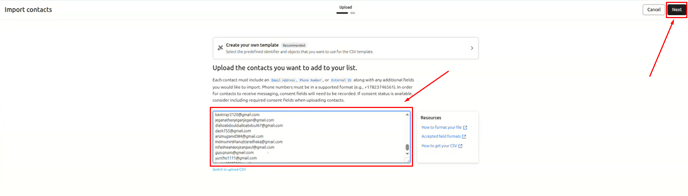
Delete the word "email" at the beginning of the list.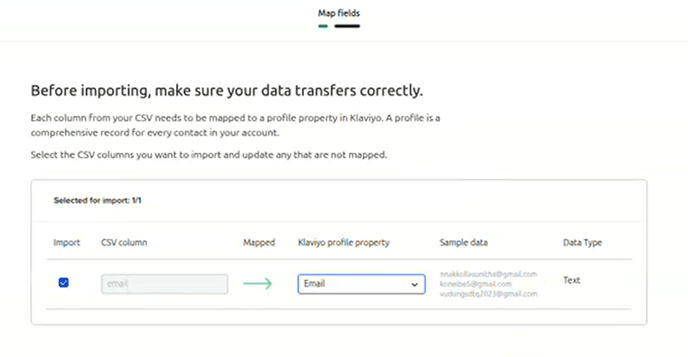
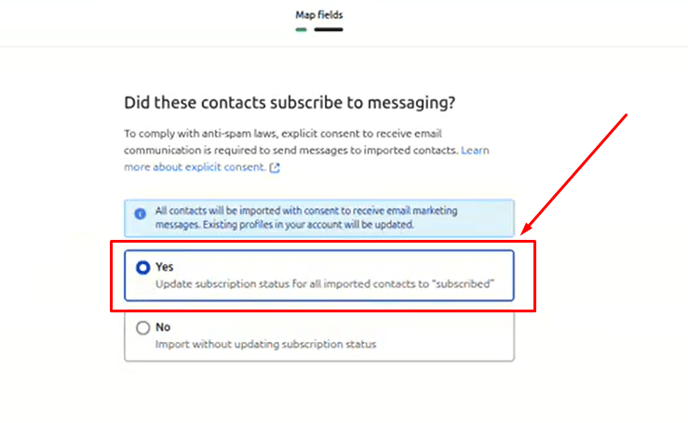
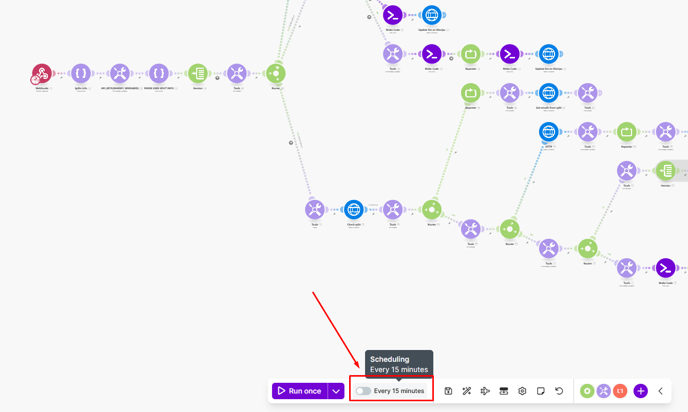
At the bottom of the Make scenario page:
-
Open Scheduling.
-
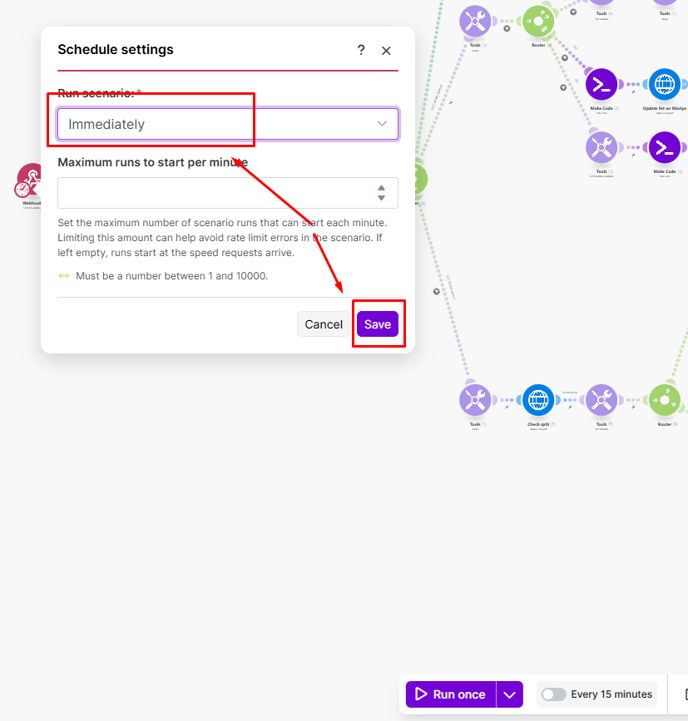
Choose Immediately.
-
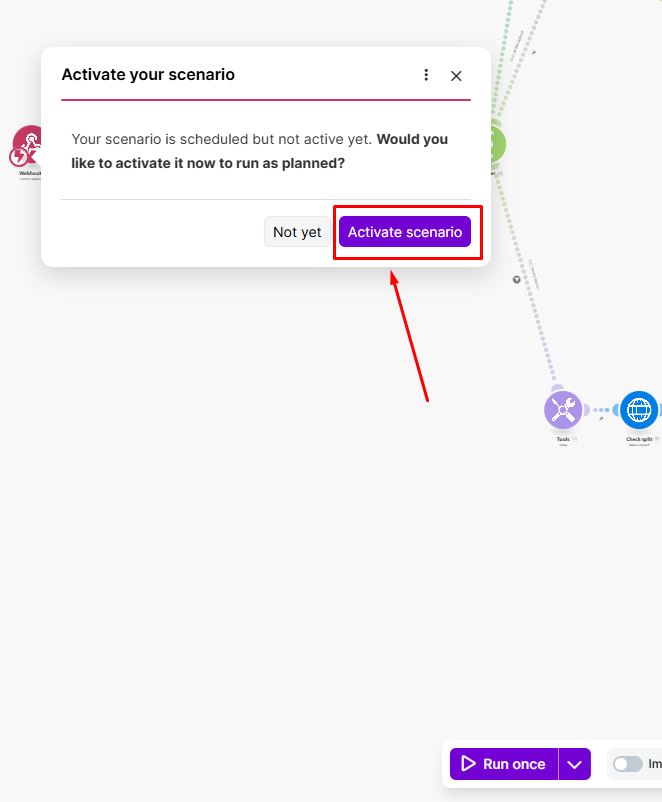
You can now click Activate to run the seed list sync right away.
-
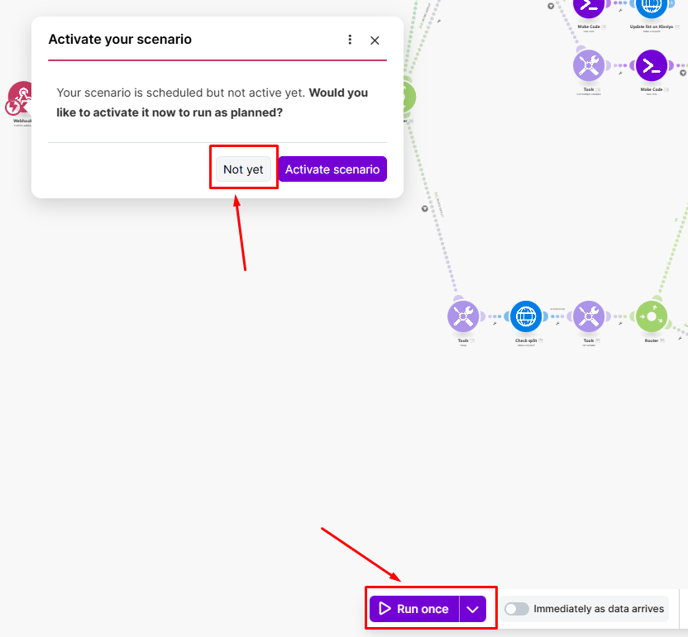
Or choose Not yet if you want to save the configuration and run it later using Run once
-
Your automation is now fully set up! 🤗