---
title: HubSpot Warmup Rotation Automation Setup
description: HubSpot Warmup Rotation Automation Setup
---
[Skip to content](https://support.warmy.io/knowledge/hubspot-warmup-rotation-automation-setup#main-content)
English
Show submenu for translations
![Group 1261151152.png\]](https://support.warmy.io/hs-fs/hubfs/Group%201261151152.png?width=50&height=50&name=Group%201261151152.png)
Open main navigation
Close main navigation
- English
Show submenu for translations
- [Go to warmy.io](https://www.warmy.io/)
[Go to warmy.io](https://www.warmy.io/)
Hey there Warmer! How can we help? 🙏
- There are no suggestions because the search field is empty.
1. [Help Center](https://support.warmy.io/knowledge?hsLang=en)
2. [Connection Guide](https://support.warmy.io/knowledge/connection-guide?hsLang=en)
# HubSpot Warmup Rotation Automation Setup
## This workflow manages the daily rotation of pre-synced seed contacts flagged as “in warmup” inside HubSpot, keeping it entirely separate from the seed list sync workflow and operating without sending external web-hooks to Warmy.
** Prefer to listen? Hit play to hear this article read aloud.**
**How it works**
- A schedule trigger runs daily at 9am (no Warmy webhook required).
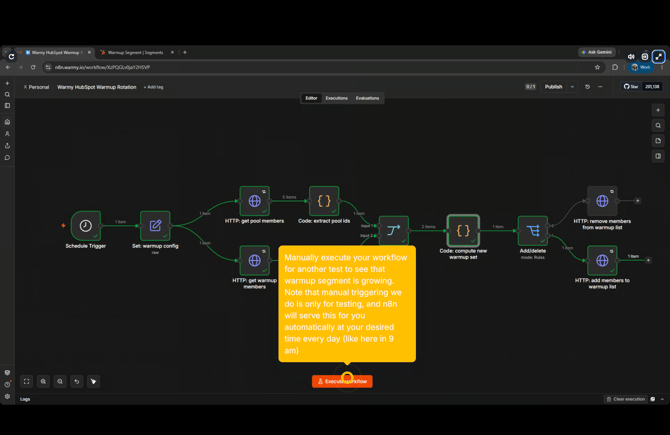
- n8n reads from two HubSpot static lists: the full pool list and the active warmup list.
- The workflow increases the desired warmup target size by a random 4–7% daily (starting at 30 if empty), shuffles the full pool, and selects the exact number of required contacts.
- It compares this desired set against the current warmup list to directly add or remove contacts via the HubSpot list membership API.
- HubSpot list membership acts directly as the warmup flag, removing the need for a custom contact property.
**Before you start**
- The **Update rotate seedlist on HubSpot workflow** must already be active for the intended split to supply the pool list input.
- You need the existing **HubSpot Service Key** credential (includes `crm.lists.read` and `crm.lists.write`).
### Instructions
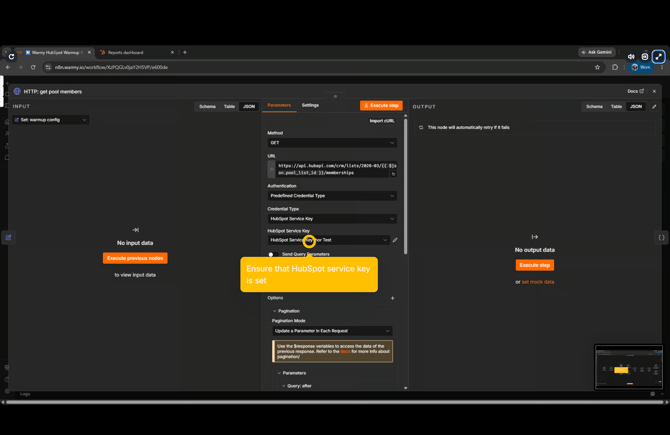
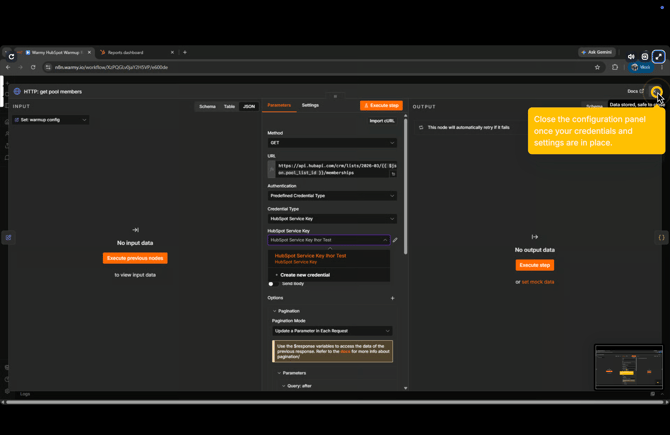
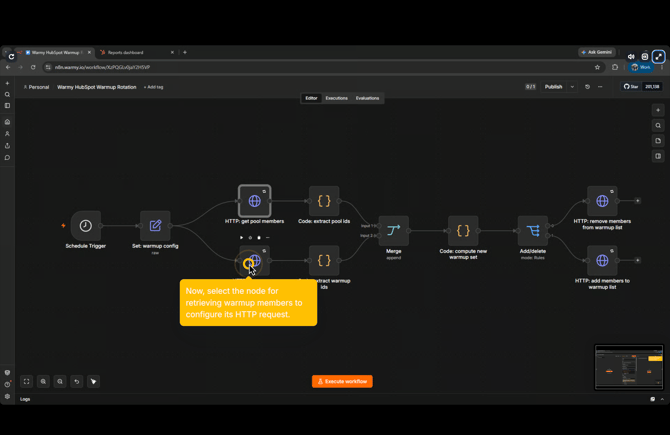
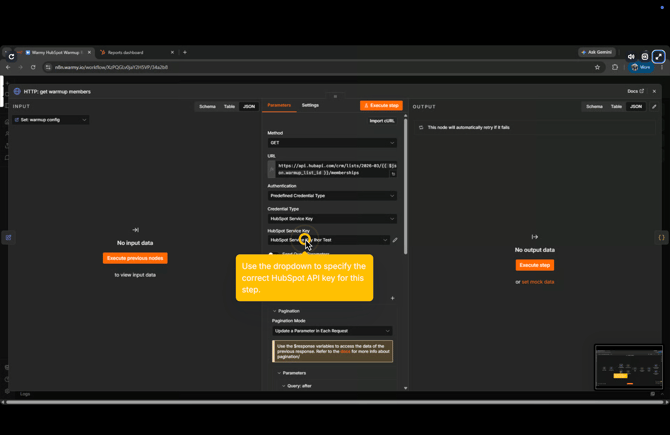
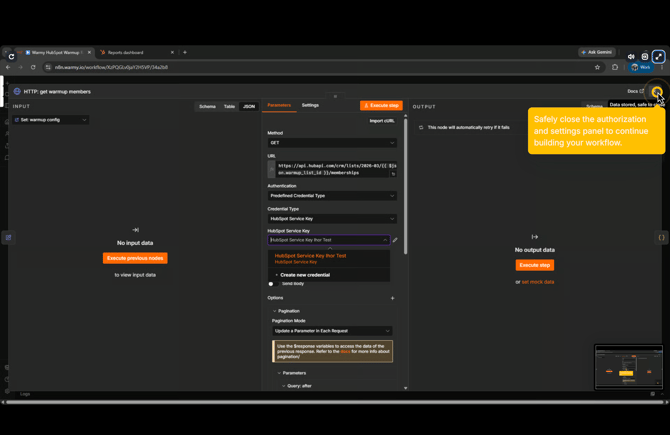
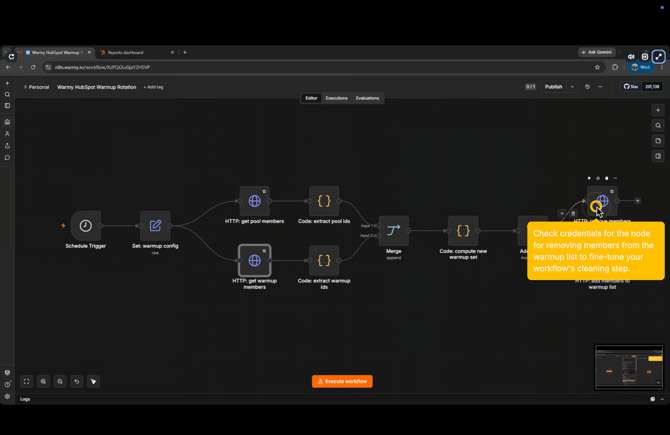
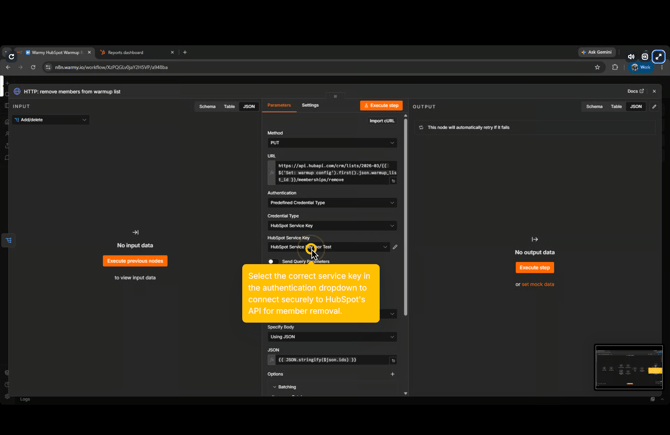
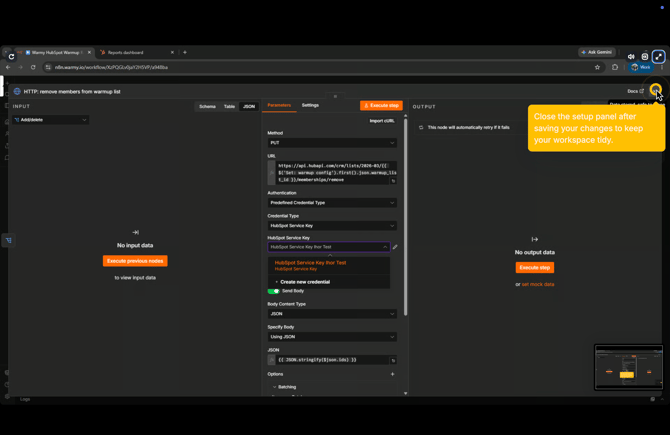
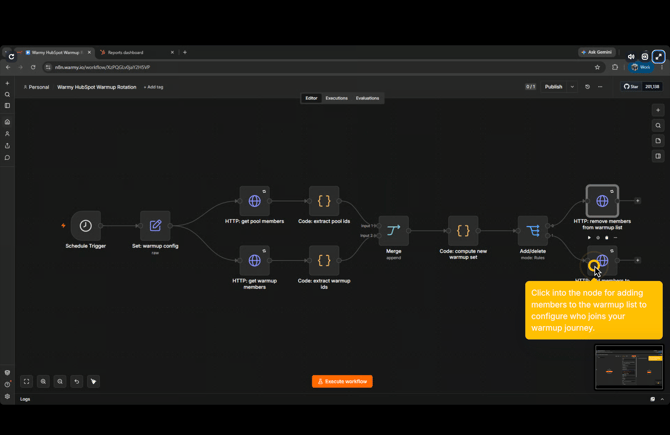
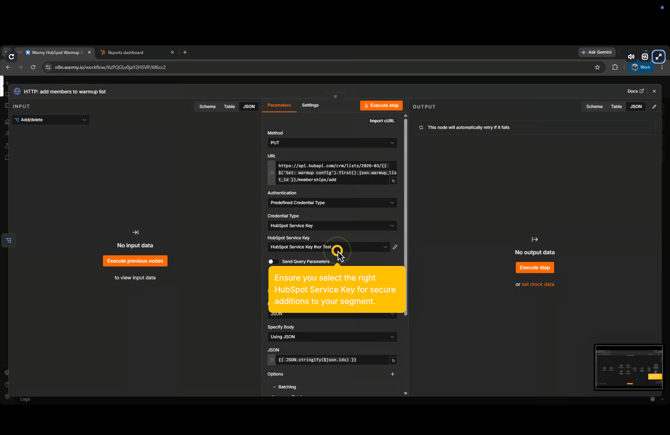
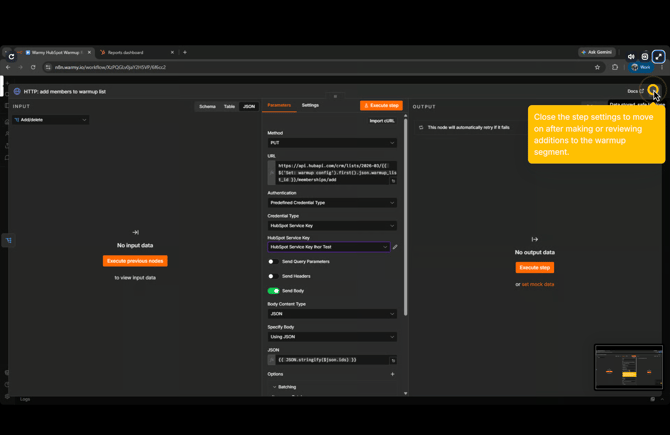
**Step 1 — Attach the HubSpot credential to all 4 HTTP nodes** Open the four HTTP nodes in n8n and select your existing HubSpot Service Key from the authentication dropdown.
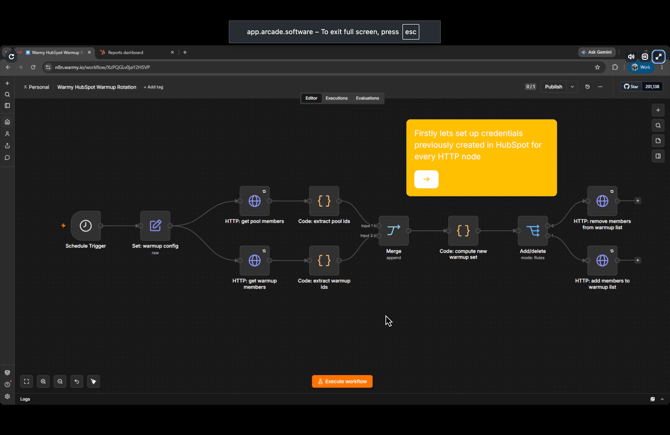
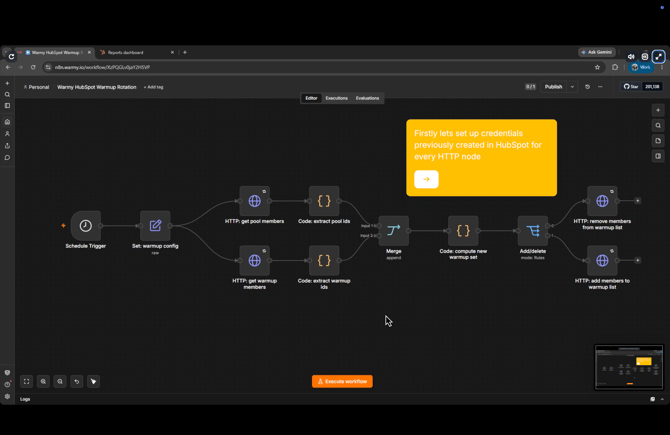
**HTTP: get pool members**
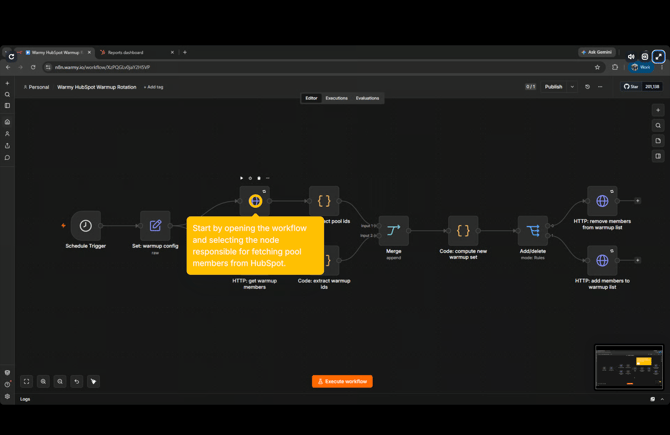
**HTTP: get warmup members**
**HTTP: remove members from warmup list**
**HTTP: add members to warmup list**
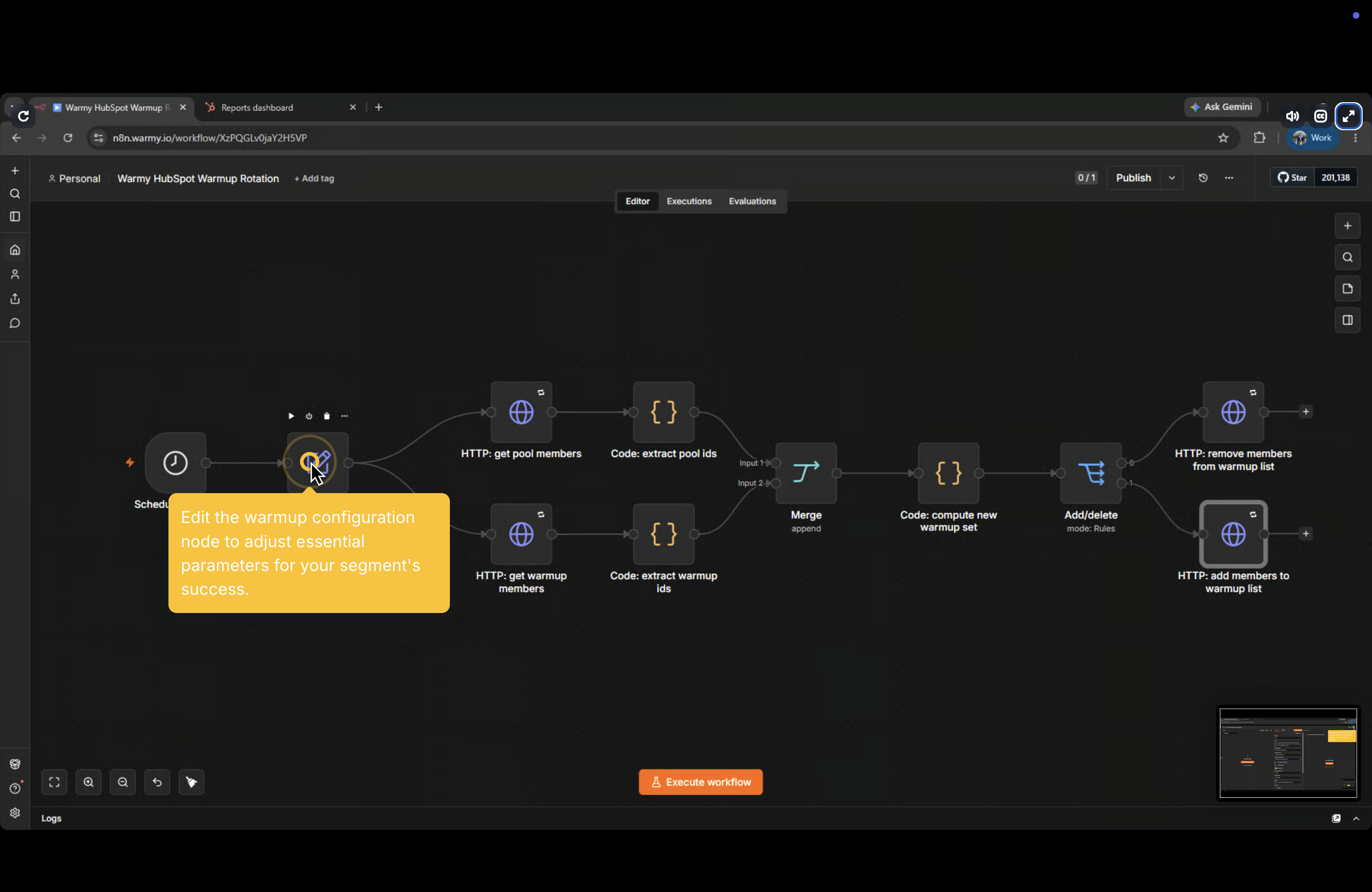
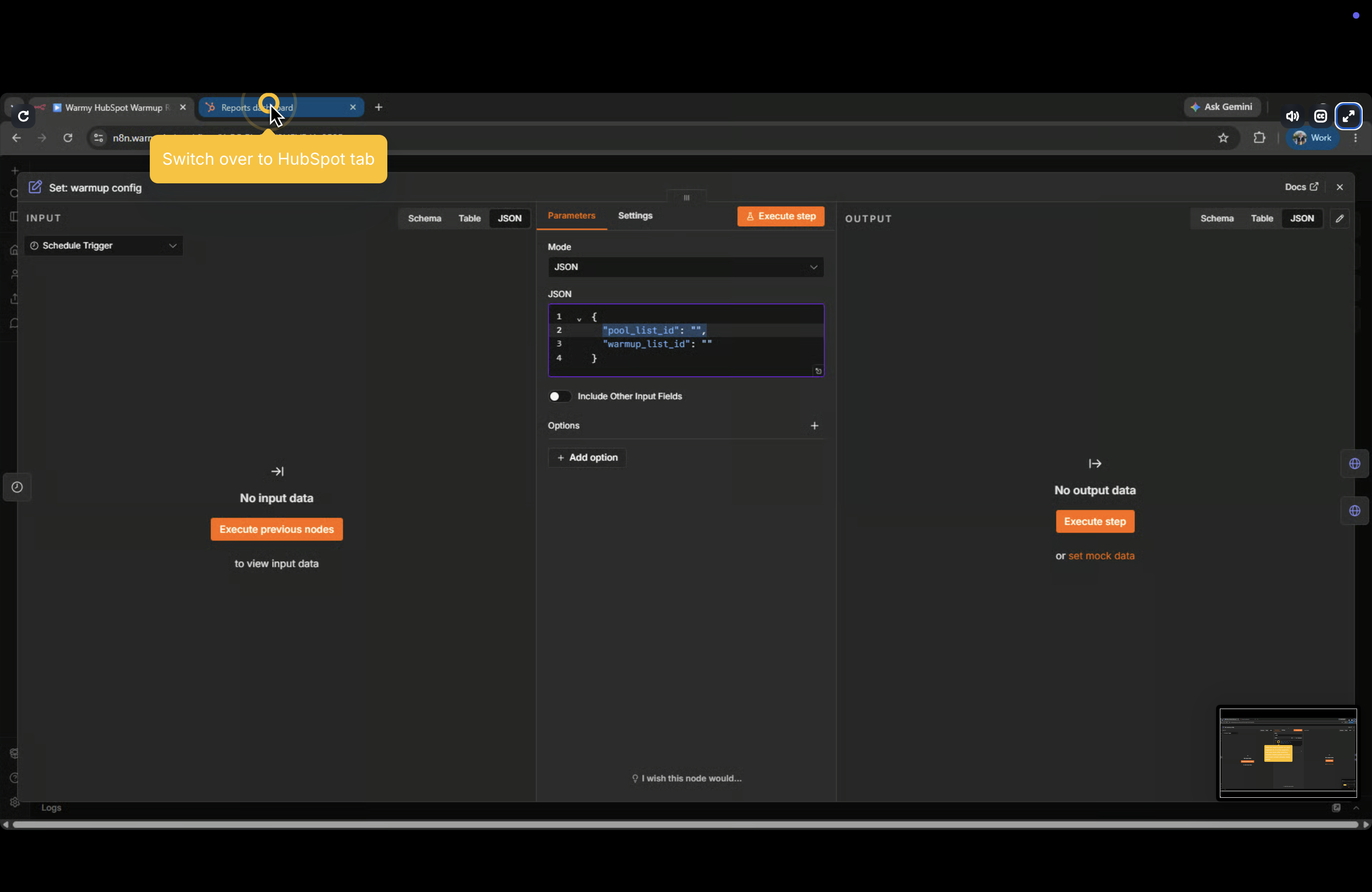
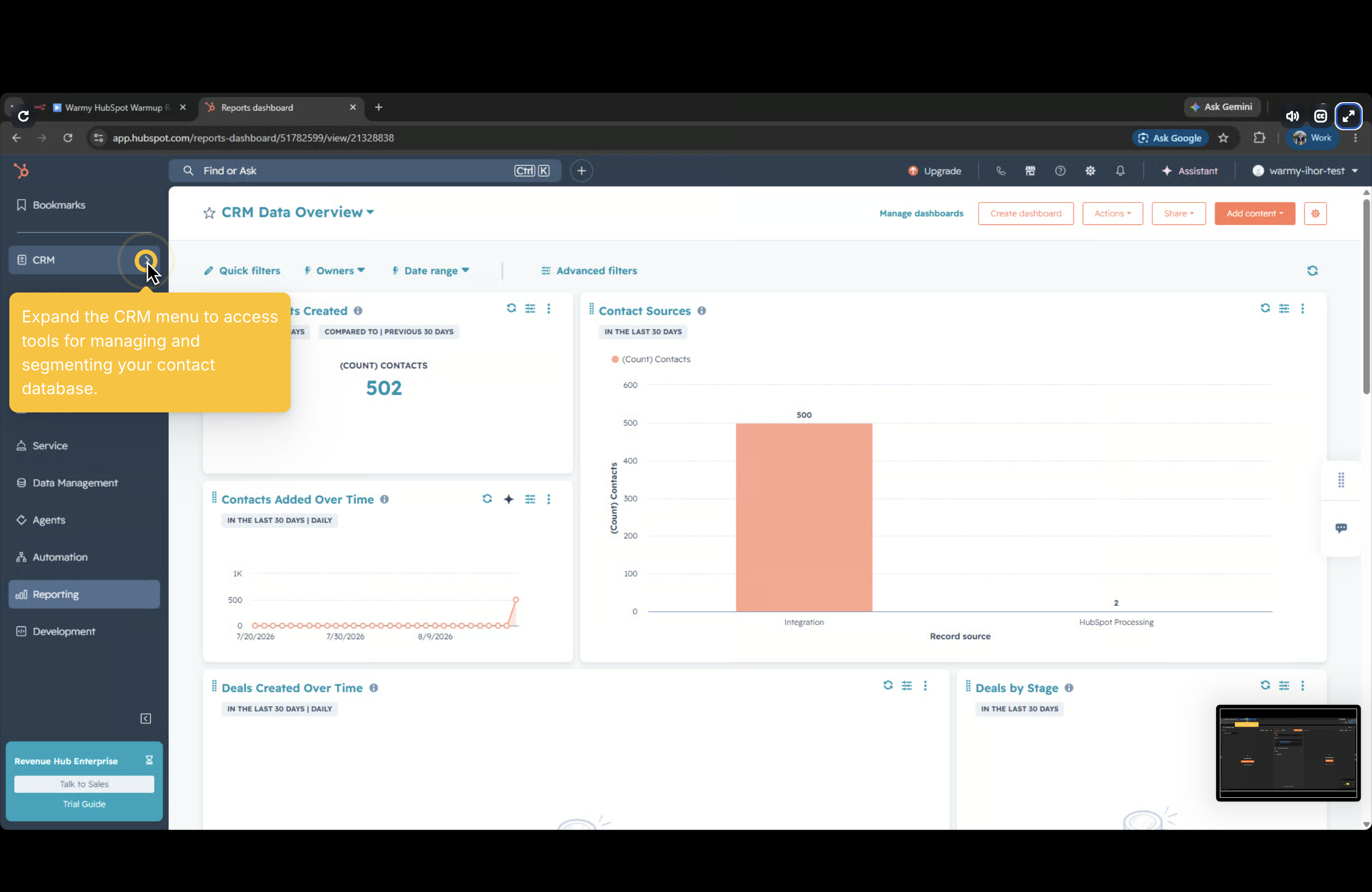
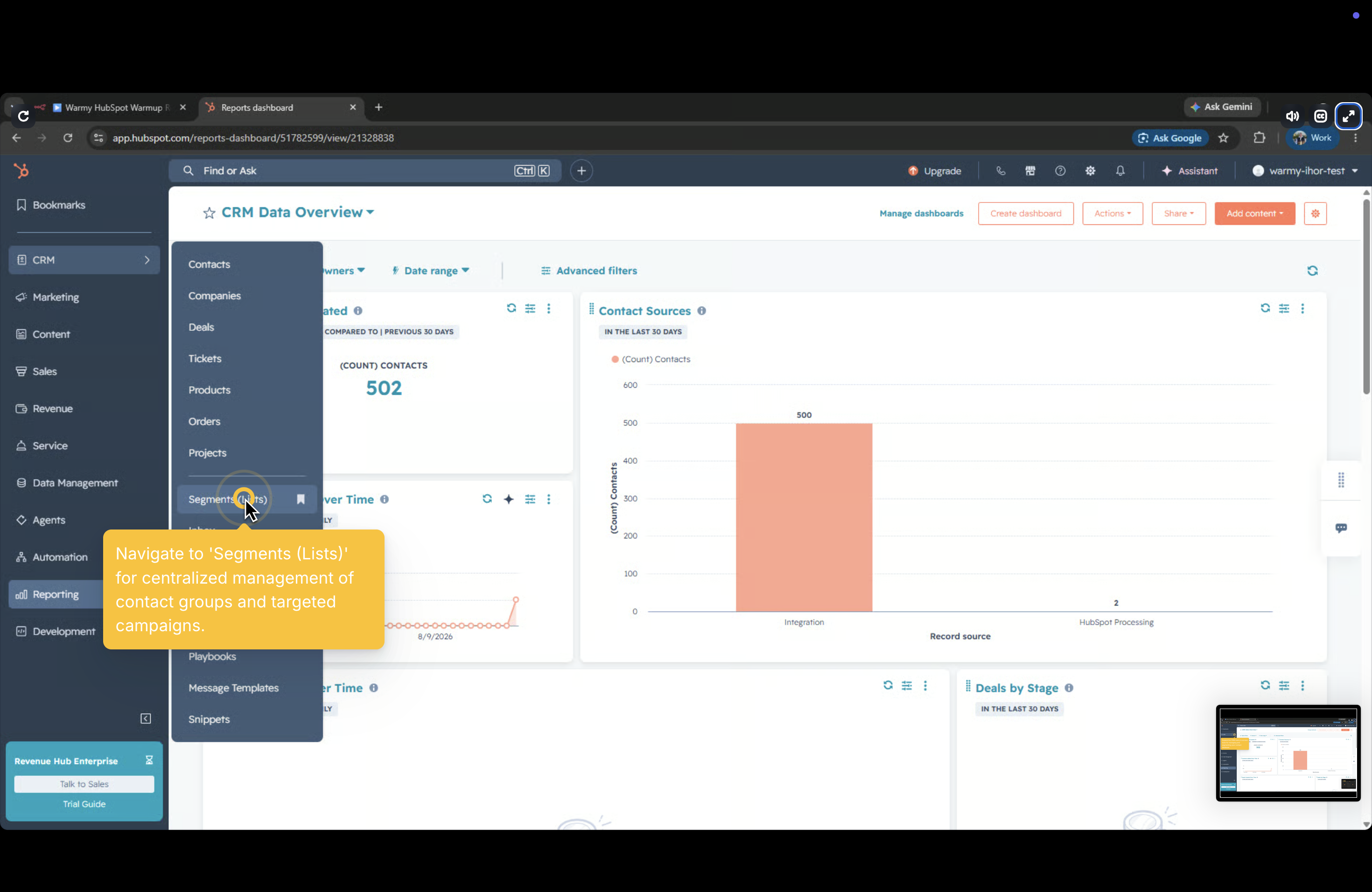
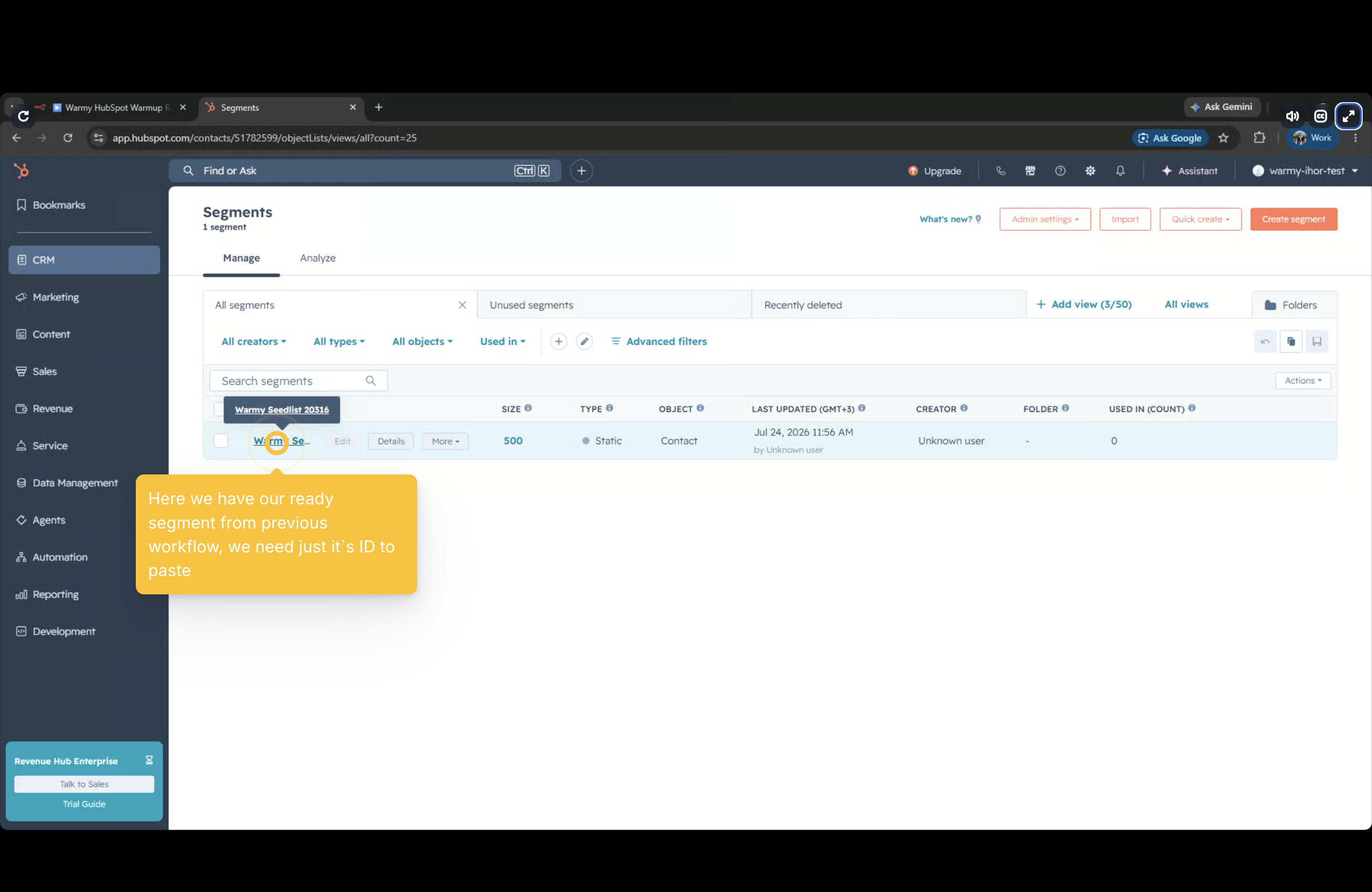
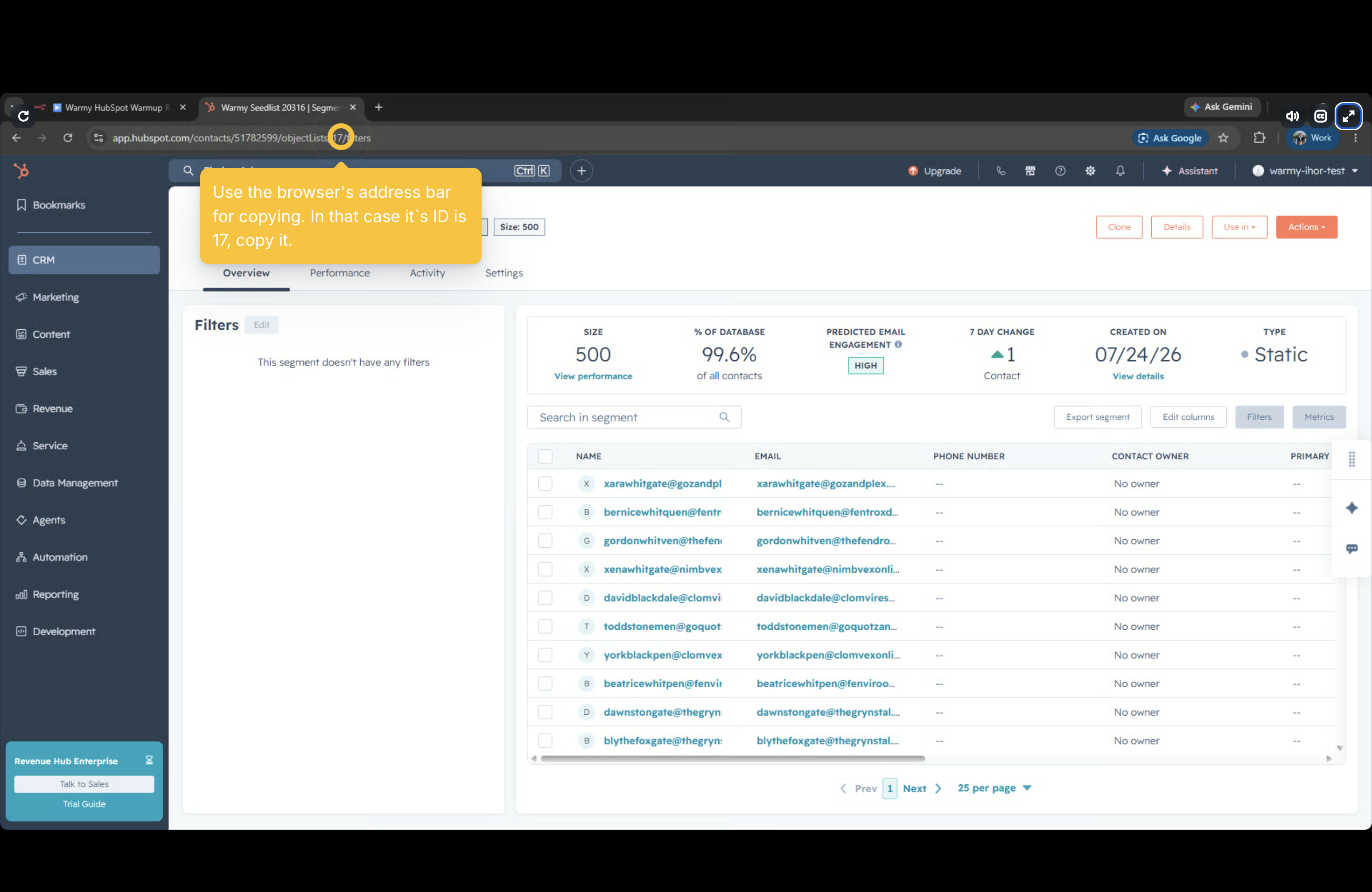
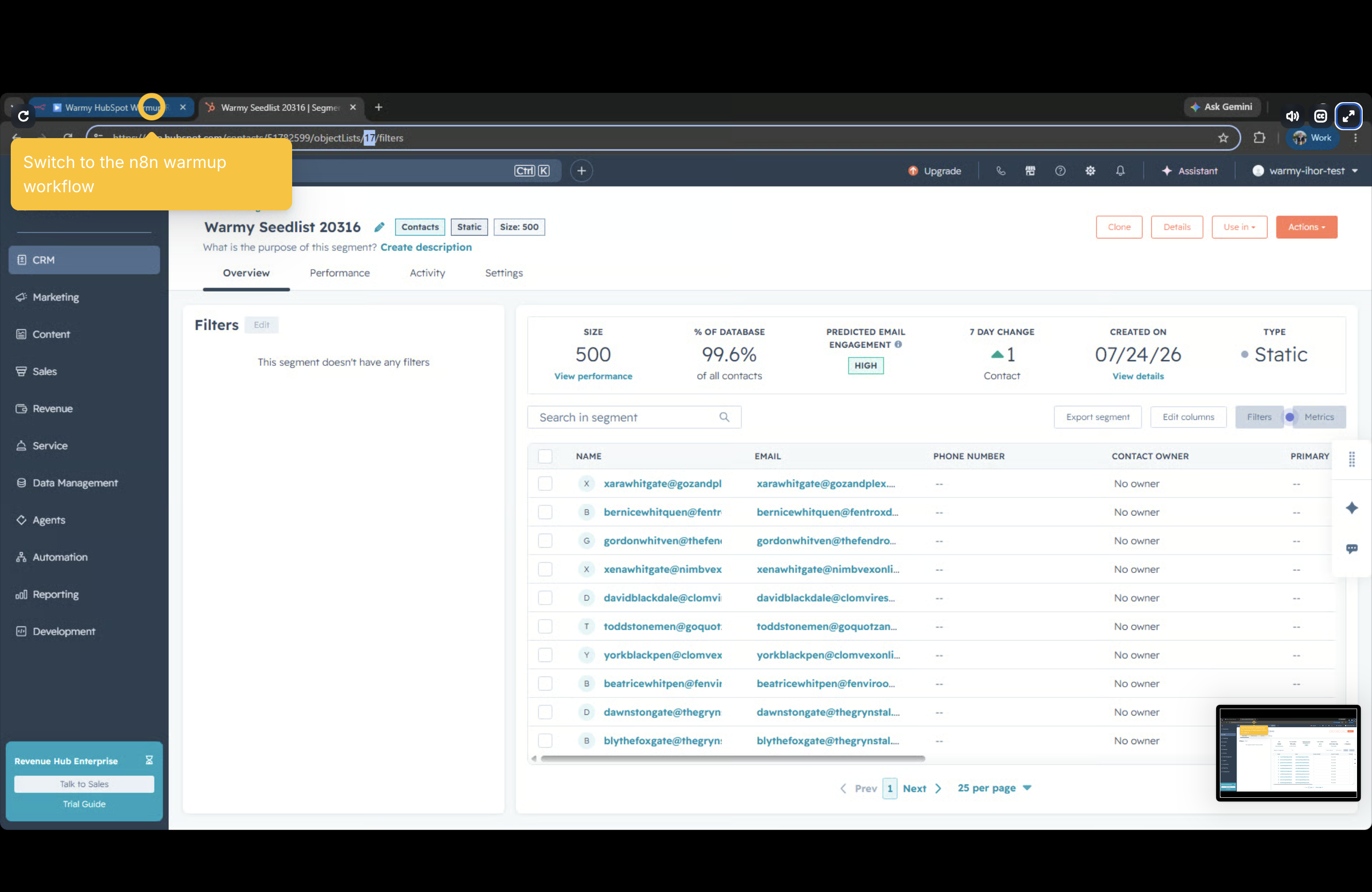
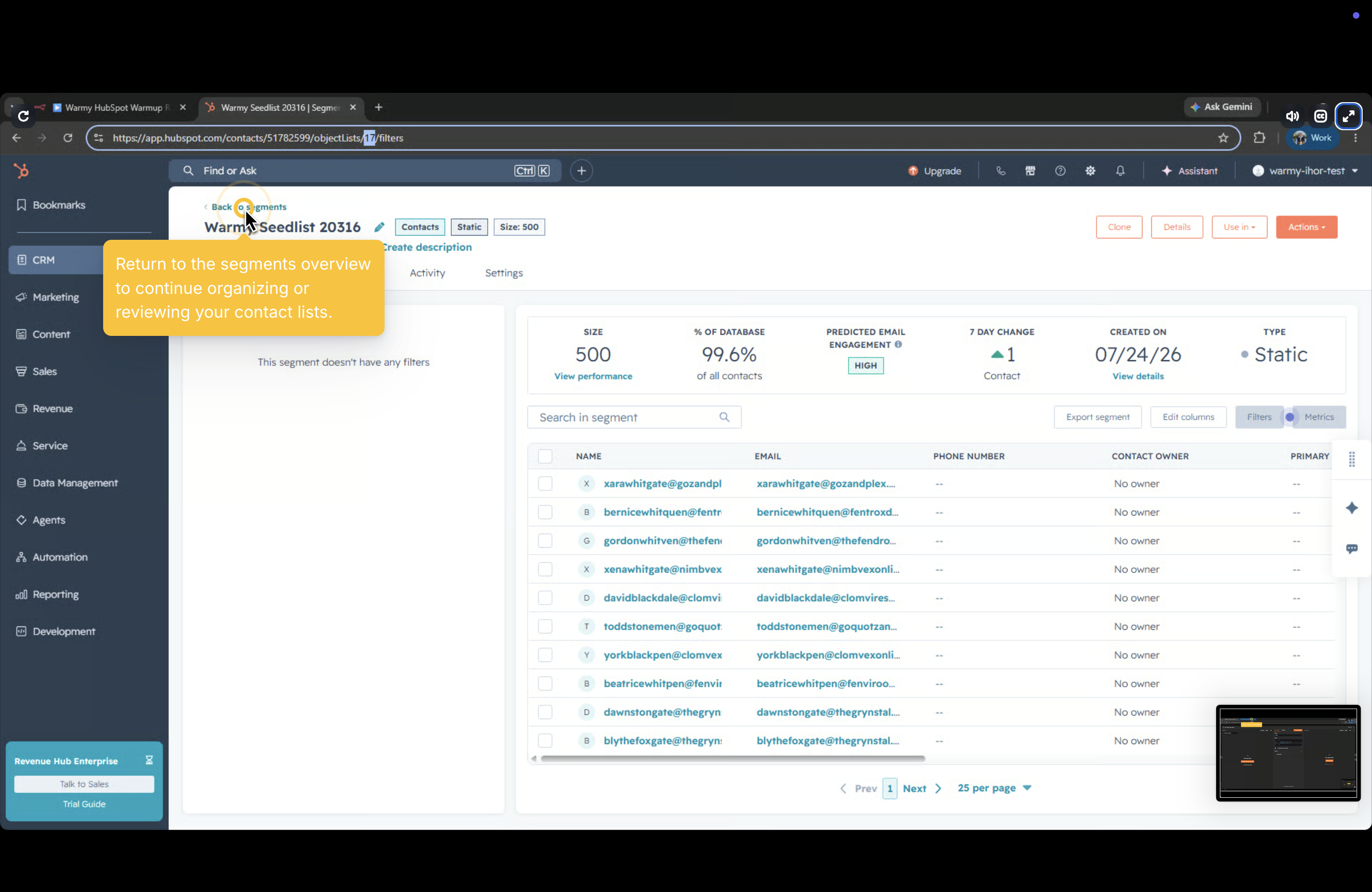
**Step 2 — Paste the pool list ID into the config** Go to HubSpot (CRM → Segments) and locate the segment maintained by the sync workflow. Copy its ID from the browser address bar (e.g., `17`). Open the **Set: warmup config** node in n8n and paste it into `pool_list_id`.
 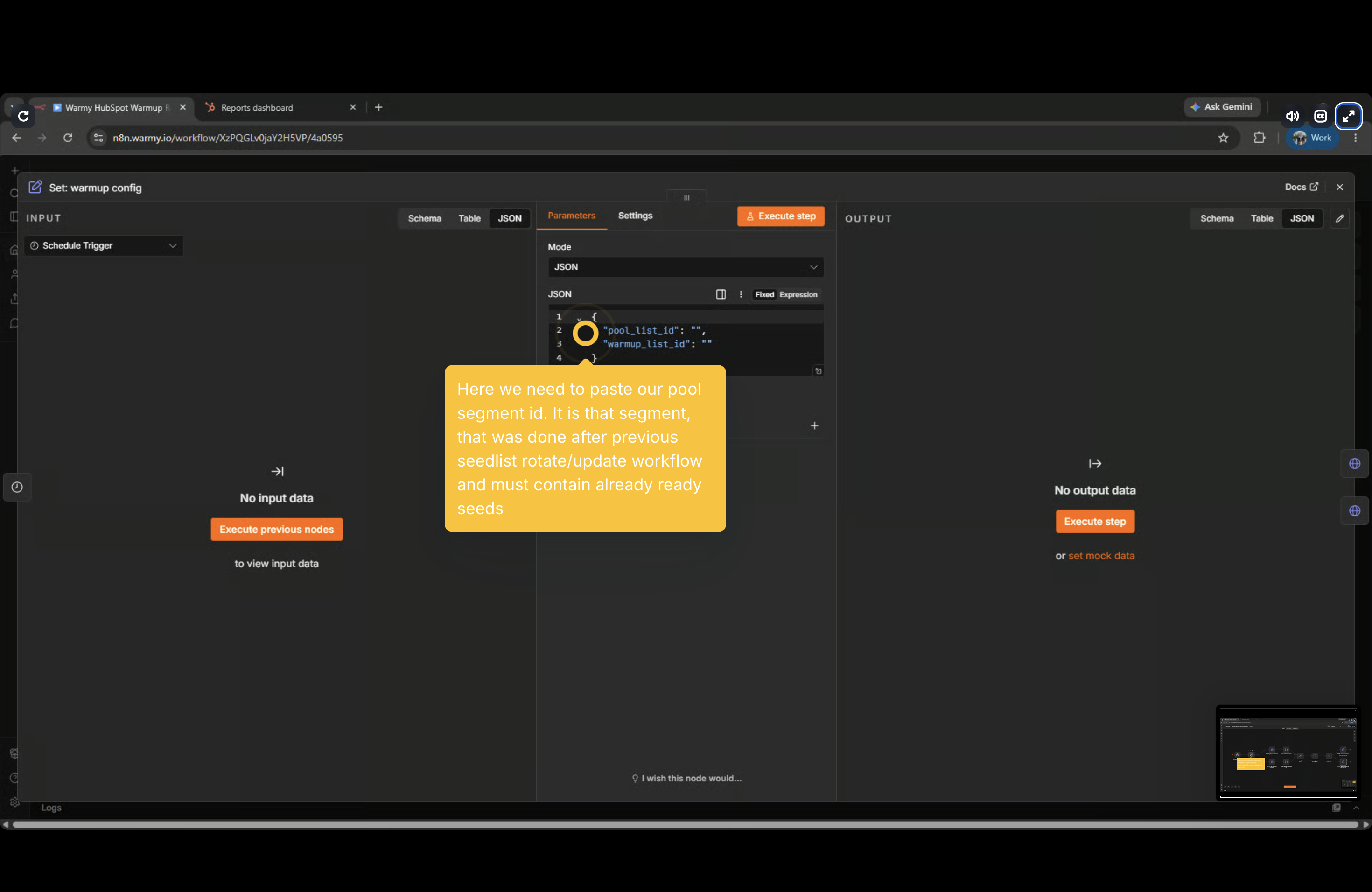   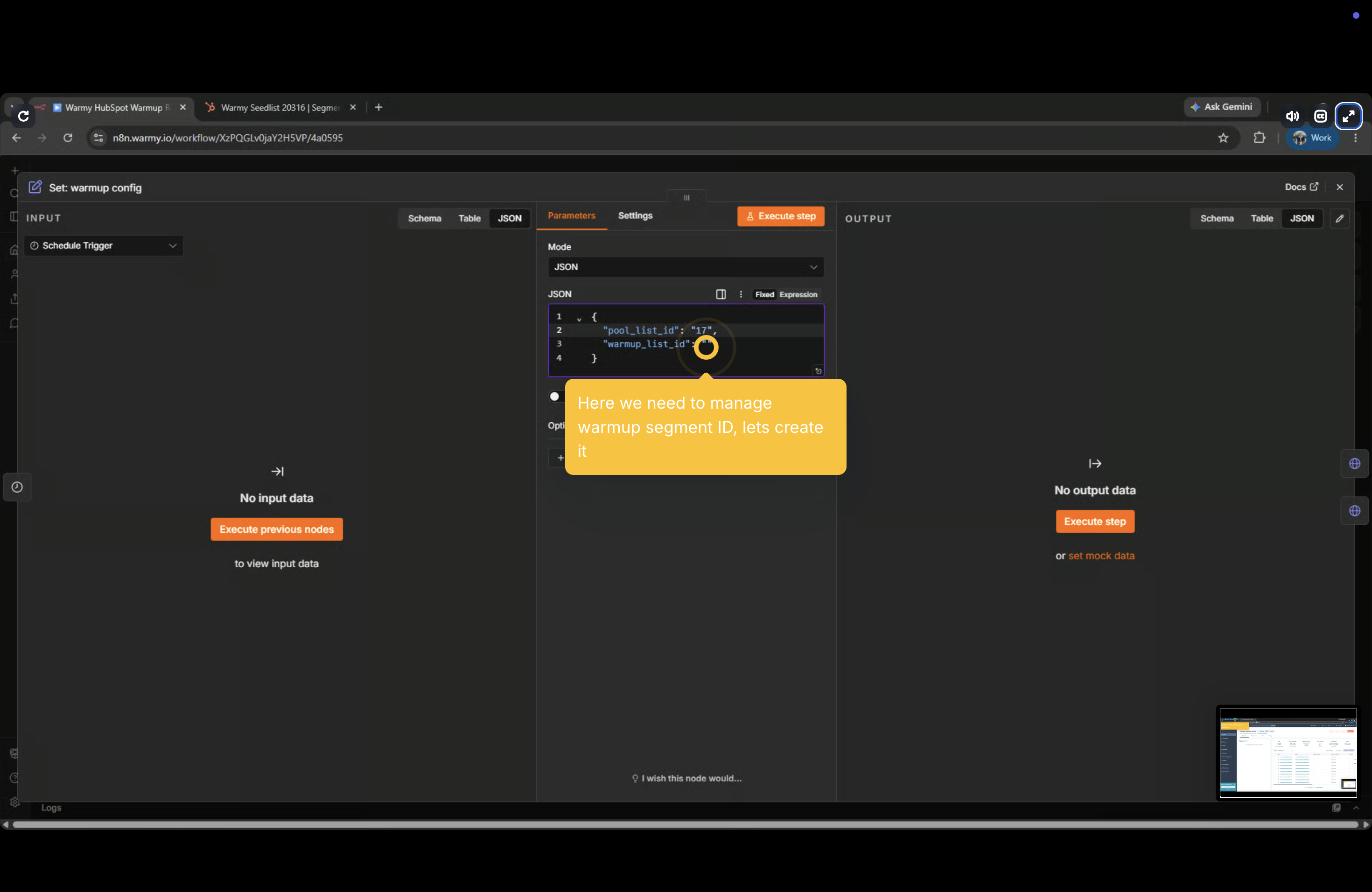
*{*
*"pool\_list\_id": "17",*
*"warmup\_list\_id": ""*
*}*
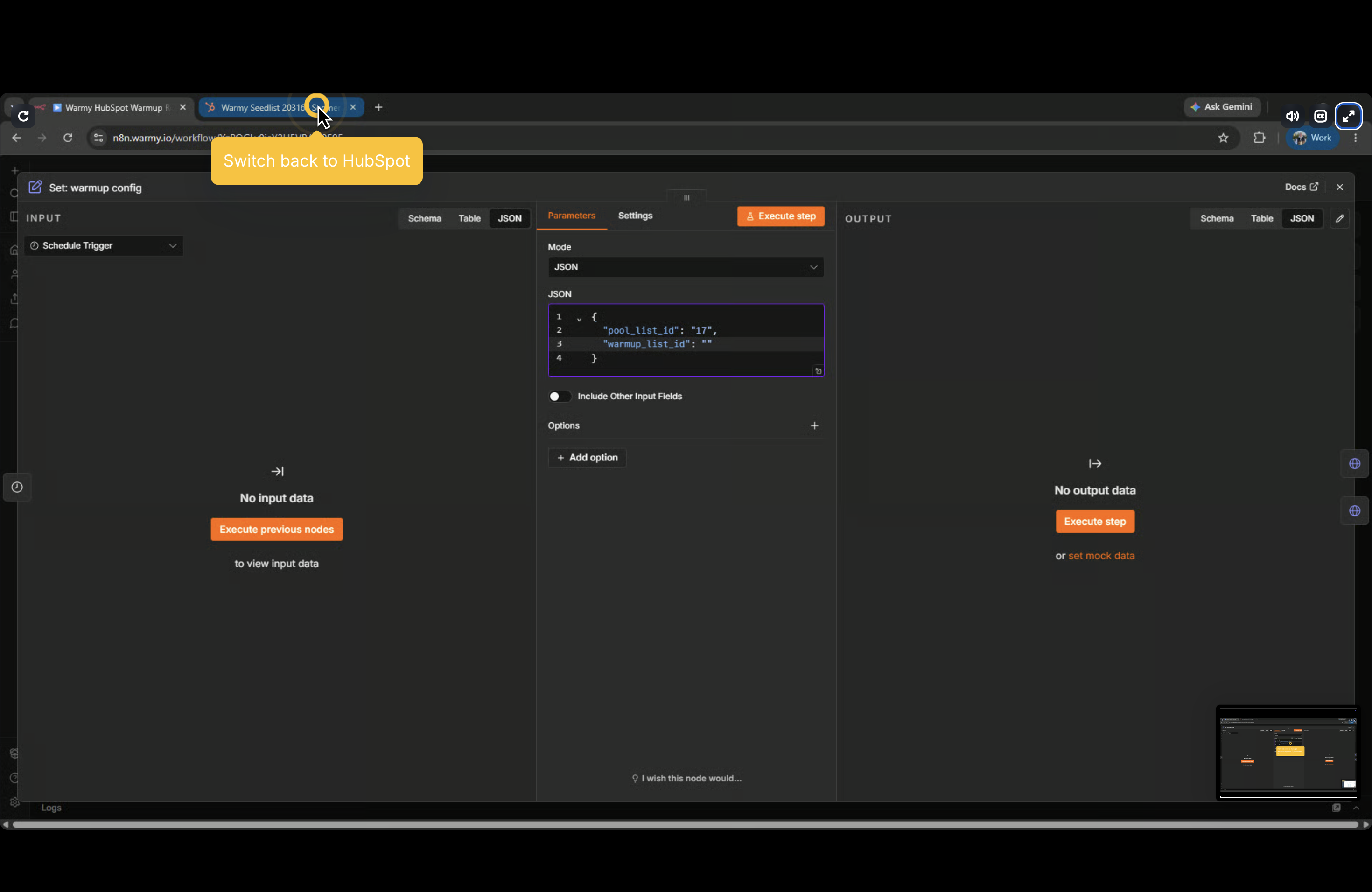
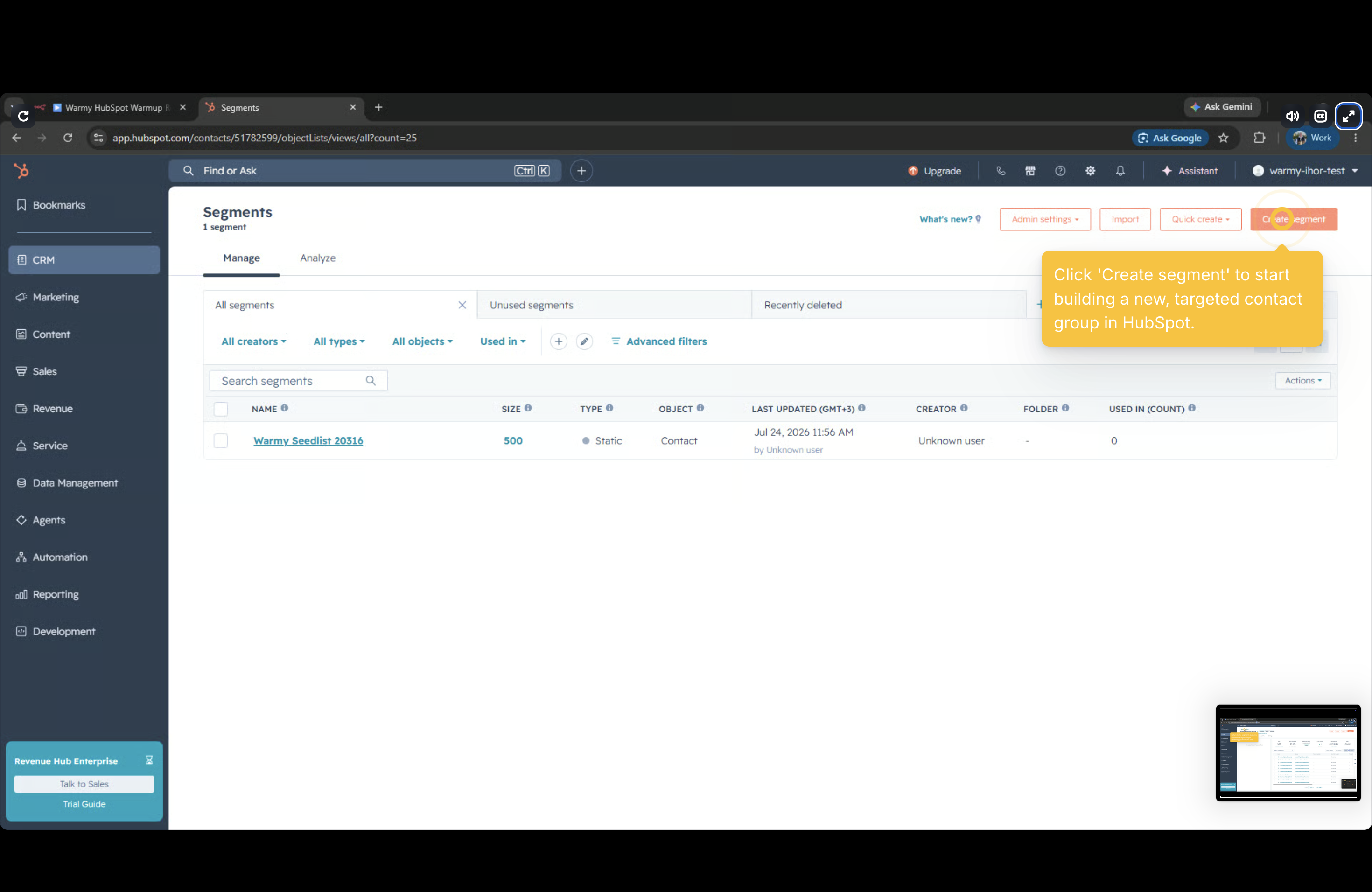
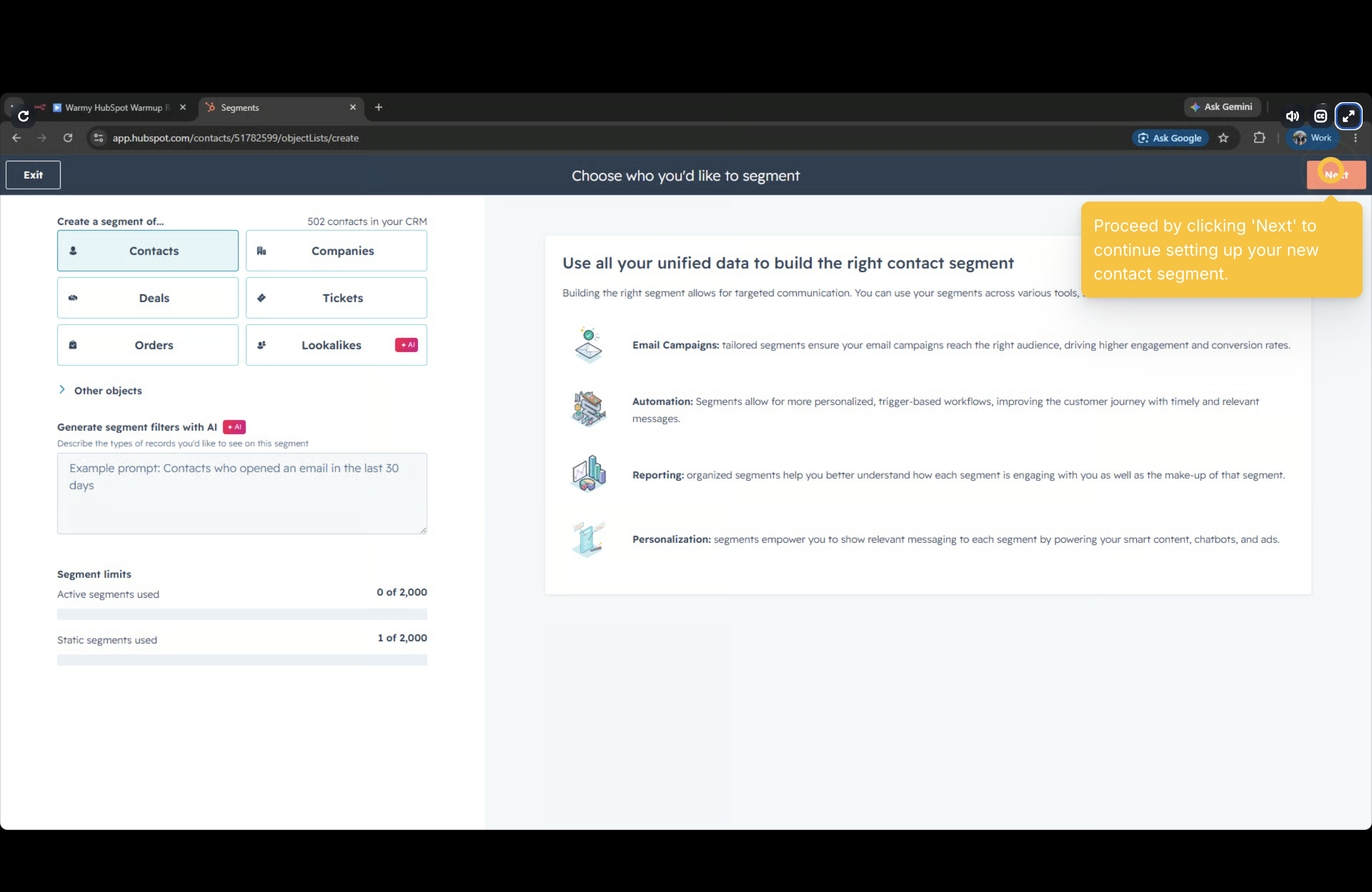
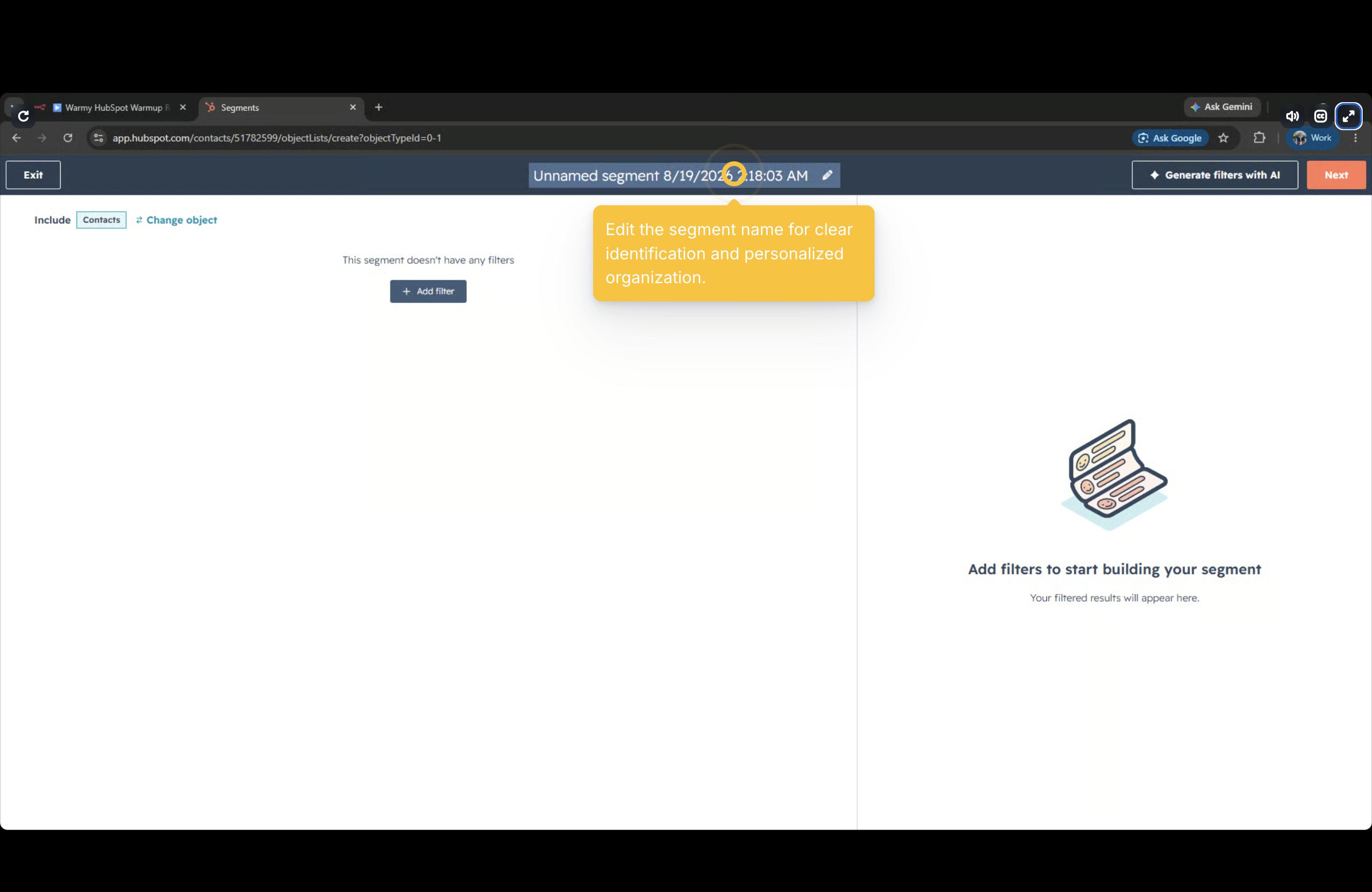
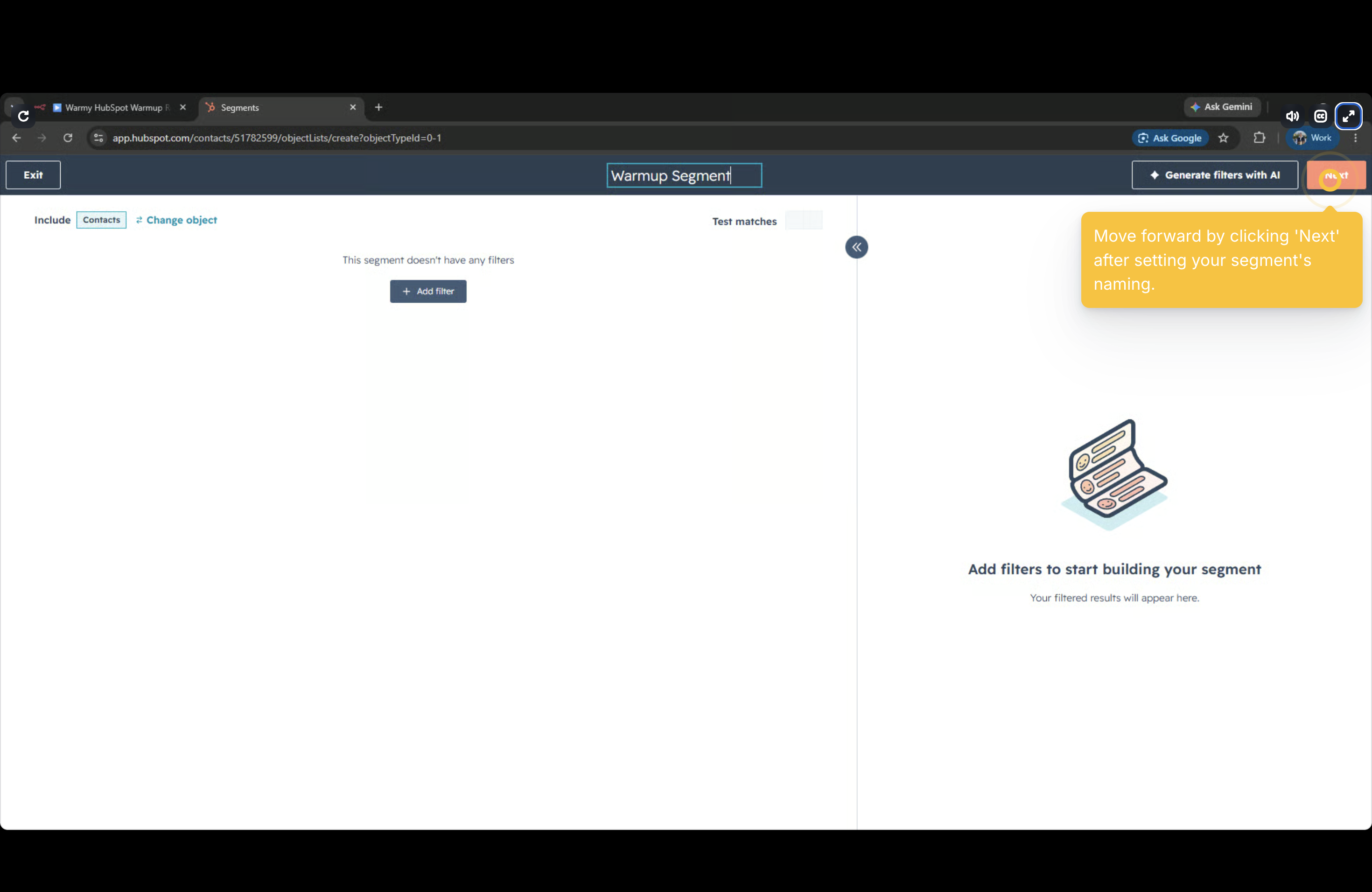
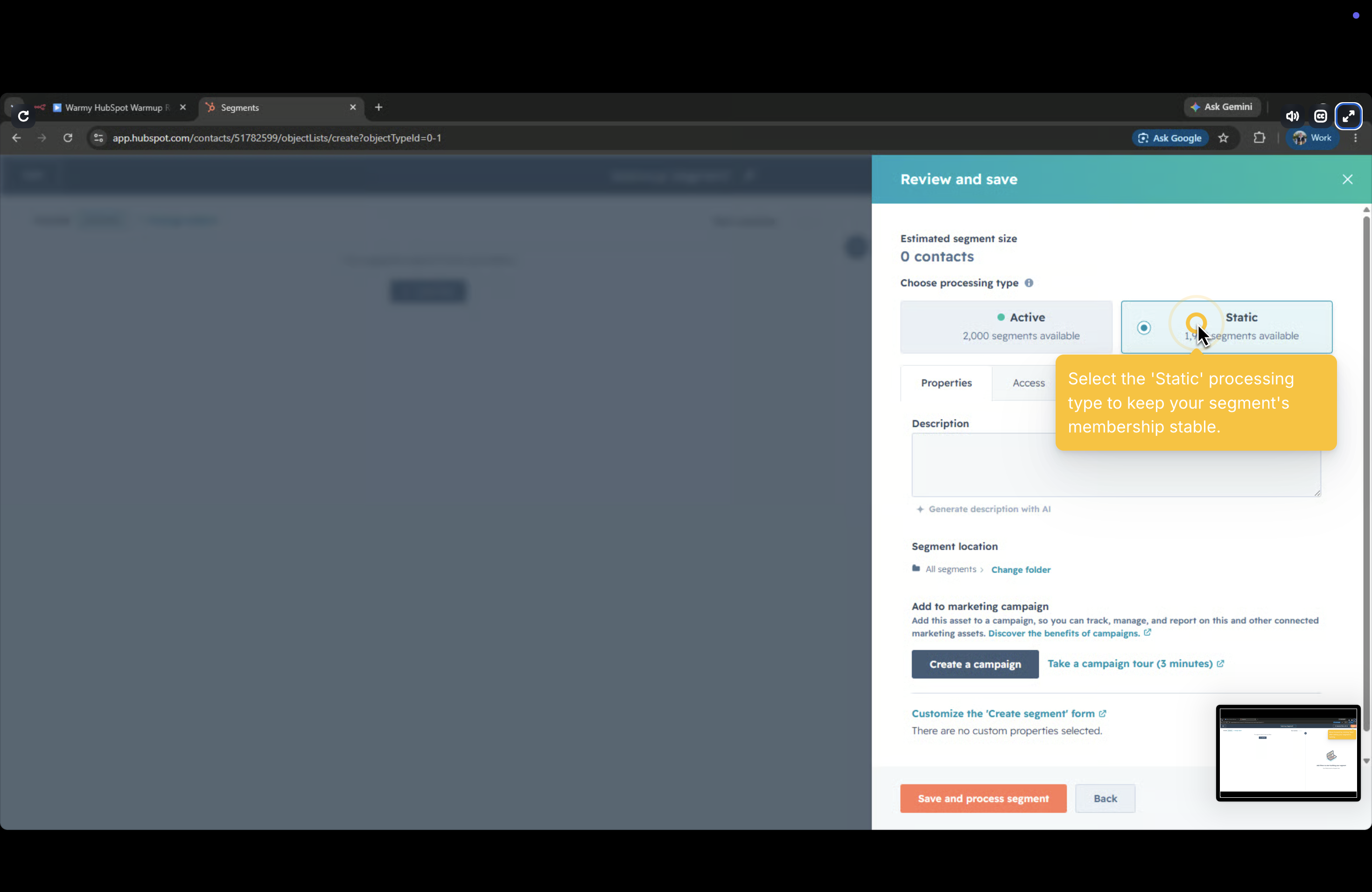
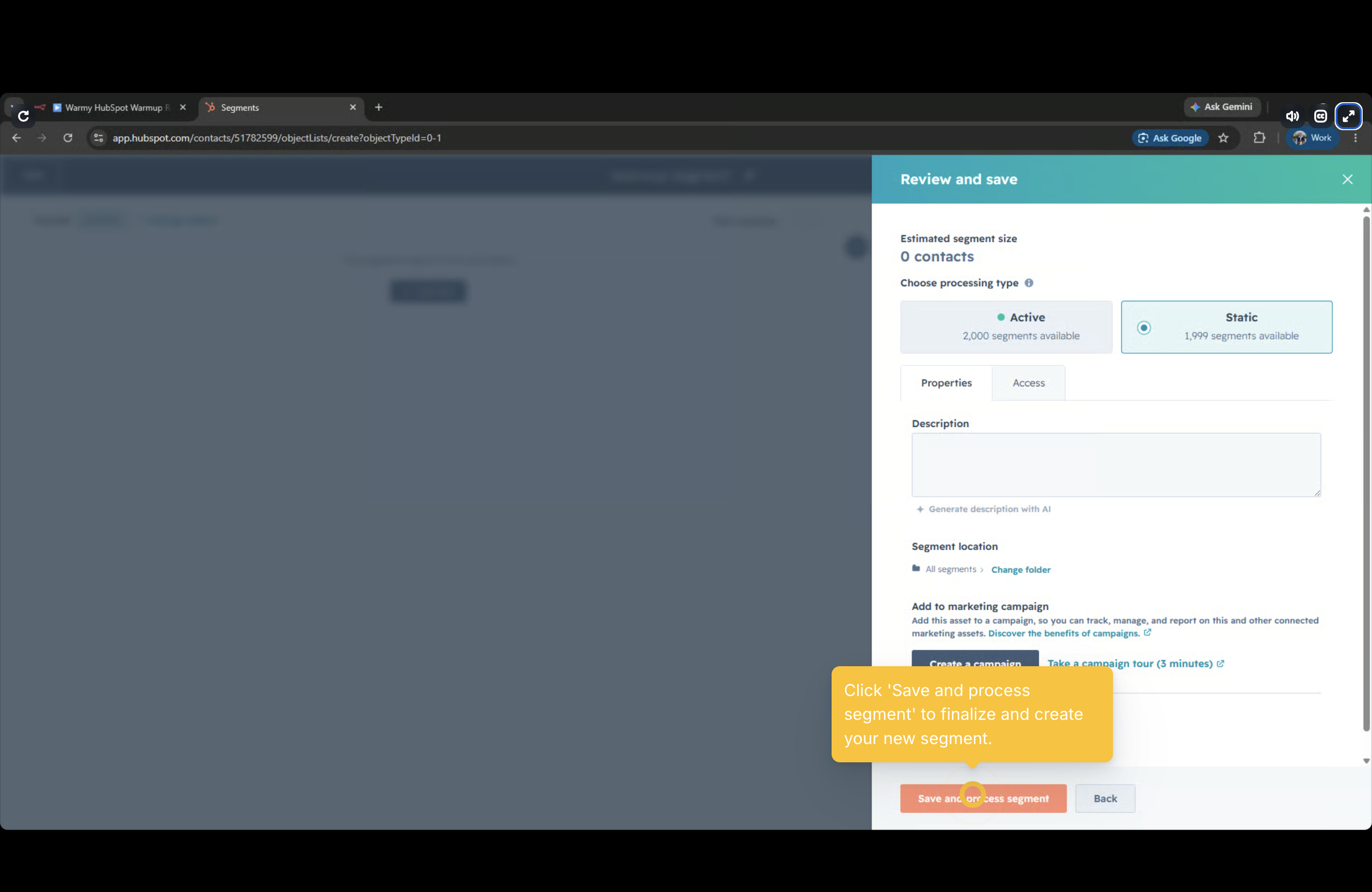
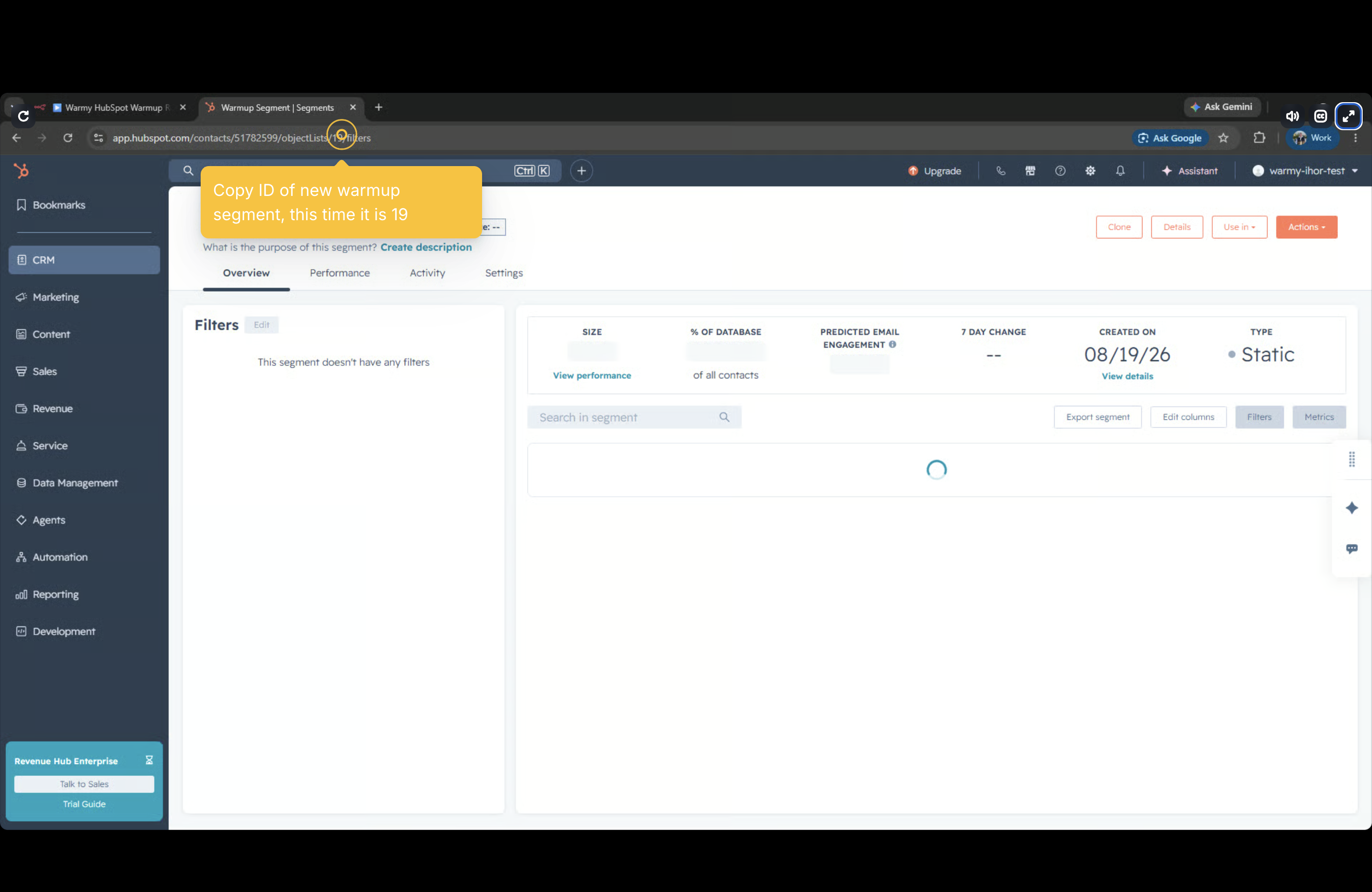
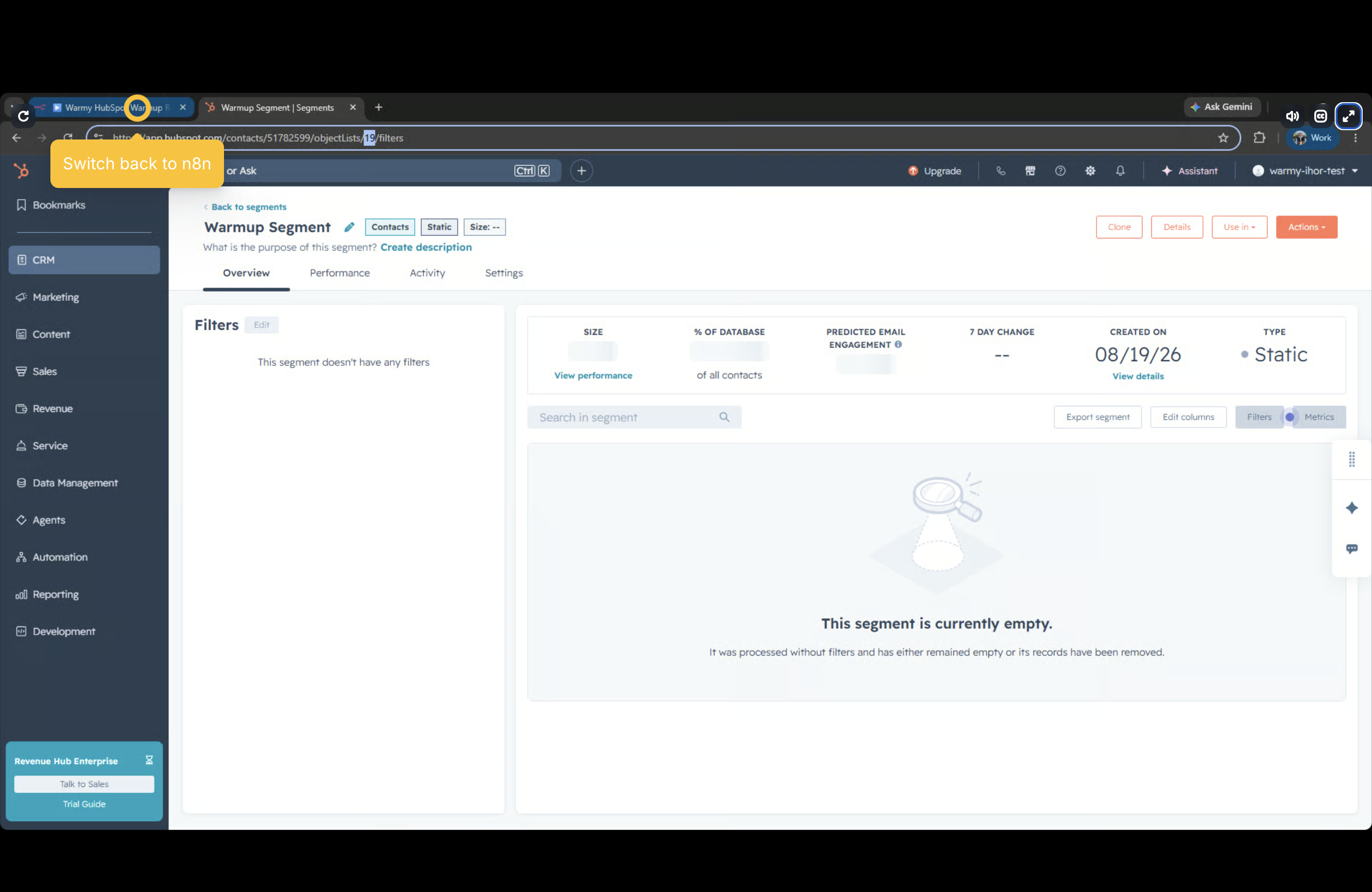
**Step 3 — Create the warmup segment in HubSpot** Return to the HubSpot Segments overview. Click **Create segment → Contacts → Next**. Name it (e.g., "Warmup Segment"), choose **Static** processing, and save. Copy this new segment ID from the address bar (e.g., `19`).
**Step 4 — Paste the warmup list ID into the config** Open the **Set: warmup config** node in n8n again and insert the new ID into `warmup_list_id`.
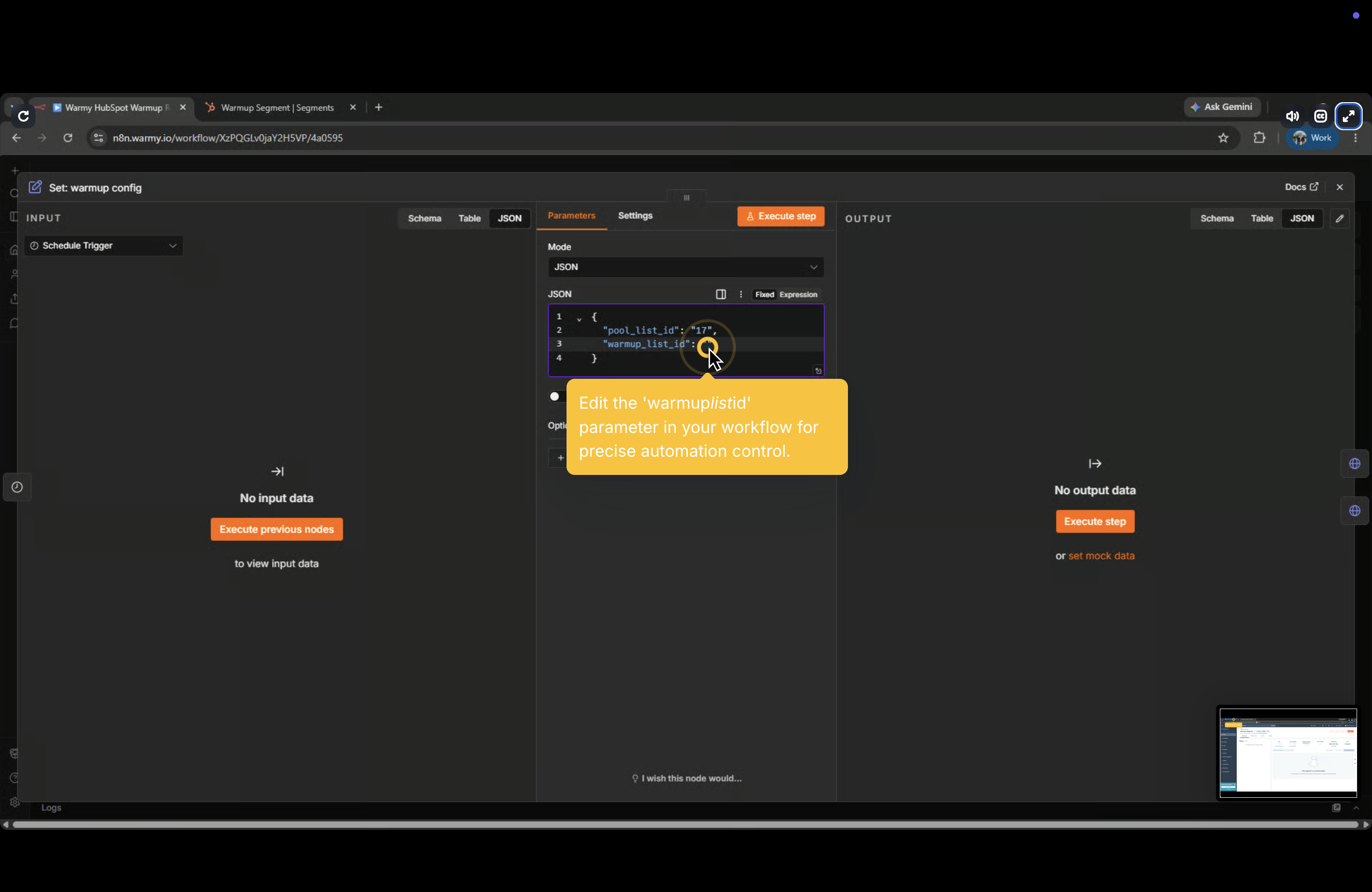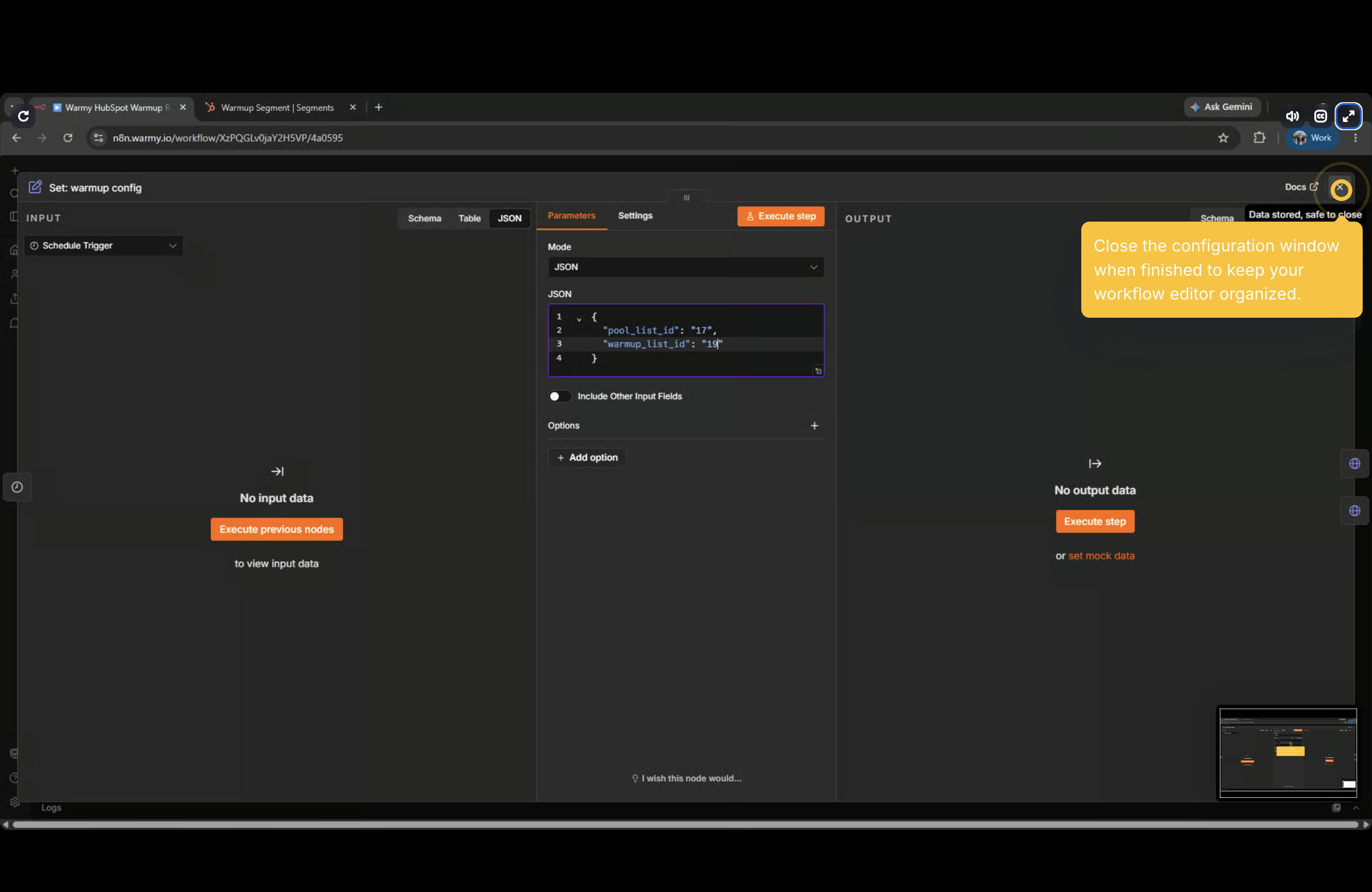
**{**
**"pool\_list\_id": "17",**
**"warmup\_list\_id": "19"**
**}**
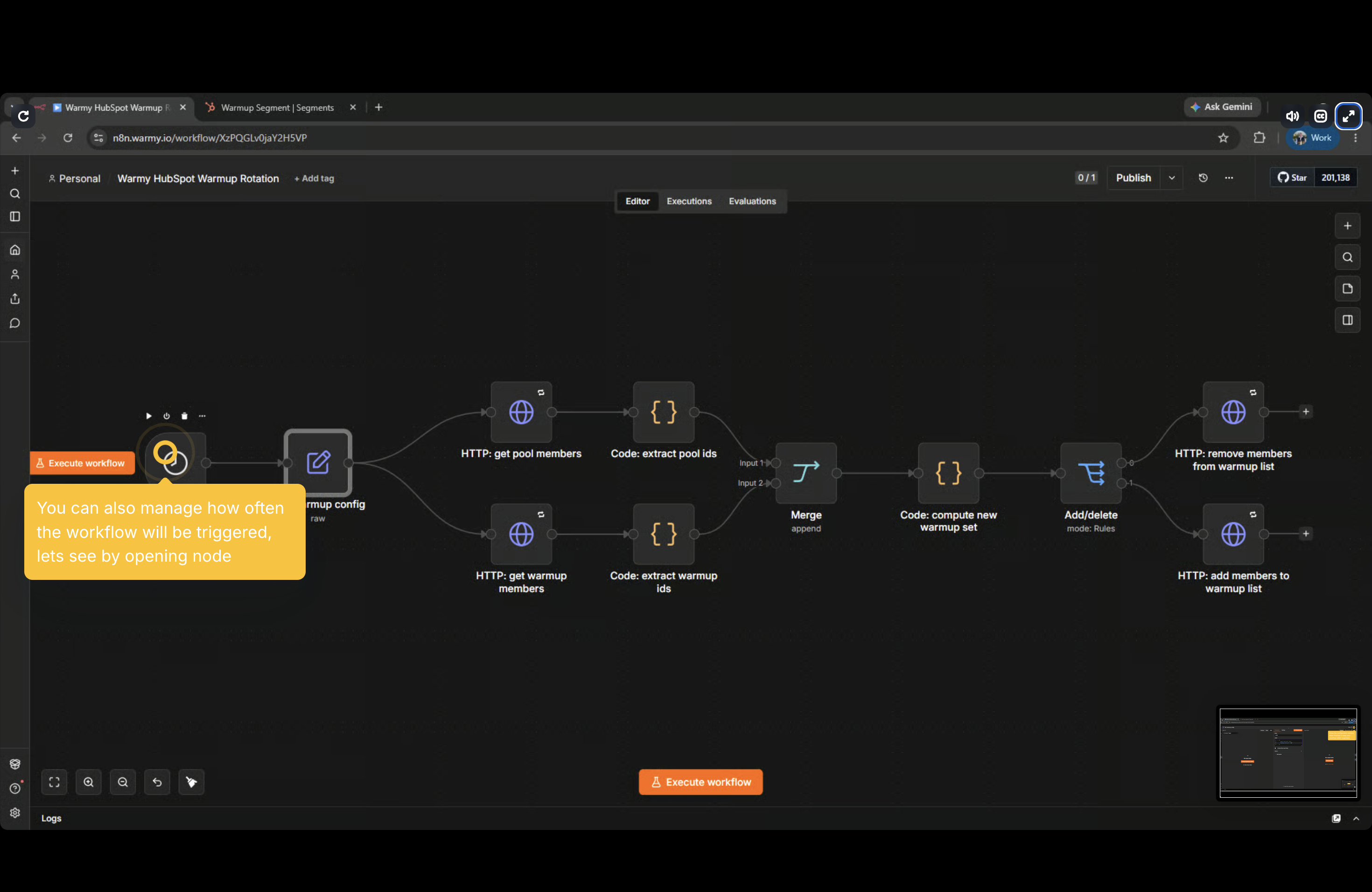
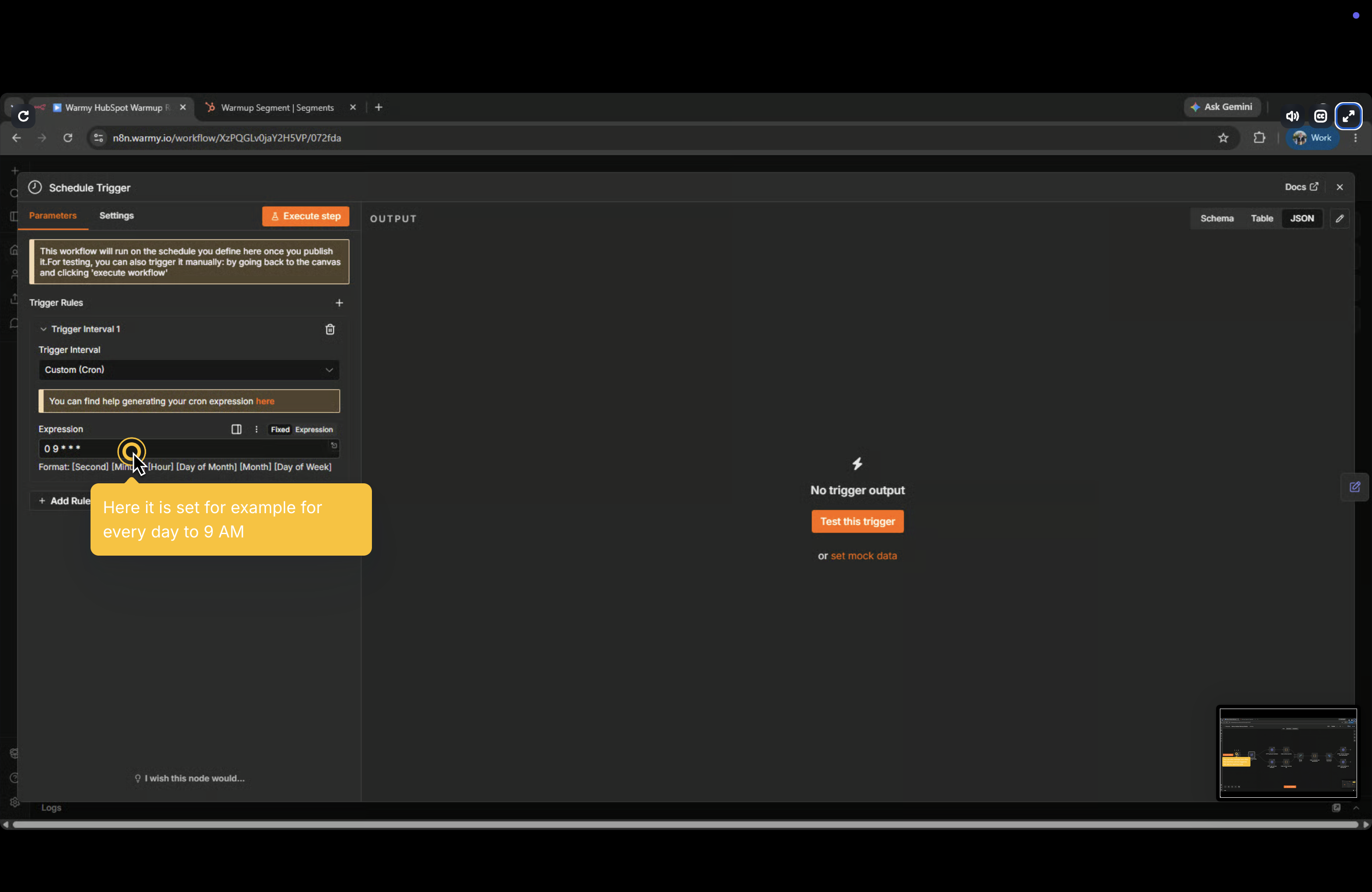
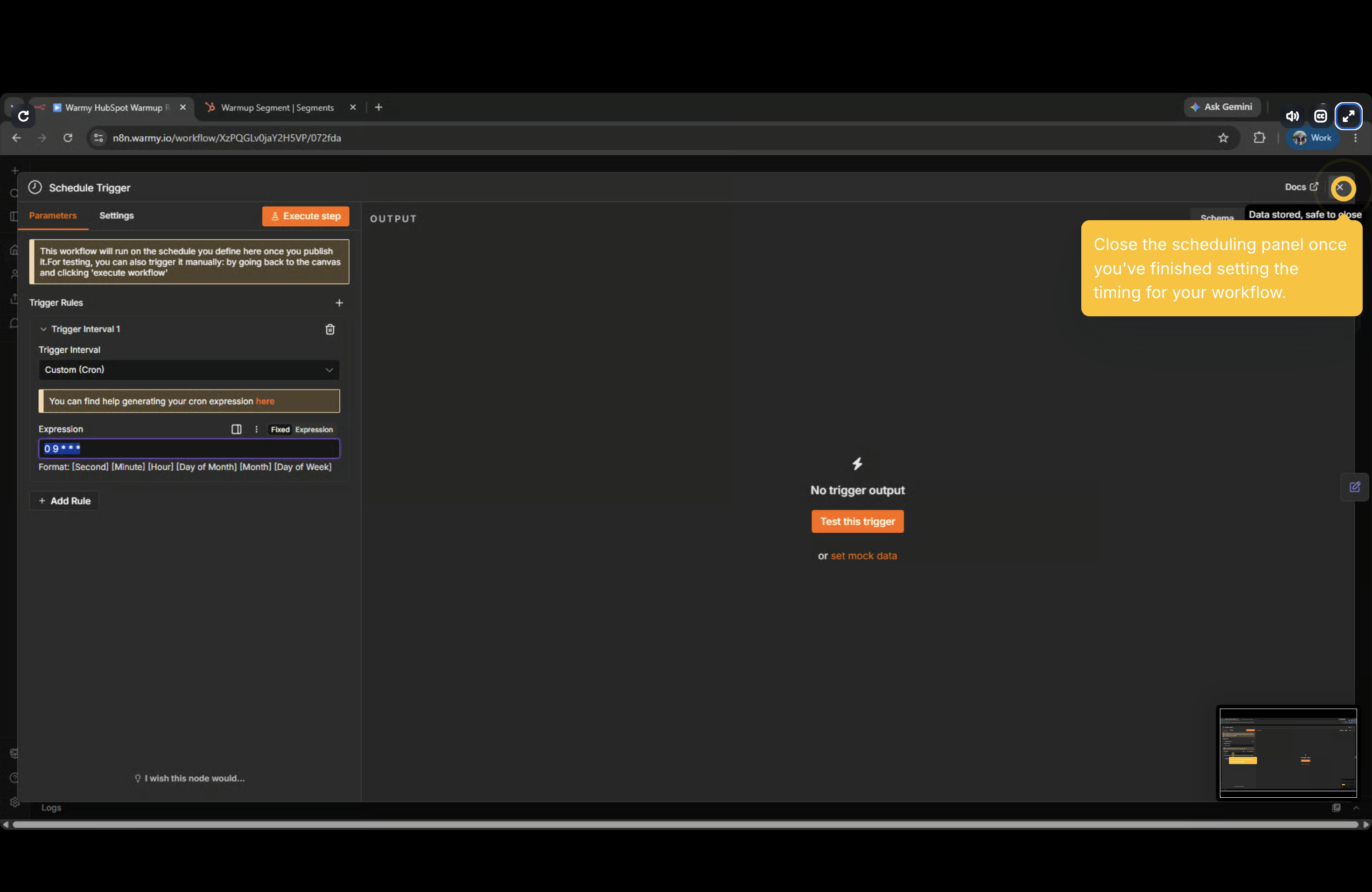
**Step 5 — Check the schedule**
Ensure the **Schedule Trigger** node is set to the correct daily runtime (defaults to 9 AM).
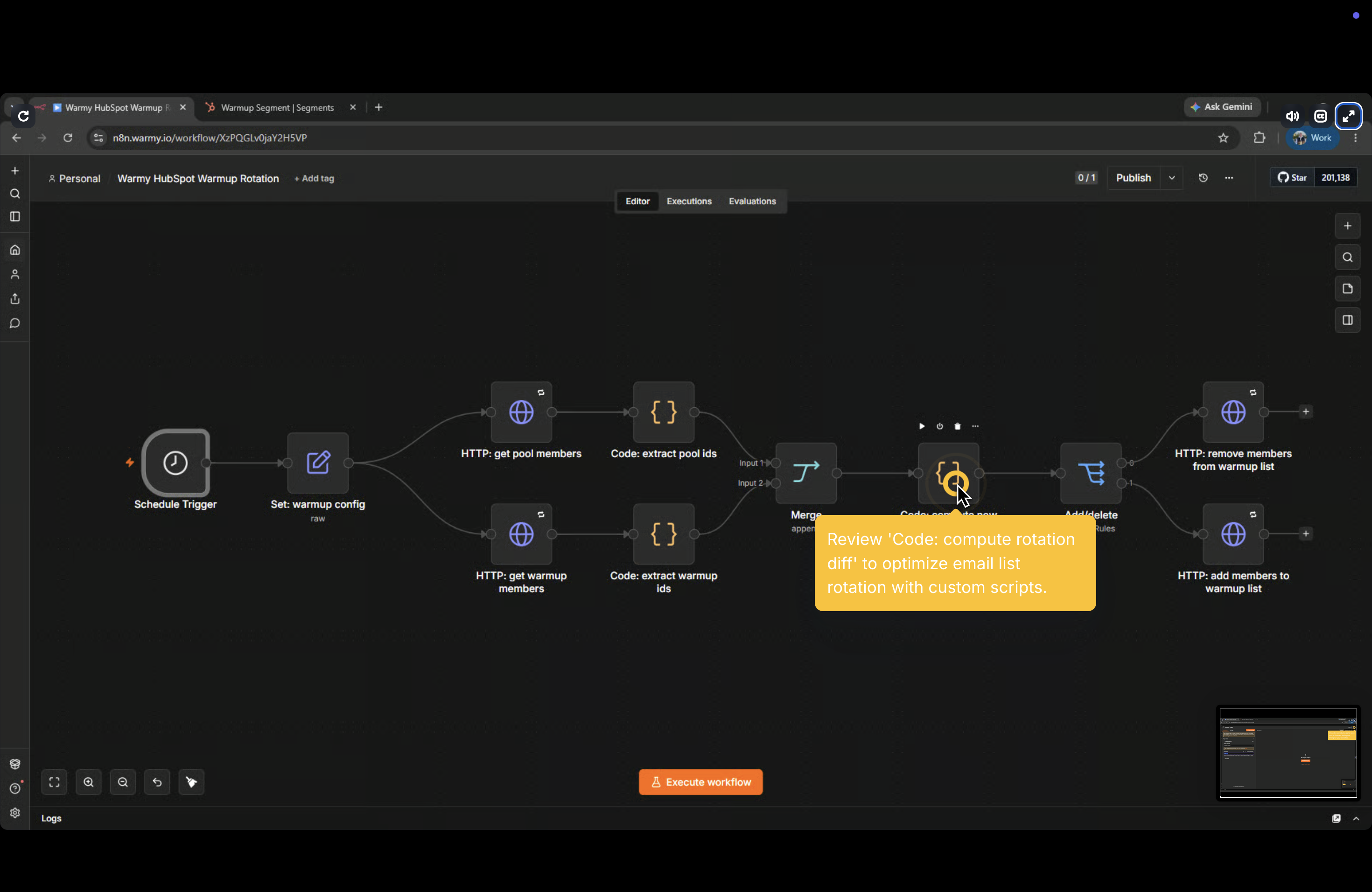
**Step 6 — Tune the growth rate (optional)**
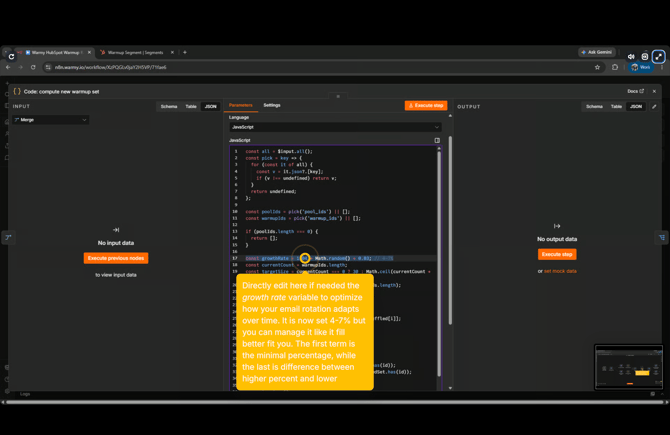
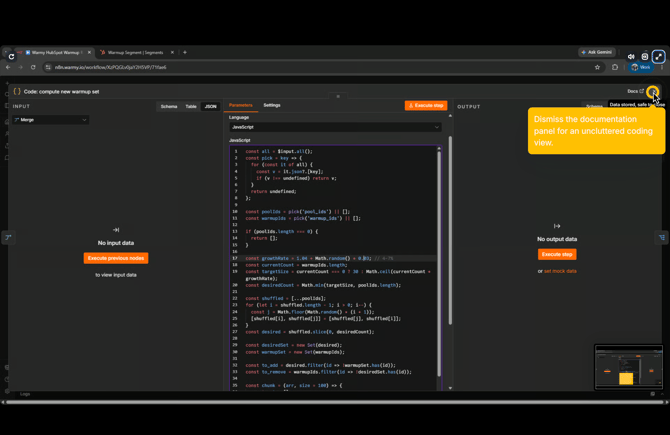
Open the **Code: compute new warmup set** node. You can modify the `growthRate` variable. By default, `1.04 + Math.random() * 0.03` generates a daily increase between 4% and 7%.
**Step 7 — Publish and test**
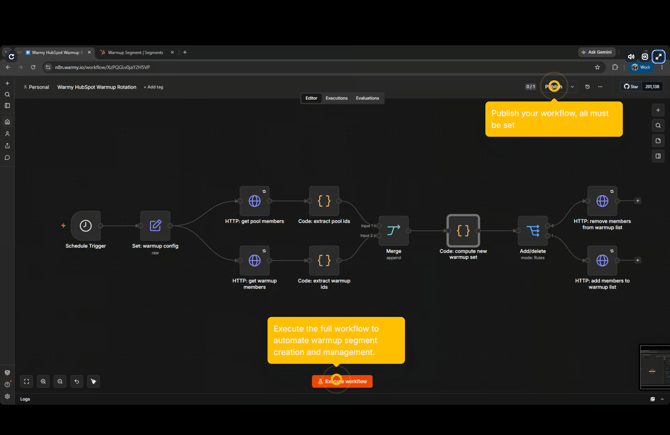
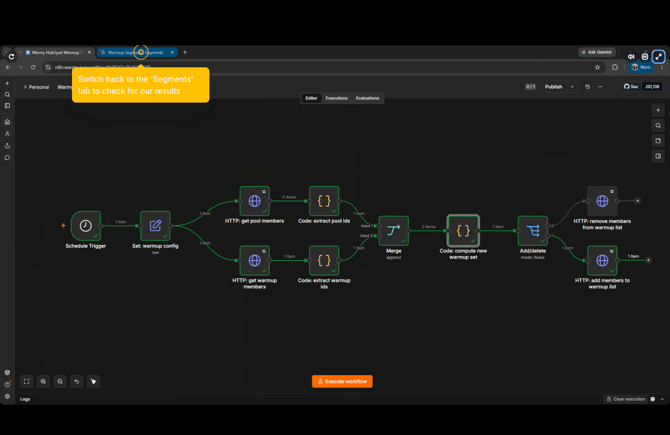
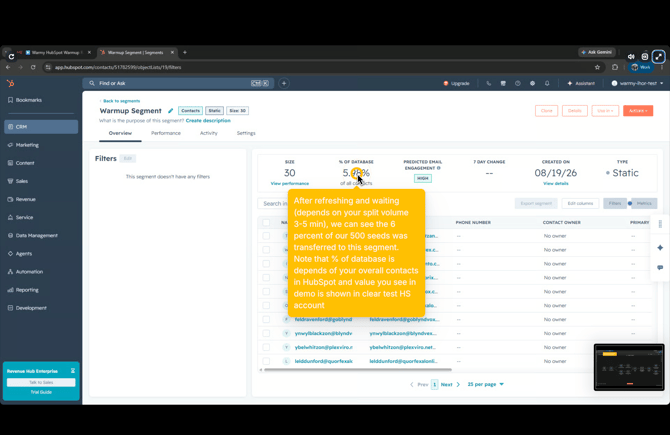
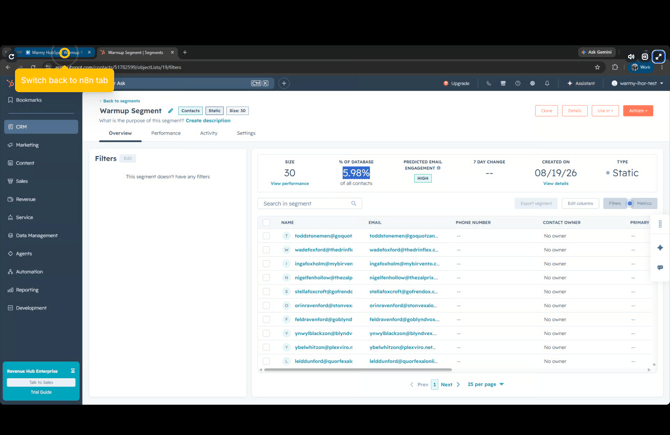
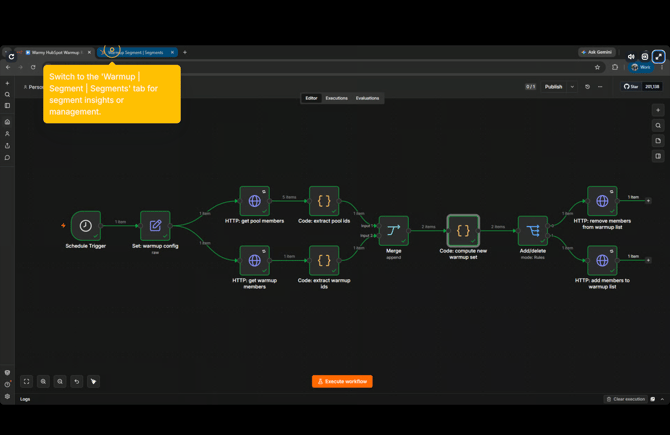
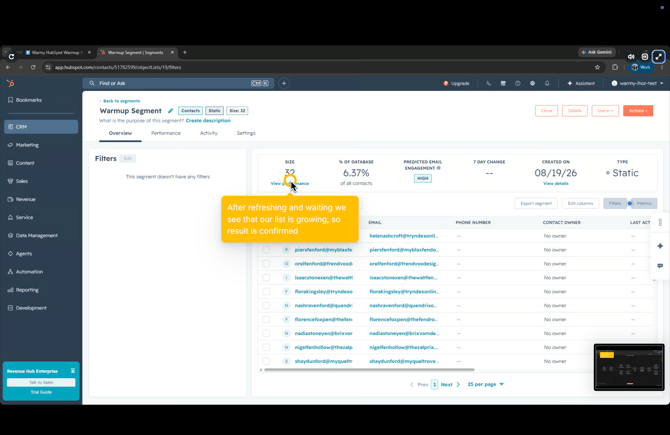
Activate the workflow using the top-right toggle. Click **Execute workflow** to run it manually. Wait 3–5 minutes for HubSpot to recalculate, then check the Segments tab to confirm pool contacts have transferred into the warmup segment. Execute manually a second time to verify the warmup segment size grows properly.
### Known Limitations & Troubleshooting
- **Empty Fetches:** If the pool list fetch is empty, the workflow aborts to protect the warmup list. It will retry on the next schedule.
- **Error Notifications:** HubSpot HTTP calls retry up to 3 times automatically. A persistent failure will only show in the n8n execution log unless a separate Error Trigger workflow is added.
- **Scalability:** To add another split, duplicate this workflow entirely rather than configuring a multi-split setup in a single canvas.
| **Symptom** | **Likely Cause** | **Fix** |
| --- | --- | --- |
| **Warmup segment member count does not change** | HubSpot is recalculating or the browser is cached. | Refresh after a few minutes; recheck on the next scheduled run. |
| **Warmup list stays empty after first run** | `pool_list_id` or `warmup_list_id` is incorrect, or the pool list is empty. | Verify config values and confirm the sync workflow populated the pool list. |
| **401 or 403 on HubSpot call** | The credential is not attached. | Repeat Step 1 to select the correct HubSpot credential. |
| **Nothing changes on the second run** | Growth calculation produced no new additions for small pools. | Check the output of the **Code: compute new warmup set** node in the execution log. |
| **Workflow never runs** | Workflow inactive or trigger misconfigured. | Toggle the workflow active and verify the Schedule Trigger timing. |
- [Connection Guide](https://support.warmy.io/knowledge/connection-guide?hsLang=en)
- [General questions](https://support.warmy.io/knowledge/general-questions?hsLang=en)
- [Technical questions](https://support.warmy.io/knowledge/technical-questions?hsLang=en#main-content)
- [SPF and DKIM Configuration](https://support.warmy.io/knowledge/technical-questions?hsLang=en#spf-and-dkim-configuration)
- [Subscription](https://support.warmy.io/knowledge/subscription?hsLang=en)
- [Collaborate](https://support.warmy.io/knowledge/collaborate?hsLang=en)
- [Features](https://support.warmy.io/knowledge/features?hsLang=en)
- [Troubleshooting](https://support.warmy.io/knowledge/troubleshooting?hsLang=en#main-content)
- [SMTP Errors](https://support.warmy.io/knowledge/troubleshooting?hsLang=en#smtp-errors)
- [Service-related issues](https://support.warmy.io/knowledge/troubleshooting?hsLang=en#service-related-issues)
- [Integrations](https://support.warmy.io/knowledge/integrations?hsLang=en#main-content)
- [Seed List Automations](https://support.warmy.io/knowledge/integrations?hsLang=en#seed-list-automations)
[](https://www.warmy.io/)
warmy.io Help Center
Copyright © 2026, AnyBiz LTD