![Group 1261151152.png]](https://support.warmy.io/hs-fs/hubfs/Group%201261151152.png?width=50&height=50&name=Group%201261151152.png)
👀 Please take a look in the video with the steps if you need any help 😎
How to Set Up Domain-Wide Delegation for MS365 in Warmy
Domain-wide delegation enables organizations using MS365 (Microsoft 365) to streamline the process of connecting multiple email accounts to Warmy for email warm-up. This eliminates the need for each employee to manually log in and connect their account, providing IT administrators and business owners with an efficient, scalable solution for managing email warm-up across their organization.
With domain-wide delegation, organizations can easily add and manage users’ email accounts in Warmy without the need for manual onboarding. This guide will walk you through how to set up domain-wide delegation and connect multiple mailboxes in bulk.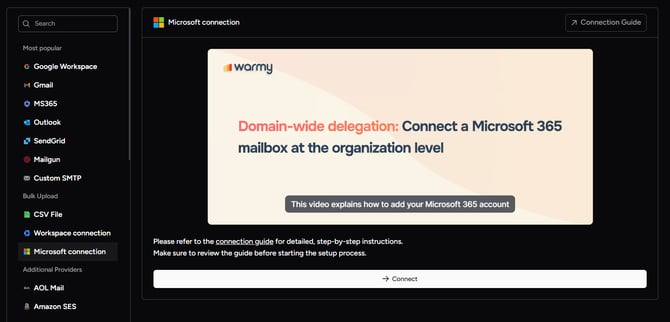
Step 1: User Management Interface
- Click Add new.
- In the Client ID field, paste the Service Account ID from the Warmy setup page.
Then copy the Scopes from the same page and paste them into the OAuth Scopes field. - Click Authorize to complete the setup.
- Once done, return to the Domain Delegation tab in Warmy, enter your Admin email address, and click Connect.
View Available Email Accounts:
- A list of all potential email accounts available for connection will be displayed.
- The status of each account will be visible, showing whether it is connected or not.
Bulk Connection Capability:
- You can select multiple email accounts to connect in bulk. This allows you to connect all employees’ accounts at once, saving time and effort.
- Account Selection:
- Only unconnected mailboxes will appear in the list for connection. If you select the “Select All” option, only unconnected accounts will be selected.
- Please note that there is a limit of 1,000 mailboxes per connection.
- Connection Limit:
- The number of mailboxes you can connect depends on your subscription plan. The system will automatically track and enforce the slot limits based on your plan.
- Validation of Available Slots:
- The system will validate the number of available slots for unconnected mailboxes. This ensures that you only select accounts that can be connected, preventing overages.
- Only unconnected mailboxes will appear in the list for connection. If you select the “Select All” option, only unconnected accounts will be selected.
- Please note that there is a limit of 1,000 mailboxes per connection.
- The number of mailboxes you can connect depends on your subscription plan. The system will automatically track and enforce the slot limits based on your plan.
- The system will validate the number of available slots for unconnected mailboxes. This ensures that you only select accounts that can be connected, preventing overages.
Step 2: Automated Account Connection
- Connect Mailboxes to Warmy:
- Once the accounts are selected, you can proceed with the automated connection process.
- No manual credentials are required for this process, as domain-wide delegation allows Warmy to securely authenticate and connect the mailboxes automatically.
- Once the accounts are selected, you can proceed with the automated connection process.
- No manual credentials are required for this process, as domain-wide delegation allows Warmy to securely authenticate and connect the mailboxes automatically.
Step 3: Monitoring and Management
- Track Connected Accounts:
- View the status of each connected account in your dashboard.
- You can reconnect or manage any account directly from the interface.
- View the status of each connected account in your dashboard.
- You can reconnect or manage any account directly from the interface.
Reconnecting Accounts:
- If needed, you can reconnect any accounts that were previously disconnected, without requiring individual user logins.
- Security and Compliance:
- Since you are leveraging MS365’s built-in authentication methods, the process is secure, and login credentials are not shared, reducing security risks.
Step 4: Troubleshooting and Support
- If you experience any issues with the domain-wide delegation setup or connecting mailboxes, please refer to the troubleshooting section on the Warmy support page.
- You can also contact Warmy support via WhatsApp for assistance.