![Group 1261151152.png]](https://support.warmy.io/hs-fs/hubfs/Group%201261151152.png?width=50&height=50&name=Group%201261151152.png)
🎧 Prefer to listen? Hit play to hear this article read aloud.
Introduction
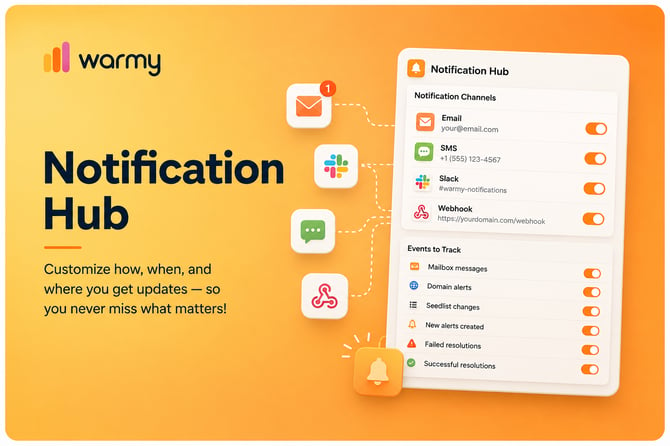
The Notification Hub is your central control panel for all Warmy updates. It lets you choose exactly which alerts you want to receive and how you want to receive them.
Previously, notifications were limited to email only. But we heard from customers managing multiple mailboxes or using Warmy at scale that you needed more flexibility. The Notification Hub gives you that flexibility.
By the end of this article, you'll know how to set up your preferred notification channels and select the specific events you want to track.
How to access the notification hub?
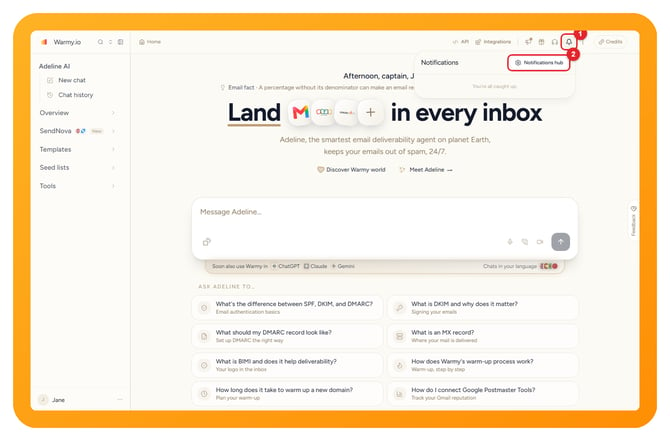
Click the bell icon in the top bar of any page, then select Notifications hub in the panel that opens.
How to set up your notification channels?
Notification channels are the ways you can receive alerts. You can set up multiple channels and turn each one on or off whenever you like.
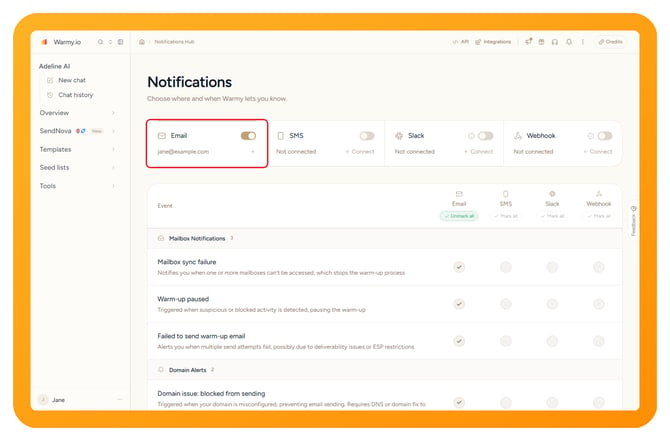
Email is the default channel, and it's already set to your account email address.
If you want to add additional email addresses:
1. Click on the email channel option.
2. Enter the email address where you want to receive alerts.
3. Save your changes.
Tip: Adding multiple email addresses is useful if team members need to stay informed.
Set up SMS notifications
To receive alerts by text message:
1. Click on the SMS channel option.
2. Enter your phone number, including the country code.
3. Save your changes.
Keep in mind that SMS messages are short by design. You won't receive long, detailed updates via text; just the essential information you need to act quickly.
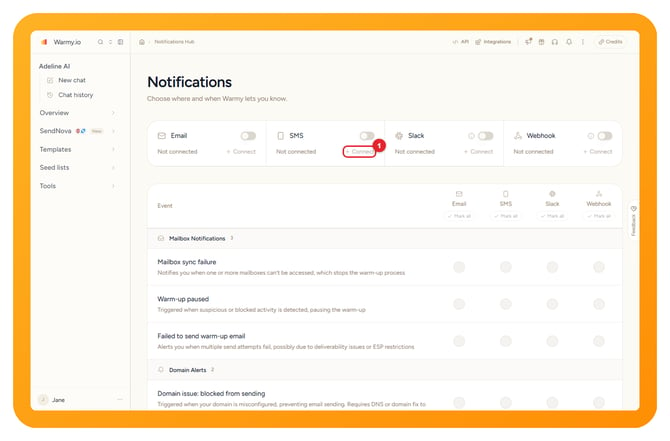
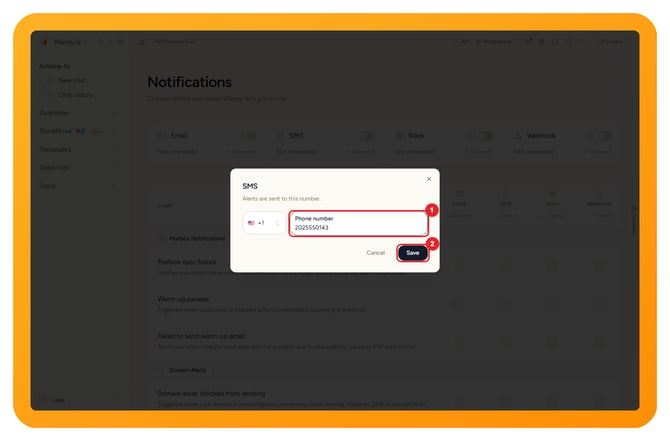
Connect Slack
If your team uses Slack, you can receive notifications directly in your workspace:
1. Click Connect on the Slack card. If you need help creating a webhook URL in Slack, click Instructions in the window.
2. Paste your Slack webhook URL into the field. The Slack channel that gets the notifications is the one you pick when you create the webhook in Slack.
3. Click Save.
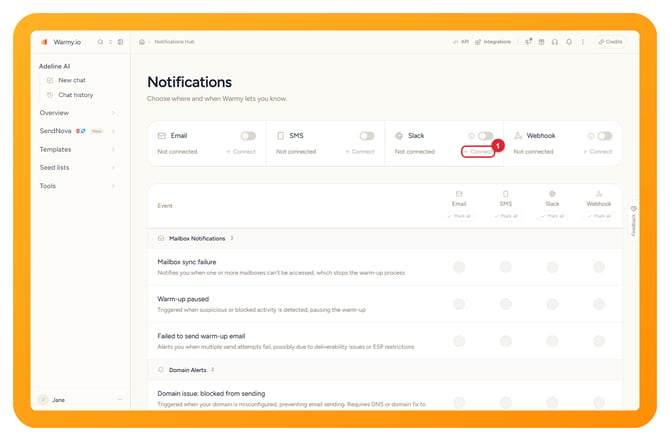
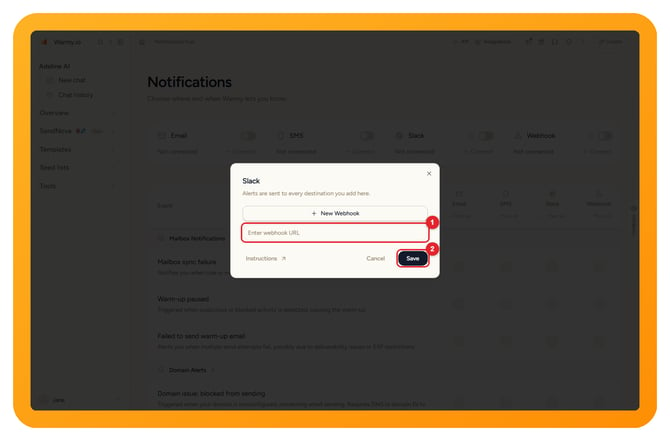
Note: You'll need permission to install apps in your Slack workspace. If you're not sure, check with your Slack admin.
Add webhooks for automation
For advanced users who want to connect Warmy notifications to other systems:
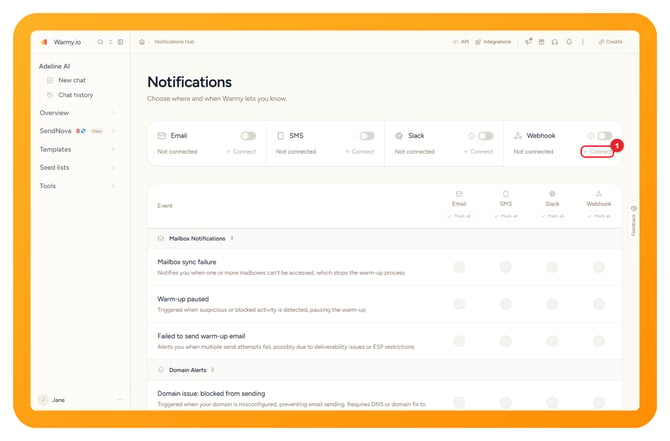
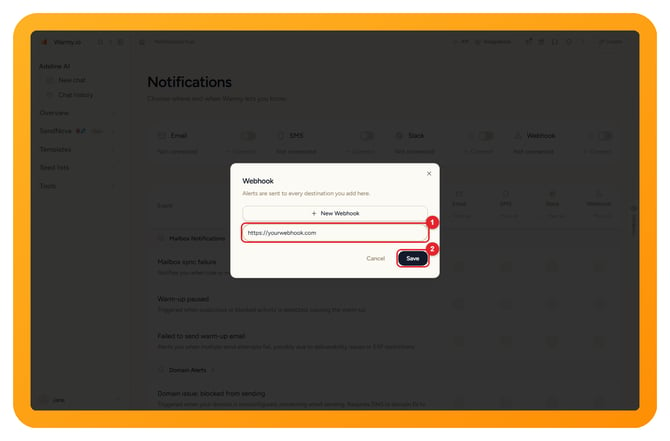
1. Click on the webhook channel option.
2. Add your endpoint URL; this is the address where you want to receive the data.
3. Save your changes.
What is a webhook?
Think of it as a way for Warmy to automatically send notification data to another app or service you use. It's useful if you want to trigger automated actions in response to Warmy alerts.
How to select the events you want to track?
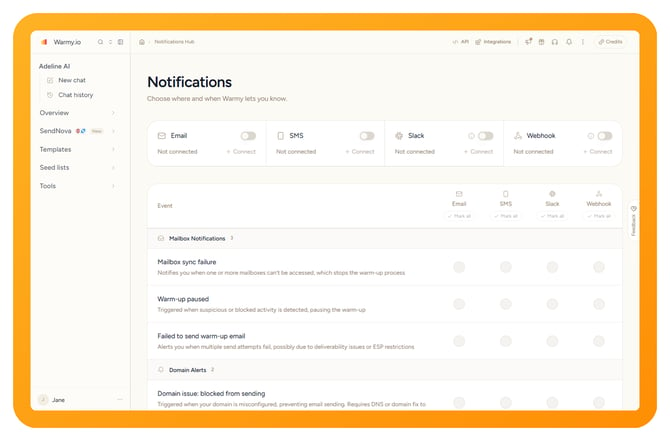
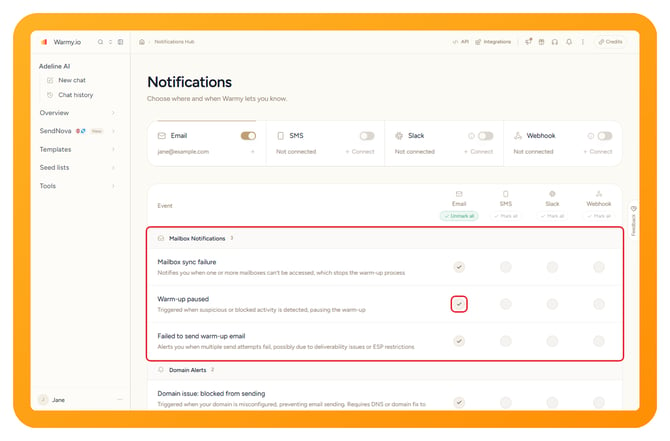
Once your channels are set up, you can choose which events trigger notifications. You can toggle each event on or off independently.
Events are listed in a table, grouped by topic. Each row has a checkbox for every channel: tick it to get that event on that channel, clear it to stop. The checkboxes work only for channels that are switched on. To tick or clear a whole channel at once, use Mark all or Unmark all under the channel name.
• Manage Mailbox Notifications
Toggle notifications for your mailbox activity, including warm-up progress and any issues that come up.
• Manage Domain Alerts
Turn notifications on or off for domain-related events, such as tracking problems or provider rejections. These alerts help you catch issues with your sending domains early.
• Manage Seedlist Changes
Stay updated when your seedlist changes or rotates. This helps you ensure your warmup process is running smoothly.
Manage alert status updates
You have several options for alert-related notifications:
• New alerts created: Get notified when a new alert appears in your account.
• Alerts that started resolving: Know when an issue is being addressed.
• Failed resolutions: If an alert couldn't be resolved, you'll be notified so you can reach out to Warmy support.
Note: The "Alert updates" option will be released soon, and additional notification types will be added over time. These new alerts will be turned on by default, but you'll always be able to manage them from this same panel.
What Happens Next?
Once you've configured your channels and selected your events, you'll start receiving notifications through your preferred methods. Each channel receives the same alerts, but the format is tailored to fit that platform; so SMS messages stay short while emails contain more detail.
You can always return to the Notification Hub to add new channels, remove old ones, or adjust which events you want to track. It's designed to grow with your needs.