---
title: Mailboxes Overview
description: Mailboxes tab overview
---
[Skip to content](https://support.warmy.io/knowledge/mailboxes-overview#main-content)
English
Show submenu for translations
![Group 1261151152.png\]](https://support.warmy.io/hs-fs/hubfs/Group%201261151152.png?width=50&height=50&name=Group%201261151152.png)
Open main navigation
Close main navigation
- English
Show submenu for translations
- [Go to warmy.io](https://www.warmy.io/)
[Go to warmy.io](https://www.warmy.io/)
Hey there Warmer! How can we help? 🙏
- There are no suggestions because the search field is empty.
1. [Help Center](https://support.warmy.io/knowledge?hsLang=en)
2. [Connection Guide](https://support.warmy.io/knowledge/connection-guide?hsLang=en)
# Mailboxes Overview
## Your central hub for monitoring and managing every connected mailbox in one place.
#### **What does the Mailboxes tab do?**
The Mailboxes tab gives you a complete, real-time view of all mailboxes connected to your Warmy workspace. From here you can:
- Monitor the health and warm-up performance of each individual mailbox
- Check deliverability scores, DNS and ISP scores at a glance
- Take action on a single mailbox or manage multiple in bulk (e.g., warm-up preferences, sending limits, warm-up topics, etc)
- Quickly identify any connection issues or errors that need attention
#### **Mailboxes Dashboard: Column Guide**
When you open the Mailboxes tab, you'll see a table with the following columns: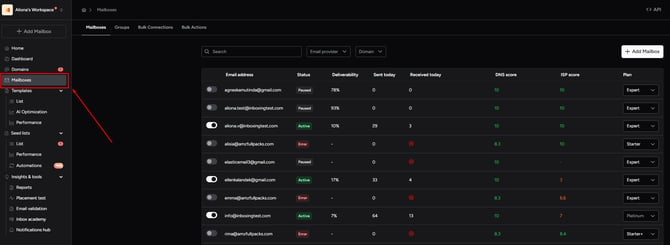
**Email address** — the full email address of the connected mailbox.
**Status** — the current state of warm-up for that mailbox.
(See the Mailbox Statuses section below for a full breakdown)
**Deliverability** — the percentage of warm-up emails that successfully landed in the inbox across our network. This gives you a quick read on how your mailbox is performing.
**Sent today** — the number of warm-up emails sent from this mailbox today.
**Received today** — the number of warm-up emails received by this mailbox today.
**DNS score** — a score reflecting the health of your domain's DNS records (SPF, DKIM, DMARC). A score of 10 means everything is configured correctly.
**ISP score** — a score reflecting how email providers currently view your mailbox's sender reputation (based on the latest [email deliverability test](https://support.warmy.io/knowledge/the-inbox-deliverability-checker?hsLang=en)).
**Plan** — the Warmy subscription plan assigned to this mailbox (for example Starter, Expert, Platinum).
---
#### **Mailbox Statuses**
Each mailbox in your workspace will show one of the following statuses: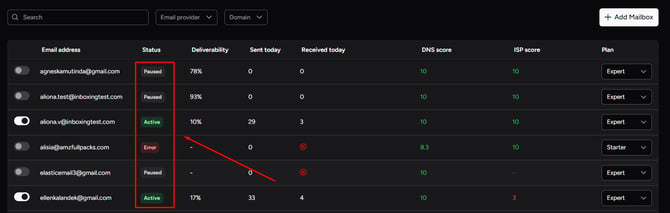
**Active** — the mailbox is connected, and warm-up is running normally. Emails are being sent and received as part of the warm-up process ✅
**Paused** — warm-up has been temporarily stopped. This can happen manually (when you pause a mailbox yourself) or automatically when the system detects a sending limit has been reached on the provider side. To resume, simply toggle the mailbox back on or resolve the underlying issue.
**Error (Blocked)** — Warmy has lost access to the mailbox. This is usually caused by updated SMTP credentials, a changed password, or a revoked OAuth token. To fix this, [disconnect the mailbox and reconnect it with the correct credentials](https://support.warmy.io/knowledge/how-to-switch-mailboxes-in-warmy?hsLang=en).
---
#### **Actions available in the Mailboxes tab**
From the Mailboxes tab, you can:
- **Search and filter** mailboxes by email provider or domain using the filters at the top of the table
- **Click into any mailbox** to open its detailed dashboard, including warm-up graphs, deliverability test results, and settings
- **Take bulk actions** such as pausing, resuming, or disconnecting multiple mailboxes at once. For a full breakdown of bulk actions, see the [Bulk Actions article](https://support.warmy.io/knowledge/bulk-actions-for-mailboxes?hsLang=en)
- **Add a new mailbox** using the "+ Add Mailbox" button in the top right corner
- **Groups** — [organize your mailboxes into named groups for easier management](https://support.warmy.io/knowledge/introducing-mailbox-groups-simplify-your-email-management-with-warmy?hsLang=en). For example, you can create a group for all Gmail mailboxes, one for Outlook, and so on. Each group shows you at a glance how many mailboxes are active, on hold, blocked, or have low deliverability, making it easy to spot issues across a specific segment. To create a group, click **+ Create Group** in the top right corner.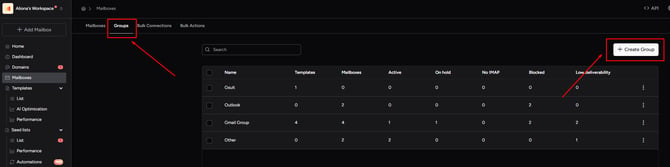
- **Bulk Connections** — connect multiple mailboxes at once instead of adding them one by one. You can bulk [connect via Google Workspace](https://support.warmy.io/knowledge/domain-wide-delegation?hsLang=en), [Microsoft Organization](https://support.warmy.io/knowledge/domain-wide-delegation-for-ms365?hsLang=en), or by [uploading a file](https://support.warmy.io/knowledge/how-to-bulk-upload-mailboxes-in-warmy?hsLang=en). Each bulk connection entry shows you how many mailboxes were processed, how many succeeded, and how many failed, so you always know the status of your import.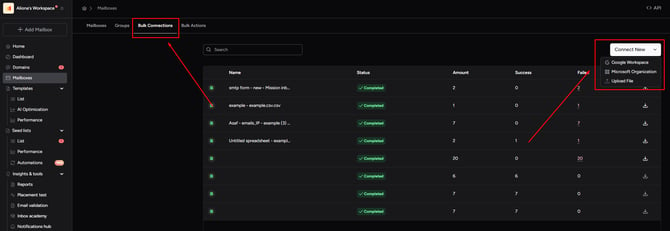
- **Bulk Actions** — apply changes to multiple mailboxes simultaneously. From here you can: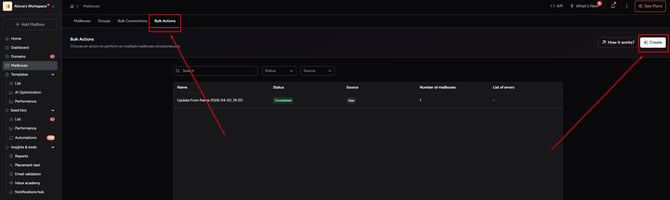
- Update the Send From Name across all selected mailboxes in one go
- Set or adjust daily sending limits for multiple mailboxes at once
- Apply warm-up settings or other configurations in bulk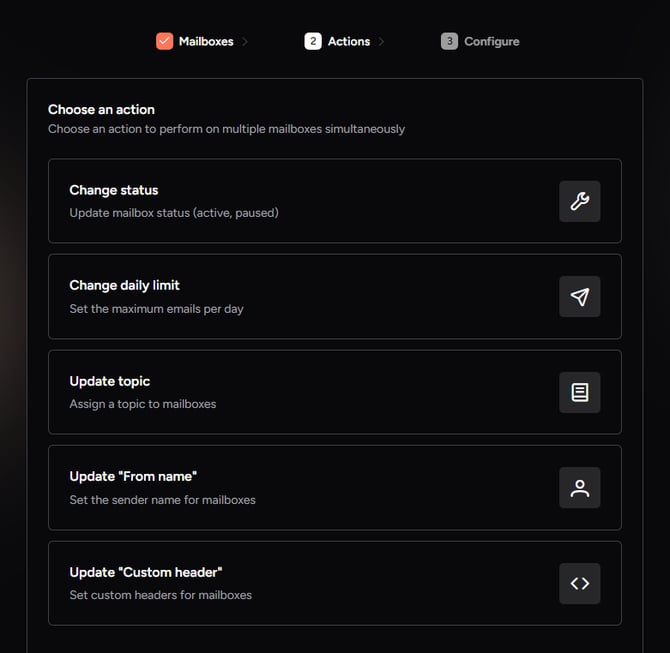
Each bulk action is logged with its name, status, source, number of mailboxes affected, and any errors that occurred, so you always have a full audit trail.
- For a full breakdown of bulk actions, see the [Bulk Actions article](https://support.warmy.io/knowledge/bulk-actions-for-mailboxes?hsLang=en)
Note: If you need to increase your plan's capacity to add more mailboxes, go to [**See Plans**](https://app.warmy.io/upgrade?utm_source=gemini)
---
#### **Mailbox Detail View**
***The Warmy dashboard displays your warm-up statistics. If you want to see the actual emails Warmy sends and receives, you just need to go to your actual email provider's mailbox and check your Sent and Inbox folders***
Clicking on any mailbox opens its individual dashboard where you can:
- View warm-up settings such as language, topic, and provider preferences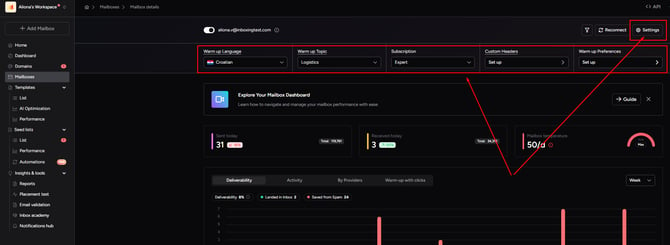
- Monitor daily sent and received volumes and mailbox temperature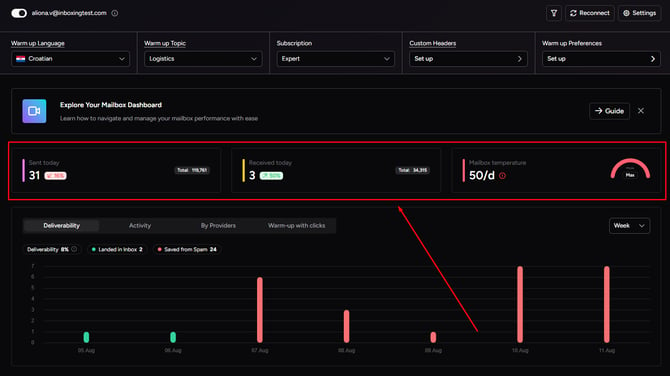
- Review deliverability charts by date and provider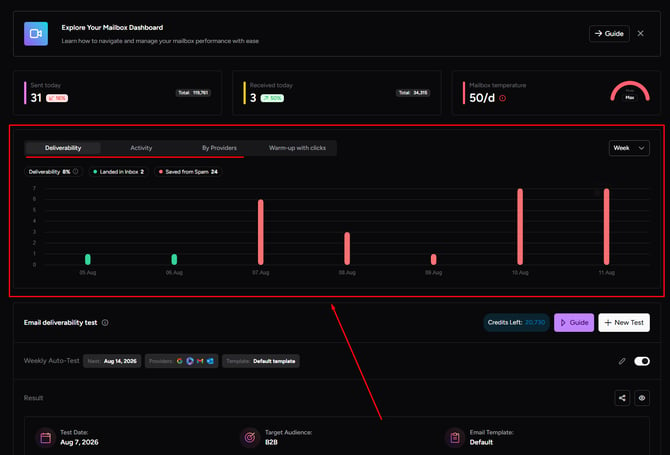
- Run or schedule a [deliverability test and view the results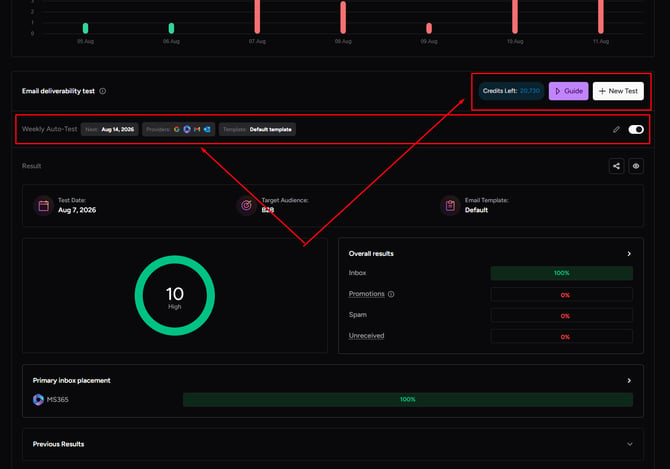](https://support.warmy.io/knowledge/the-inbox-deliverability-checker?hsLang=en)
- Access [warm-up with clicks](https://support.warmy.io/knowledge/warm-up-with-clicks?hsLang=en) analytics (if this feature is enabled, if not need to purchase)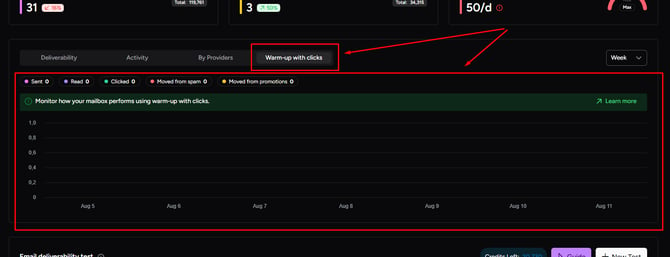
- Reconnect, pause (or unpause the warm-up), or adjust settings using the buttons in the top right corner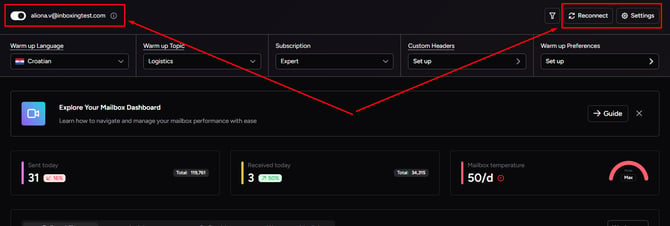
---
#### **Why use the Mailboxes page?**
The Mailboxes tab is your day-to-day control center. Instead of checking each mailbox individually, you get a single view of every connected address and can immediately spot anything that needs attention, whether that's an error status, a low ISP score, or a mailbox that hasn't sent any emails today. Staying on top of this helps you catch and fix issues early before they affect your deliverability. 🙌
---
#### **How It Works**
1. Navigate to the **Mailboxes** tab in the left sidebar of your Warmy dashboard.
2. Review the table to see the status, scores, and daily activity for each connected mailbox.
3. Use the search bar or filters to find a specific mailbox or group by provider or domain.
4. Click on any mailbox row to open its detailed view and manage its settings.
5. Use the toggle on each row to pause or resume warm-up for that mailbox.
6. For actions across multiple mailboxes at once, use the **Bulk Actions** tab.
#### [Need help? **Schedule a call with us 👨🏻💻**](https://www.warmy.io/book-a-support-call)
- [Connection Guide](https://support.warmy.io/knowledge/connection-guide?hsLang=en)
- [General questions](https://support.warmy.io/knowledge/general-questions?hsLang=en)
- [Technical questions](https://support.warmy.io/knowledge/technical-questions?hsLang=en#main-content)
- [SPF and DKIM Configuration](https://support.warmy.io/knowledge/technical-questions?hsLang=en#spf-and-dkim-configuration)
- [Subscription](https://support.warmy.io/knowledge/subscription?hsLang=en)
- [Collaborate](https://support.warmy.io/knowledge/collaborate?hsLang=en)
- [Features](https://support.warmy.io/knowledge/features?hsLang=en)
- [Troubleshooting](https://support.warmy.io/knowledge/troubleshooting?hsLang=en#main-content)
- [SMTP Errors](https://support.warmy.io/knowledge/troubleshooting?hsLang=en#smtp-errors)
- [Service-related issues](https://support.warmy.io/knowledge/troubleshooting?hsLang=en#service-related-issues)
- [Integrations](https://support.warmy.io/knowledge/integrations?hsLang=en#main-content)
- [Seed List Automations](https://support.warmy.io/knowledge/integrations?hsLang=en#seed-list-automations)
[](https://www.warmy.io/)
warmy.io Help Center
Copyright © 2026, AnyBiz LTD